How to Generate a SharePoint Permissions Report (Site, Library, and Item-Level) — Without PowerShell
What SharePoint shows you natively at each level, where that stops, and how to produce one exportable report without writing a script.

Quick summary
- Site level: Settings → Site permissions lists the groups and direct grants; Check Permissions answers for one person.
- Library level: the library permissions page tells you whether it still inherits from the site.
- Item level: Manage access on a folder or file shows people, groups and links — one item at a time.
- One report: SPO Scout walks the site and flags the objects with broken inheritance (Free); group expansion and CSV, PDF or JSON export are Pro.
A permissions report answers one question at whatever scope you ask it: who can reach this, with what permission level, and how did they get it? SharePoint answers that well for one object at a time. What it does not do is put the exceptions across a whole site in front of you with the people who hold them — the folders and files that stopped inheriting years ago and that nobody remembers sharing.
This guide walks the native route at each level first, is precise about where it stops, and then produces the whole report in one pass.
In a hurry? Generate the report visually with SPO Scout — site, library, folder and file scope, group expansion and export, no scripting. Signing off an access review rather than producing a one-off report? Work through the SharePoint permissions audit checklist instead.
What the report has to answer
Whatever produces it, a permissions report that will survive an audit shows, for every object in scope:
- Who has access — users, SharePoint groups, Microsoft 365 groups, security groups
- What they can do — Full Control, Edit, Contribute, Read, or a custom level
- How they got it — inherited from the parent, granted directly, or through a group
- Whether the object inherits or has unique permissions
- Which sharing links exist on it, including "Anyone with the link"
And it has to be a file. A review captured on a date is the only record of what was true then; a screenshot of one panel is not a report.
Step 1: Site-level permissions
Site level tells you who can reach the site at all. The native route:
- Open the site and choose the Settings gear → Site permissions. The panel lists Site owners, Site members and Site visitors with their permission level, plus anyone who has been granted access directly.
- Choose Advanced permissions settings for the classic permissions page. This lists every group and every directly granted user with its permission level, and each group name links to its membership page.
- To answer the question for one person, choose Check Permissions on that page's ribbon and enter their name. The result shows their permission levels on the site and the "given through" column — the group or direct grant that produced each one.
The limit is that groups are containers. The panel tells you "Finance Members — Edit"; finding out who is in Finance Members is a separate click per group, and a Microsoft 365 group behind a Team appears as a single entry with its membership held elsewhere. Check Permissions is accurate, but it answers for one person on one object and does not walk down into libraries, folders and files.
Step 2: Library-level permissions
Libraries are where the first exceptions usually appear. To check one:
- Open the document library.
- Select the Settings gear → Library settings → More library settings.
- Choose Permissions for this document library.
The banner at the top of that page is the answer. A library that still inherits shows only the parent site's groups:
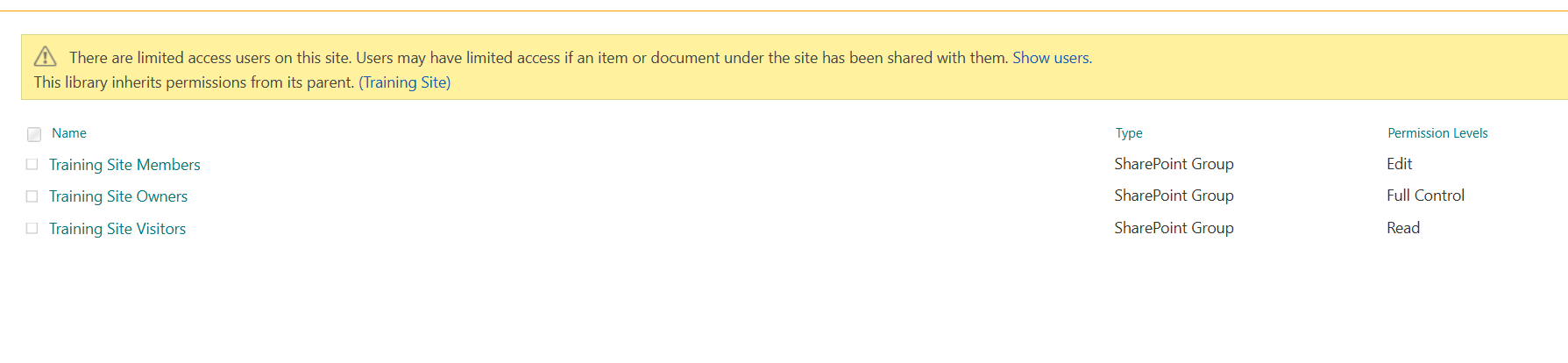
A library that still inherits: the banner says so, and only the site's three groups are listed.
A library with unique permissions lists the same groups — copied at the moment inheritance broke, not inherited — plus whatever was granted afterwards:

A library with unique permissions: one user holds Contribute here and nowhere else in the site.
That is the distinction worth internalising. Breaking inheritance does not remove existing access; it copies the list of who holds which permission level. From that moment, permissions granted or removed on the site no longer reach this library. Group membership still does: the copy names the group, so removing someone from Site Members removes that access here too.
Step 3: Folder and file permissions
Item level is where most audit findings live: a folder shared for a project and never cleaned up, a document shared with a contractor who has since left. To check one item:
- In the library, select the folder or file.
- Open the ⋮ menu and choose Manage access.
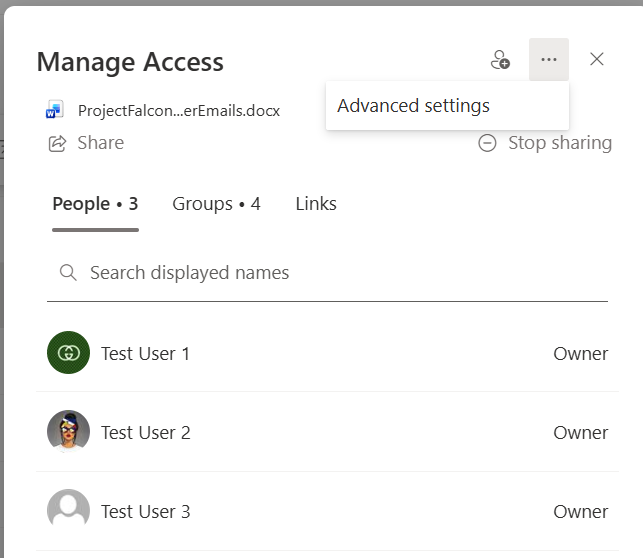
Manage access splits the answer into People, Groups and Links, each with a count.
Read the counts carefully. Three people and four groups is not seven people — each group carries its own membership. Older tenants show the same information as two stacked sections, Links giving access and People with direct access, rather than tabs.
For the underlying role assignments, and to confirm whether the item inherits, open the panel's ⋯ menu and choose Advanced settings. That is the classic permissions page for the item, with the same inheritance banner a library has:
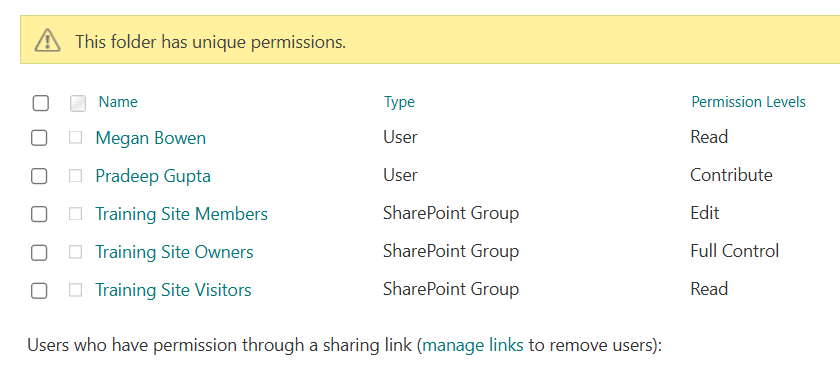
A folder with unique permissions. Note the separate line for access held through a sharing link.
To find the exceptions without opening every item, go back to the library's permissions page. When anything inside has its own permissions, the banner reads "Some items of this list may have unique permissions which are not controlled from this page", and Show these items lists them. Each one is still opened separately to see who holds access.
Step 4: Sharing links
Sharing links sit alongside the permission model rather than inside it, which is why they are so often missed. On any item, the Links tab of Manage access lists each link with its scope stated in words:
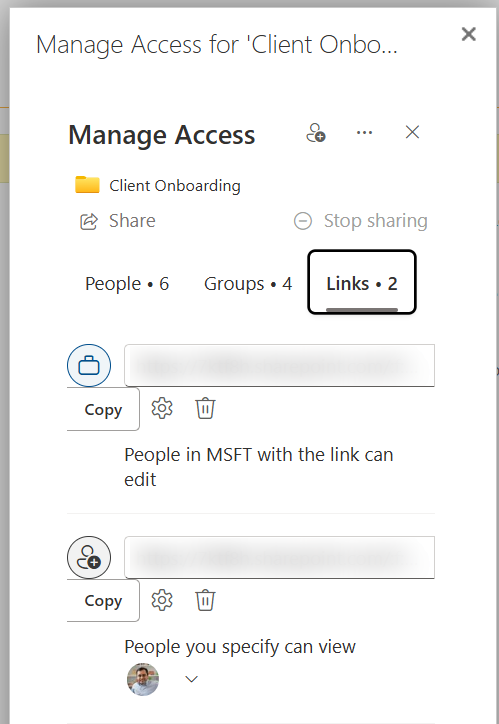
The Links tab: one organisation-wide edit link and one link for named people.
Across a whole tenant, the SharePoint admin center's sharing reporting is the native answer, subject to SharePoint Advanced Management licensing. For one site, a site admin can export a CSV of its sharing from Site usage → Run report, though it leaves out Anyone links. Across a single library, you either walk the items yourself or use something that walks them for you.
Where the native route stops
Everything above is accurate and it is the source of truth. What it does not give you:
- The exceptions and the people who hold them in one view: Show these items names the items, one library at a time, and each is opened separately
- SharePoint groups resolved to the people inside them — neither the permission pages nor the site sharing report do this
- A report you can work through beside the site: the sharing report arrives by email as a CSV and leaves out Anyone links
So the native tooling answers "what is the state of this object?" very well, and it can tell you where the exceptions are. What it does not answer quickly is the question an audit asks next: who, as a person, can open each one?
Step 5: Generate the whole report in one pass
SPO Scout runs as a side panel inside the SharePoint page you already have open, using the session you are already signed in with. There is no app registration and no tenant-wide consent — it can only read what your own account can read.
- Open any page on the SharePoint site.
- Open the SPO Scout panel from the extension icon.
- Run Permissions Report, or Permissions Report (Expanded) to resolve group membership as well.
- Read the Broken Inheritance count in the summary.
- Expand Unique Permissions to see each object that has stopped inheriting, with the principals and permission levels attached to it.
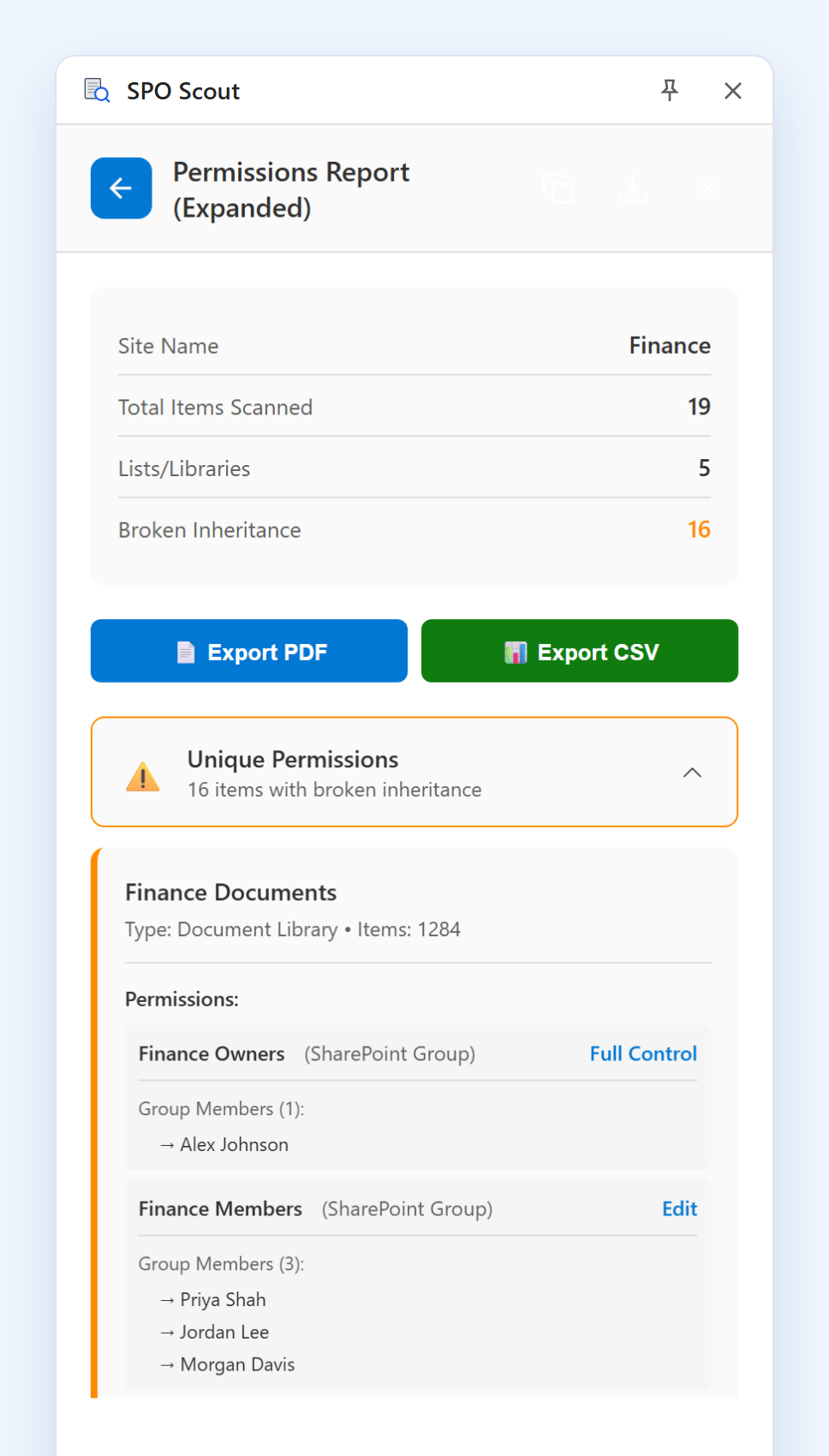
An expanded report: five lists and libraries, sixteen items with broken inheritance, and each group resolved to its members.
The result is one view the native pages do not give you: the lists and libraries in scope, which of them broke inheritance, the folders and files beneath them that did the same, and who holds access to each. In the expanded report a row reads "Finance Members — Priya Shah, Jordan Lee, Morgan Davis — Edit" rather than just the group name, which is usually the next question anyway. Expansion covers SharePoint groups; a Microsoft 365 group behind a Team is listed as a single entry.
What is free and what is Pro. Site, library and item-level reporting is on the free tier, three analyses a day. Group expansion, the shared-links scan, resetting unique permissions back to inherited, and export are Pro.
Exporting the report
Pro exports to CSV for spreadsheet work, PDF for the audit file, and JSON if another system consumes it. Exports are generated in the browser and saved by your browser's own download manager; the data does not pass through SPO Scout servers on the way.
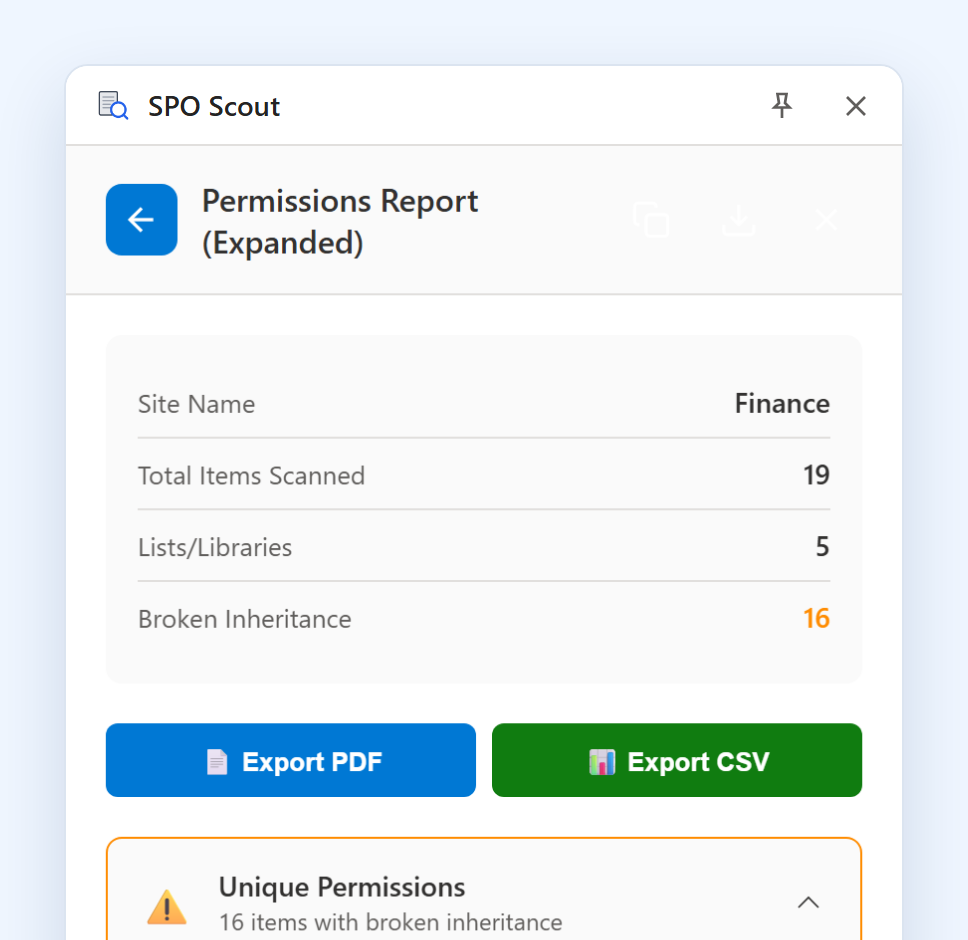
Export PDF and Export CSV in the panel (Pro).
Native SharePoint, PowerShell, or SPO Scout
These solve overlapping but different problems. PowerShell is not the wrong answer; it is the right answer for automation, and no browser extension replaces it there.
| Task | Native SharePoint | PowerShell / PnP | SPO Scout |
|---|---|---|---|
| Site permission report | Site permissions panel, one site at a time | Write or adapt a script, then run it | Open the side panel and run it |
| Every library, folder and file with unique permissions, as one list | Not available — inspect objects individually | Recursive script | Included in the report (Free) |
| Groups resolved to named people | One group at a time, on its membership page | Scripted | Expanded report (Pro) |
| Sharing links across a library | Links tab per item; admin-center reporting needs extra licensing | Scripted | Shared-links scan (Pro) |
| Export for the audit file | Screenshots | Export-Csv | CSV, PDF or JSON (Pro) |
| Scheduled, unattended runs | No | Yes — this is where PowerShell wins | No, interactive by design |
Mistakes that make a report incomplete
Stopping at the group name
"Marketing Members — Edit" has not answered the question. Whoever asked wants names, and nested groups or a Microsoft 365 group behind a Team hide people two levels down. Check those in Teams or the Microsoft 365 admin center, because a SharePoint-side report lists them as a single entry.
Reporting at the wrong scope
A site-level report will never show a folder that broke inheritance. Fixing the parent does not fix the exceptions either: an item that stopped inheriting keeps whatever it was given at the time.
Forgetting sharing links
"Anyone" links do not care about group membership at all, and they outlive the project they were created for.
Not keeping the evidence
Permissions change. If the review cannot show what was reviewed, on which date, it is not much of a review.
When to run one
- Before and after a migration
- Before a compliance audit or an access review
- During a security investigation ("why can this person open that?")
- When someone leaves, changes role, or a contractor engagement ends
- Quarterly, as routine governance — sharing does not stop
Frequently asked questions
- Is there a native SharePoint permissions report?
- Partly. SharePoint shows the permissions of one object at a time — a site, a library, a folder or a file — and Check Permissions answers for one person on one object. A library's permissions page can list the items inside it that have stopped inheriting (Show these items), and a site admin can export a CSV of the site's sharing from Site usage. That report lists SharePoint groups by name rather than the people in them, and it leaves out Anyone links.
- Do I need to be a site administrator?
- You need enough access to open the permissions pages of the objects you want to report on. SPO Scout runs in your own session and can never see more than your account can, so a full site report needs an account with sufficient rights on that site.
- Is item-level reporting a Pro feature?
- No. The free tier reports on a whole site, including every folder and file with unique permissions. Resolving each group to the people inside it, exporting to CSV, PDF or JSON, and resetting unique permissions back to inherited are Pro.
- Can I schedule the report?
- Not with SPO Scout — it is interactive by design, run from the page you are looking at. For scheduled or tenant-wide reporting, PowerShell with PnP is still the right tool; the two are complementary.
Generate your first permissions report today
Install free, open a site you administer, and run the report. No PowerShell, no app registration, no credit card.
Free tier includes 3 analyses per day
Go deeper on permission reporting
Detailed walkthroughs of the scopes a permissions report covers.
- SharePoint Permission Reporting Tools Compared →
SharePoint permission reporting tools compared, and why SPO Scout is a quick start: every exception, who has access, and no app registration.
- How to Find Unique Permissions in SharePoint Online →
Find the libraries, lists, folders and files with unique permissions in a SharePoint site, and who has access to each, in one SPO Scout report.
- How to See Who Has Access to a SharePoint Folder →
See who can open a SharePoint folder, and every folder with its own permissions in a site, in one SPO Scout report. Group members and links on Pro.
- How to See Who Is Inside SharePoint Permission Groups →
See who is inside the SharePoint groups on a site's libraries, folders and files, not just group names: SPO Scout's expanded report lists members (Pro).
- How to See Who Has Access to a SharePoint File →
See who can open a SharePoint file, and every file with its own permissions in a site, in one SPO Scout report. Group members and sharing links on Pro.