How to Find Unique Permissions in SharePoint Online
Unique permissions are easy to create and hard to track. How inheritance works, how to find the exceptions natively, and how to audit them across a site.
Quick answer: what are unique permissions?
SharePoint uses inheritance by default. A library inherits its permissions from the site, a folder inherits from the library or its parent folder, and a file inherits from the folder it sits in. Change who can access the site, and that change flows down everywhere.
A unique permission is what you get when that chain is deliberately broken. Once an item stops inheriting, it has its own independently managed set of permissions, and permission changes made higher up no longer reach it.
Two things create them:
- An administrator explicitly chooses Stop Inheriting Permissions on a library, folder or file.
- Someone shares a file or folder. Sharing an individual item breaks its inheritance automatically: SharePoint copies the inherited permissions onto the item and adds the new access.
The second is the one that surprises people. Nobody sat down and decided to fragment the permission model. It happened one "Share" click at a time, over months.
Unique permissions are not automatically a problem. A genuinely confidential folder inside an otherwise open library is a legitimate reason to break inheritance. The goal of an audit is not to eliminate them. It is to find every exception and decide, deliberately, whether each one is still intentional.
Why unique permissions are hard to audit
Site-level permissions tell you who can reach the site. They do not tell you who can reach everything inside it, and that gap is where audits go wrong.
Four things make this genuinely awkward:
- Access can differ at every level. A user excluded from the site can still hold access to one folder inside it, because that folder was shared with them directly.
- A sharing action from two years ago still counts. The person who shared it may have left. The item keeps its unique permission regardless.
- Fixing the parent does not fix the exceptions. Remove a group's permission from the site, or lower its permission level, and every item that stopped inheriting keeps the old assignment. Group membership still applies everywhere the group is used, so removing someone from Site Members does take away that group's access. What stays is anything granted to them directly on an item or through a sharing link.
- Manual inspection does not scale. Checking inheritance on one folder takes a few clicks. Checking four thousand of them is a different exercise entirely.
To be clear: Microsoft does give you ways to inspect all of this, and the native UI is the source of truth. It will even list the exceptions, one library at a time, and a site admin can export a site's sharing as a CSV. What it does not do is put the exceptions, who holds access to each one and the people inside each group into a single view you can work through.
How to check unique permissions using native SharePoint
This is the built-in path, and it is worth knowing before reaching for any tool.
Check whether a library still inherits
- Open the document library.
- Select the gear icon → Library settings → More library settings.
- Choose Permissions for this document library.
At the top of that page SharePoint tells you plainly which state you are in. You will see either:
- "This library inherits permissions from its parent." with a Stop Inheriting Permissions button, or
- "This library has unique permissions." with a Delete unique permissions button, which restores inheritance from the parent.
A library that still inherits lists the parent site's groups and nothing else:
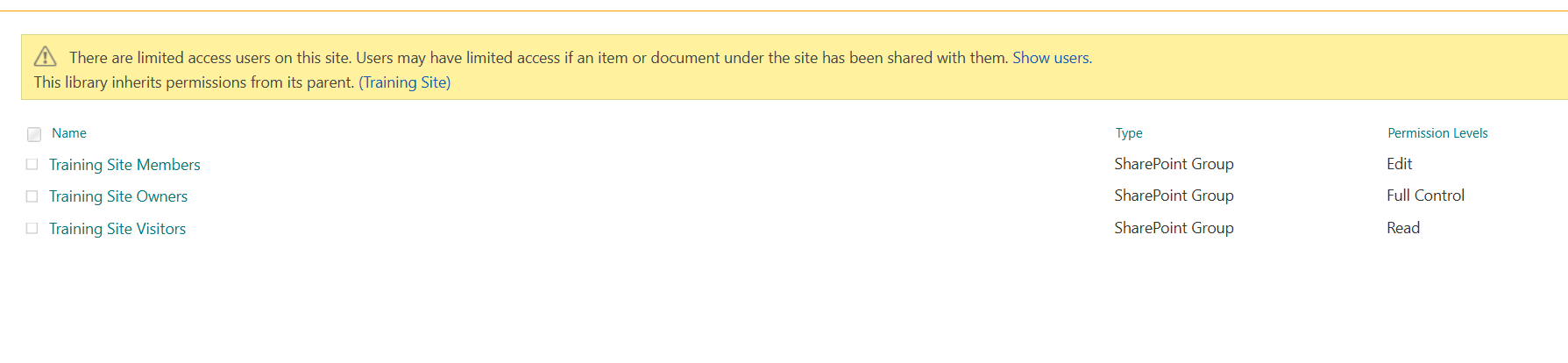
A library with unique permissions lists the same groups (copied at the moment inheritance broke, not inherited) plus whatever was granted afterwards. Here one user holds Contribute on this library and nowhere else:

That is the difference worth internalising: breaking inheritance does not remove the existing access. It copies the list of who holds which permission level. From that point on, permissions granted or removed on the site no longer reach this library. The copy names groups rather than the people in them, though, so a change to a group's membership still applies here.
That banner is the fastest reliable answer for a single library.
List the exceptions inside one library
The same permissions page also tells you whether anything inside the library has stopped inheriting. If a folder or file has its own permissions, the banner adds a line:
"Some items of this list may have unique permissions which are not controlled from this page."
Select Show these items next to it. SharePoint opens a list of those items, and from each one you can go to its permissions to see who holds access. The site's own permissions page has a similar line, "Some content on this site has different permissions from what you see here", which lists the lists and libraries that have stopped inheriting.
This is the native answer to "where are the exceptions?", and for a single library it is a good one. Its limits are that it works one library at a time and names the items rather than who can open them, so each exception is still a separate visit.
Check a folder or a file
- In the library, select the folder or file.
- Open the ⋮ menu → Manage access.
Current SharePoint splits the panel into three tabs, People, Groups and Links, each carrying a count:
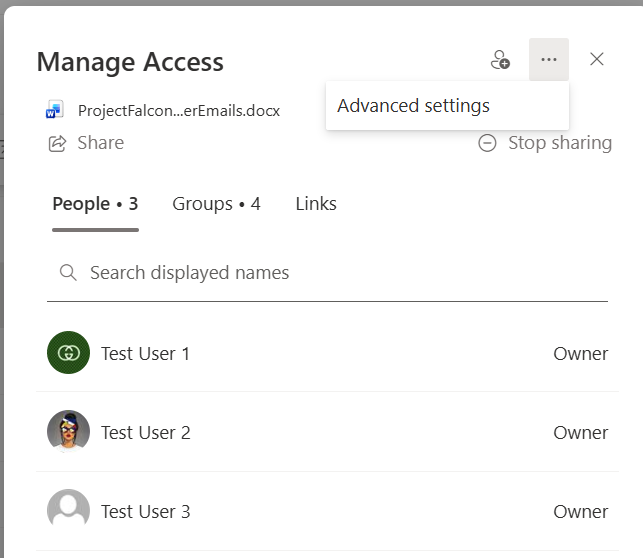
The counts are the part worth reading. Three people and four groups is not seven people: the groups carry their own membership, and resolving it is a separate job for each one. Links is a third tab because a sharing link is its own grant rather than a permission held by a person.
Older tenants show the same information as two stacked sections, Links giving access and People with direct access, rather than tabs. The distinction being drawn is identical.
For the underlying role assignments, and confirmation of whether inheritance is intact, open the panel's ⋯ menu and choose Advanced settings. That opens the classic permissions page, the same one the gear → Library settings route reaches.
Export a site's sharing as a CSV
If you are a site admin, SharePoint will produce a file for you:
- Open the site and select the gear icon → Site usage.
- In the Shared with external users section, select Run report.
- Choose where on the site to save the CSV, then select Save.
Microsoft describes the result as a CSV "of every unique file, user, permission, and link" on the site. Despite the section's name it covers internal people too: each row carries the item's path, the permission level, the user or group, and whether that user is an internal member or a guest. It can take a while on a large site, and you get an email when it is ready. Save it somewhere only site owners can open, because it is itself a map of the site's access.
Microsoft documents its limits: SharePoint groups appear by name rather than as the people inside them, and Anyone links are not included, nor are links that were emailed but never opened. See Report on file and folder sharing in a SharePoint site.
You may also see a Shared With column suggested for this. Treat it as a hint rather than a record: Microsoft notes that it can keep showing people after their access has been removed, and recommends Manage access, audit logs or the sharing report instead.
What the native view does and does not show
Worth being precise here, because both overstating and understating this leads to bad decisions.
The native tools do show you:
- whether a specific item inherits or has unique permissions
- which users, groups and links hold access to that item, and at what level
- which items in a library have stopped inheriting, through Show these items
- a site-wide CSV of shared items, users and permission levels, for site admins
Where they stop:
- the exceptions list names items, not who can open them, and it covers one library at a time
- neither the permission pages nor the sharing report resolve a SharePoint group to the people inside it
- the sharing report leaves out Anyone links, and it arrives as a file rather than something you can inspect beside the site
So the native tooling can tell you where the exceptions are. The slow part is the next question an audit asks of each one: who, as a person, can actually open it?
Want the exceptions and who holds access to each one in a single view? SPO Scout shows inherited and unique permissions in a panel inside SharePoint, without leaving the site.
How to do the same workflow with SPO Scout
SPO Scout runs as a side panel inside the SharePoint page you already have open, using the session you are already signed in with. There is no app registration and no tenant-wide consent. It can only read what your own account can read.
To find unique permissions across a site:
- Open any page on the SharePoint site.
- Open the SPO Scout panel.
- Run Permissions Report, or Permissions Report (Expanded) to resolve group membership as well.
- Review the Broken Inheritance count in the summary.
- Expand Unique Permissions to see each object that has stopped inheriting, with the principals and permission levels attached to it.
The result is one view of the site's lists and libraries, which of them broke inheritance, the folders and files inside them that did the same, and the users and groups holding access to each, with their permission levels.
In the expanded report, SharePoint groups are resolved to their members, so a row reads "Finance Reviewers — Megan Bowen, Miriam Graham, Nestor Wilke — Read" rather than just the group name. That matters during an access review, where "who is in that group?" is usually the next question anyway. One case to know about: on a site connected to a Microsoft 365 group, which includes every team in Teams, the site's Members and Owners groups contain that Microsoft 365 group. It appears in the report as a single entry, and its membership is managed in Teams or the Microsoft 365 admin center.
Item-level permission reporting (site, library and item) is available on the free tier. Group expansion and export are Pro features.
What to look for in the results
A list of exceptions is not an answer by itself. These are the patterns worth acting on:
Direct user grants. An individual named on an item, rather than a group, is the classic sign of an ad-hoc fix. It is invisible to group-based access reviews and it survives every change you make to the groups.
Sharing links. A link is its own grant, and an Anyone link does not care about group membership at all. Links are not part of the permission report. Check the Links tab in Manage access for a single item, or run SPO Scout's shared-links scan (Pro), which lists the items in a library that carry links and the type of each.
Guests. Someone from outside the organisation holding access to an item the surrounding library does not grant them. The permission report shows guests by display name without marking them as guests, so cross-check names you do not recognise. The site sharing report's user type column labels them.
Full Control where Edit would do. Over-permissioning on an exception item is common, because breaking inheritance is usually done in a hurry.
Exceptions nobody can explain. If no one currently on the team knows why an item stopped inheriting, that is the strongest argument for restoring inheritance.
When to restore inheritance, and when not to
Restoring inheritance means the item goes back to whatever the parent grants. It is the right move more often than not, but it is destructive to the item's current permissions, so it is worth a moment's thought.
Restore inheritance when:
- the exception was created by a share that is no longer needed
- the person it was created for has left or changed role
- nobody can articulate why the item is different
- you are cleaning up after a migration that fragmented permissions
Leave the exception when:
- the content is genuinely more sensitive than its surroundings
- a compliance or legal requirement depends on the narrower access
- restoring inheritance would grant access to people who should not have it
That last point is the one to be careful about. Restoring inheritance on a restricted folder inside an open library does not tighten access. It widens it, to everyone the library grants. Check what the parent grants before you restore.
One practical limit: SharePoint will not restore (or break) inheritance on a library or folder that holds more than 100,000 items. The individual files and folders inside it are not affected.
SPO Scout Pro can reset the items in a library back to inherited in bulk. Whether you do that through SPO Scout or the native Delete unique permissions button, the same caution applies: know what the parent grants first.
A practical audit routine
A workable cadence for most estates:
- Scope it. One site collection at a time. Estate-wide in one pass is how audits stall.
- List the exceptions. Produce the set of objects with broken inheritance.
- Expand the groups. A group name is not an answer; the membership is.
- Triage. Intentional, stale, or unknown.
- Fix the stale ones. Restore inheritance, or remove the specific grant.
- Keep the evidence. Save the before state: SPO Scout Pro exports the report, and the site sharing report gives you a CSV natively. An access review that cannot show what was reviewed is not much of a review.
- Repeat on a schedule. Quarterly suits most organisations. Sharing does not stop.
For the wider process around this (what to review and in what order), see the SharePoint permissions audit checklist. For producing the report itself at site, library and item level, see how to generate a SharePoint permissions report.
Frequently asked questions
Do unique permissions slow SharePoint down? They can. Microsoft supports up to 50,000 unique permissions in a list or library and recommends staying under 5,000. Its guidance is that items with small permission lists can go past 5,000 without trouble, while large ones can cause performance problems before the limit. Sharing a folder rather than many individual files keeps the count down. Microsoft explains this in Manage permission scopes in SharePoint.
Does removing someone from a site group remove their access everywhere? It removes the access they held through that group, everywhere the group is used, including items with unique permissions, because those items name the group rather than a copy of its members. It does not touch anything granted to them directly on an item, through a sharing link, or through another group. Those grants are what an offboarding or access review has to find.
Can I see unique permissions without being a site administrator? You can see what your own account can see. SPO Scout uses your existing session and cannot exceed your own permissions, so a full picture needs an account with sufficient access to the site. The native site sharing report needs a site admin.
Does sharing a file always break inheritance? Microsoft's documentation says that sharing a file or folder breaks its inheritance, and that each file shared individually becomes its own permission scope, even when several are shared with the same person. That is why Microsoft recommends sharing a folder rather than many separate files.
What is the fastest way to find every item with unique permissions? In one library, Show these items on the library's permissions page lists them. Across a site, the site sharing report exports shared items as a CSV if you are a site admin. To see the exceptions together with who holds access to each, including the people inside SharePoint groups, a permission report that walks the site does it in one pass, which is what the SharePoint permissions report is for.