How to See Who Has Access to a SharePoint File
See who can open a SharePoint file, and every file with its own permissions in a site, in one SPO Scout report. Group members and sharing links on Pro.
Quick answer
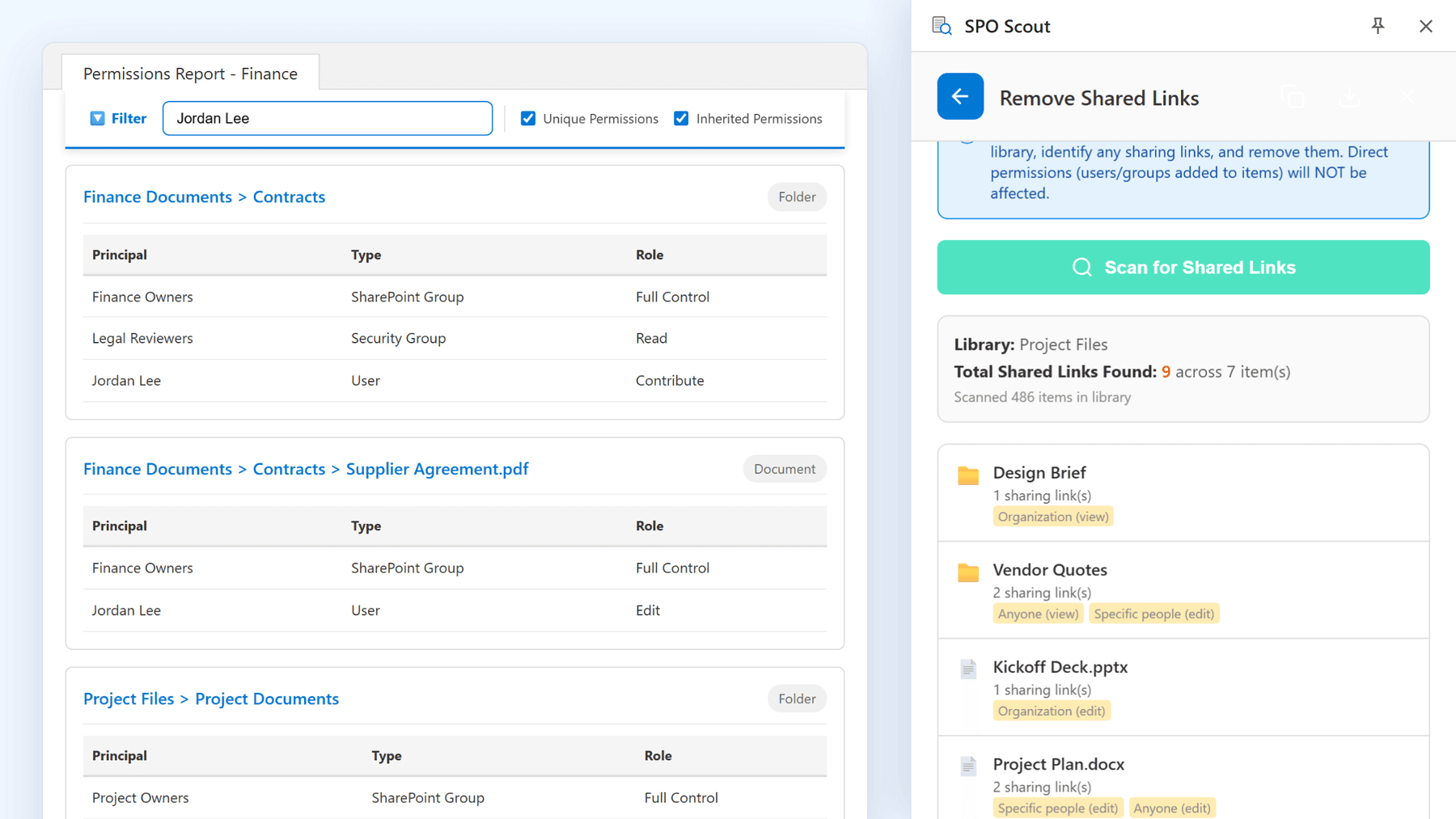
SPO Scout's permissions report lists every file and folder with its own permissions in a site, and who has access to each: users, groups and permission levels. With Pro, the full report filters by file name ("who can open this?") or by person ("where are they named?"), shows who is inside each SharePoint group, and a separate scan lists the sharing links in a library.
SharePoint's own Manage access panel answers for one file at a time, and it shows group names, not the people in them.
Five ways someone can open a file
Access to one document can come through five routes, each independent of the others:
- Inherited from its folder or library: the normal state.
- A direct grant on the file itself: someone was given access to this document specifically.
- A group: SharePoint, Microsoft 365 or security, holding access somewhere above.
- A sharing link, which keeps working when the person's other permissions are removed.
- Site collection administrators, who can open every file and never appear in its permissions.
Checking one route and stopping is the usual reason the answer comes out wrong: someone leaves a team and still opens a document through a link created two years ago.
Check file permissions with SPO Scout
- Open any page of the site (the library is fine) and open the SPO Scout side panel.
- Run the Permissions Report, or Permissions Report (Expanded) to see who is inside each SharePoint group (Pro).
- Find the file under Unique Permissions in the panel. With Pro, Export PDF opens the full report in its own tab, where you type a file name, or a person's name, into the filter.
For every file and folder with unique permissions, you see each user and group with access and their permission level. A file that simply inherits isn't listed on its own: it has the permissions of its folder or library, and when those inherit from the site, the answer is the site's own permissions, on the site's Advanced permissions page.
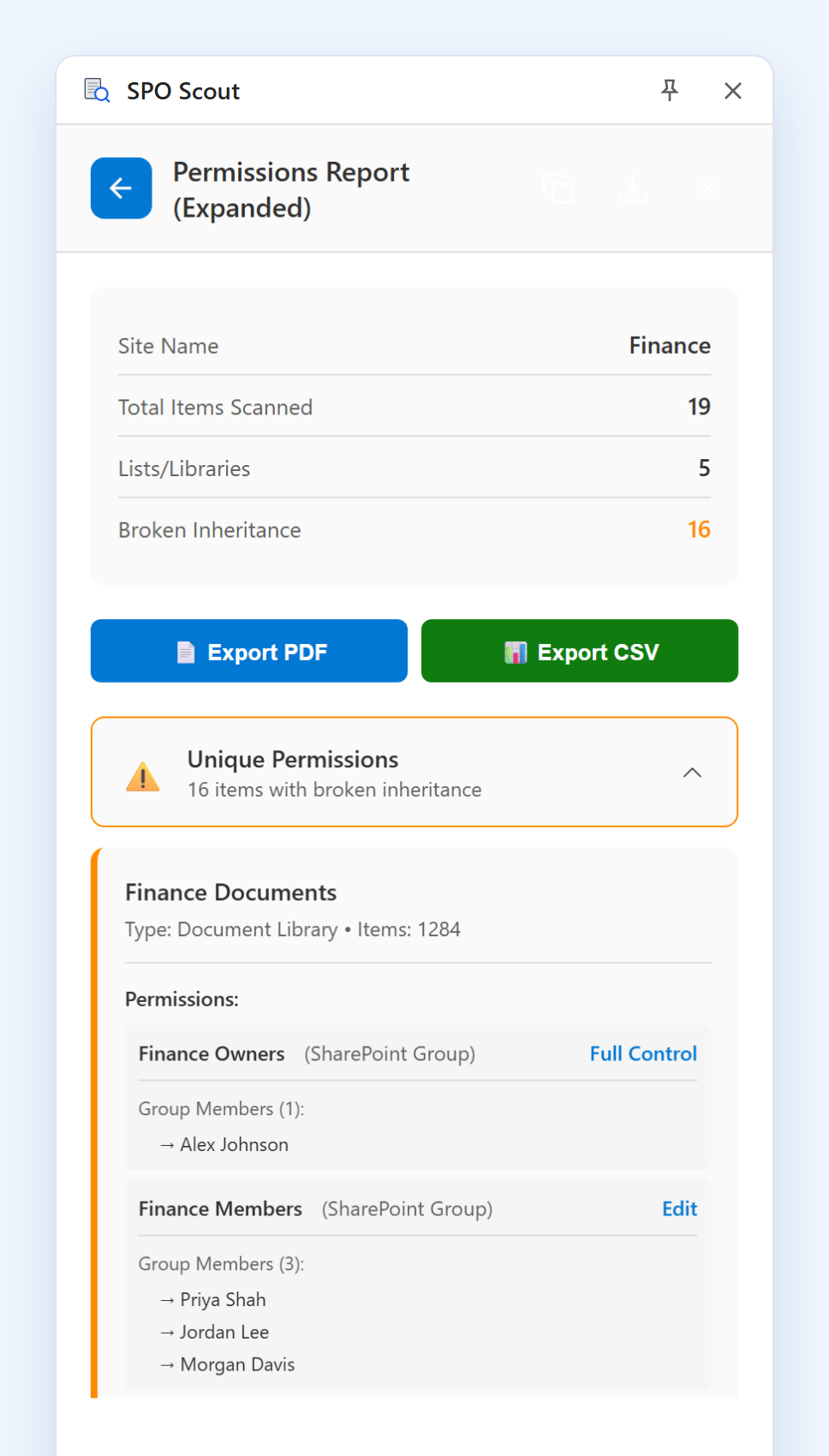
Group members, not just group names (Pro). A file's permissions are mostly group names. Marketing Members: Edit is an assignment; the audit question is which people that means today. The expanded report lists the members of each SharePoint group under it.
Sharing links (Pro). The sharing link scan checks a library (up to its first 2,000 items), lists the links it finds with their type in words (Anyone, Organization or Specific people, view or edit), and removes them all in one step after you confirm. Links aren't listed as links in permission tables, so they need a check of their own.
A dated record (Pro). Export the report to PDF or CSV. Permissions change, so a review captured on a date is the simplest record of what was true then.
It all runs in your existing SharePoint session: no app registration, no admin consent, and nothing beyond what your own account can see. Item-level reporting is free; group expansion, export and the sharing link tools are Pro.
Without SPO Scout: what it takes
- Manage access, one file at a time. It shows the people, groups and links on the file you selected, and nothing about the next one.
- Inheritance on another page. Whether the file inherits, and its underlying permission levels, sit on its classic permissions page, again one file at a time.
- Group members elsewhere. Manage access shows group names. Their members are on each site's People and Groups pages, or in the Microsoft 365 admin center.
- Links per file. In Manage access, each file's links appear only on that file.
- Finding the files that differ means opening each library's permissions page and following "Show these items", library by library, then visiting each item it lists.
For one document that's a few minutes. For a library of several thousand, where the files that matter are the ones nobody knows about, it isn't a realistic exercise without a report.
When someone can open a file they shouldn't
Work through it in this order, with the report open:
- Look for the person in the report. With Pro, the full report's filter shows every folder and file where they're named directly, at once.
- Expand the groups (Pro). The person is usually inside one, and the expanded report lists them under it, so the same filter finds those too.
- Check the folder. A file inherits from its folder, not the library, and the report shows the folder's permissions too.
- Scan for sharing links (Pro). This step is easy to skip and is often the answer.
- Check Microsoft 365 group membership for any connected Team, in Teams or the admin center: joining a Team grants site access without touching SharePoint's permission pages.
- Check site collection administrators, who never appear in a file's permissions.
Then remove the access at the route it actually came from. Deleting a direct grant does nothing if the person also holds a link, and revoking a link does nothing if they're in a group with access.
What SPO Scout covers
- The whole site, down to every file and folder with unique permissions, in its document libraries and custom lists. Other list types, such as Site Pages, picture libraries, calendars and task lists, aren't included. It doesn't read the site's own permission list or cover subsites.
- SharePoint groups expand one level (Pro). A Microsoft 365 or security group shows as one entry, whose members you check in Teams or the admin center.
- Your permissions only. It sees what your account can see, so run it with an account that can read the site's groups.
More on the report is on the SharePoint permissions report page.
Frequently asked questions
How do I see who has access to a SharePoint file? Run SPO Scout's permissions report from any page of the site: every file with unique permissions is listed with each user and group that has access and their permission levels. With Pro, filter the full report by the file name and see who is inside each group. For a single file, SharePoint's Manage access panel shows the people, groups and links on it.
Does Manage access show everyone who can open a file? It shows the principals and links on that file, but not the members of its groups, and site administrators don't appear.
Why does a file have different permissions from its library? Its inheritance was broken, either on purpose or automatically when someone shared it. SharePoint permission inheritance explained covers how.
If I remove someone from a group, do they lose access to the file? They lose what that group granted. They keep anything granted directly on the file, anything from another group, and any sharing link they hold.
How do I check permissions on many files at once? With a report that walks the site: SPO Scout's permissions report lists every file and folder with unique permissions, with who has access to each, in one result.
Related guides
- How to See Who Has Access to a SharePoint Folder →
See who can open a SharePoint folder, and every folder with its own permissions in a site, in one SPO Scout report. Group members and links on Pro.
- SharePoint Permission Inheritance: How Broken Inheritance Works →
How SharePoint permission inheritance works, why broken inheritance piles up, and how SPO Scout shows the exceptions in a site with who has access to each.
- How to Find Anyone Links in SharePoint Online →
Find Anyone links in a SharePoint library in one scan: SPO Scout lists items with sharing links and each link's type, and can remove them all (Pro).