How to See Who Has Access to a SharePoint Folder
Folder access arrives by five independent routes. How to check each one: Manage access, inheritance, nested groups and sharing links.
Quick answer
Access to a SharePoint folder can arrive by five different routes, and they are largely independent of each other:
- Inherited permissions — the folder inherits from the library, which inherits from the site. Most folders are in this state.
- A direct user grant — someone was given access to this specific folder.
- A SharePoint group — the folder grants access to a group, and the person is a member of it.
- A Microsoft 365 or security group — the same, one layer further out. A security group may itself contain other security groups.
- A sharing link — a link exists that grants access to whoever holds it, sometimes without signing in at all.
The reason "who can open this folder?" is harder than it sounds is that removing someone from one route does nothing to the other four. A person can lose their site membership and still open the folder through a link that was created eighteen months ago.
Answering the question properly means checking all five.
Method 1: check folder access in SharePoint
The native path is accurate and it is the source of truth. Start here.
- Open the document library.
- Select the folder — click the circle to its left rather than opening it.
- Open the ⋮ menu and choose Manage access.
Current SharePoint organises the panel as three tabs, each with a count:
- People — individual accounts holding access to the folder
- Groups — SharePoint, Microsoft 365 and security groups holding access
- Links — the sharing links that exist on the folder
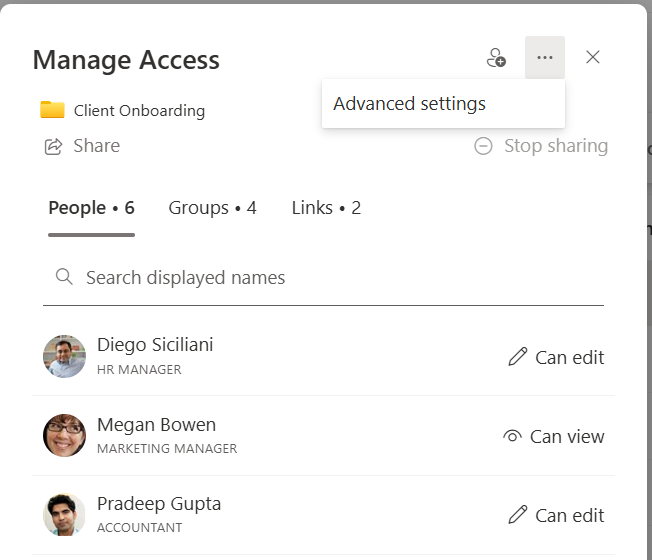
Older tenants show the same split as two stacked sections, People with direct access and Links giving access. Either way the point is the same: people, groups and links are counted separately because they are separate mechanisms, and a folder can be reachable through any of them independently.
Two things are worth noticing immediately. First, whether the panel shows an inheritance notice — SharePoint tells you when an item is managing its own permissions. Second, that a count of six people and four groups does not mean ten people have access; it means four more lookups are outstanding.
For the underlying detail, open the panel's ⋯ menu and choose Advanced settings. That is the classic permissions page: it shows every principal with access and the permission level each one holds, plus the banner telling you whether the folder inherits or has unique permissions.
Why a group name is not the full answer
Manage access will happily tell you:
Marketing Members — Edit
That is a true statement and a useless one during an access review. The question was who can open this folder, and "Marketing Members" is not a person. The follow-up — who is actually in Marketing Members — is a separate lookup, in a different place.
It gets worse with nesting. A SharePoint group can contain a Microsoft 365 group or a security group, and a security group can contain further security groups. Each hop is another lookup, and the answer at the end is the only one that matters to an auditor.
This is why group expansion is worth having. A report that resolves a SharePoint group such as Campaign Reviewers to Adele Vance, Alex Wilber, Diego Siciliani answers that lookup without leaving the page.
Know where expansion stops, though. On Pro, SPO Scout resolves SharePoint groups to the accounts inside them. A Microsoft 365 or security group sitting inside one appears as a single entry, and on a site connected to a Team that is exactly how Members and Owners are built: the SharePoint group contains the Microsoft 365 group. Its membership lives in Teams, Outlook or the Microsoft 365 admin center, so check it there.
Check whether the folder has unique permissions
If the folder still inherits, its permissions are its parent's (the library's, or a parent folder's), and that parent is where you should be looking.
If the folder has unique permissions, it is managing its own access and the library no longer governs it. Permissions granted or removed at the library level will not reach it.
The advanced permissions page states which it is, and lists what holds access:
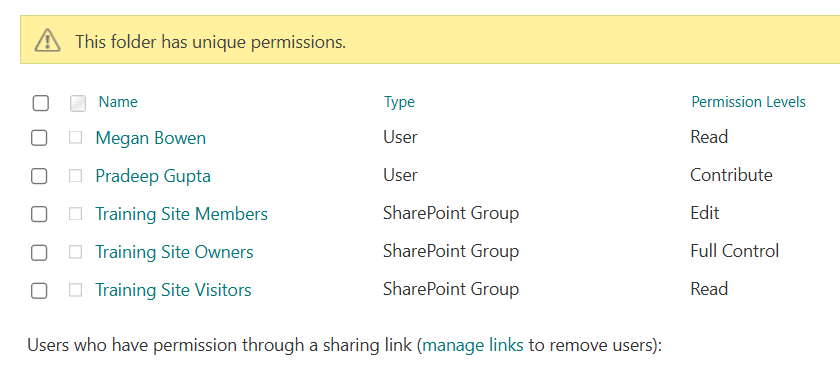
Two things on that page need separating in your head. The table lists principals — users and groups — each with a permission level. Underneath it, SharePoint keeps a separate line for users who have permission through a sharing link, with its own manage links control.
Link access is not a row in the table, and the page will not name who holds a link. manage links reopens the Manage access panel, where the Links tab lists them. Read only the table and you have not finished reading the page.
Inheritance usually breaks for one of two reasons: an administrator deliberately chose Stop Inheriting Permissions, or somebody shared the folder, which breaks inheritance automatically, without anyone deciding to.
That second case is the one that produces surprises. For the full picture of how this happens and how to find every instance, see how to find unique permissions in SharePoint.
Check sharing links separately
Sharing links are not the same thing as permissions, and this often trips people up.
A link is its own grant. It lives on the Links tab of the Manage access panel, counted separately from people and from groups:
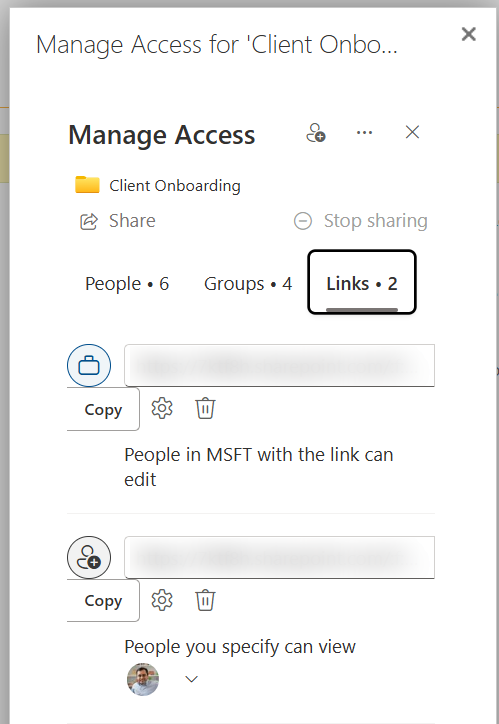
Each entry states its own reach. Here one link lets anyone in the organisation edit, while the other lets named people view — two different grants on one folder, neither of them a permission held by a person.
Depending on how it was created, a link may be:
- restricted to specific people
- open to anyone inside the organisation who has the link
- open to anyone with the link, with no sign-in at all
An anonymous link does not care about group membership, site permissions or inheritance. Removing someone from every group in the tenant does not stop them opening a folder they hold an Anyone link to.
So a folder access review that only looks at people and groups is incomplete by construction. Check the links.
Need to see this across a whole library rather than opening folders one at a time? SPO Scout lists every folder and file with unique permissions across a site, with the users and groups on each, and on Pro resolves SharePoint groups to their members.
Generate a folder permission report
Once you understand what the native panel is telling you, the remaining problem is volume. Manage access answers the question for one folder. The library's permissions page can list which folders have stopped inheriting (select Show these items under its banner), but each of them is still its own panel. A library with four hundred folders is four hundred panels.
SPO Scout runs as a side panel inside the SharePoint page you already have open, using your existing session — no app registration, no tenant-wide consent, and it cannot see more than your own account can.
For folder access:
- Open the site or library in SharePoint.
- Open the SPO Scout panel and run Permissions Report, or Permissions Report (Expanded) (Pro) to list the members of each SharePoint group.
- Review which objects have unique permissions, and the principals attached to each.
- For links, use Remove Shared Links (Pro). It scans one library (the first 2,000 items, stopping at 500 items with links) and lists each item's link types, but not who created or received them; it removes the links all at once, and links are in no export. In the permission report, a shared item shows up only as a unique-permission item with a SharingLinks group.
Permission reporting across a whole site or one library, down to every folder and file with unique permissions, is free (three analyses a day). It does not read the site's own permissions or cover subsites. Group expansion and export to CSV, PDF or JSON are Pro.
The export matters more than it first appears. An access review that cannot show what was reviewed, and when, is difficult to evidence later — and "we checked" is not a control.
Common reasons someone still has access
When the answer is "this person should not be able to open this, but they can", it is usually one of these:
Site membership. They are in a site-level group and the folder still inherits. The folder is not the problem; the site is.
Microsoft 365 group membership. They were added to the group behind a Team, which grants access to the connected site. People frequently join a Team without realising it carries SharePoint access.
A direct grant on the folder. Someone gave them access to this folder specifically, probably to solve something urgent. It is invisible to any review that only looks at group membership.
An old sharing link. Created for a legitimate reason, never revoked. The originator may have left the organisation.
Inheritance from a parent folder. The folder inherits from its parent, not directly from the library. If the parent broke inheritance and was granted extra access, the child carries it.
Folder access troubleshooting checklist
Work in this order:
- Does the folder inherit? If yes, look at the library and site. The folder is not where the answer is.
- List direct access. Individuals named on the folder itself.
- Expand every group. A group name is not an answer.
- List the sharing links. Including who created them and when, if available.
- Check the parent folder. Inheritance chains through folders, not just from the library.
- Check Microsoft 365 group membership for any connected Team.
- Record what you found before changing anything, so the review is evidenced.
Only then start removing access — and remove it at the route it actually came from. Deleting a direct grant does nothing if the person also holds a link, and revoking a link does nothing if they are in the group.
Frequently asked questions
Does Manage access show everyone who can open a folder? It shows the principals and links with access to that folder. If the folder inherits, it reflects what is inherited. What it does not do is expand groups to their members, so "everyone" is accurate at the group level rather than the person level.
If I remove someone from a group, do they lose folder access immediately? They lose whatever that group granted, everywhere the group is used, including folders with unique permissions that still list it. They keep anything granted to them directly, anything from another group, and anything from a sharing link.
Can I check folder access without being a site owner? You can see what your own account can see. A complete answer needs an account with sufficient access to the site — SPO Scout uses your existing session and cannot exceed your own permissions.
Why does a folder have different permissions from its library? Because inheritance was broken, either deliberately or automatically when someone shared the folder.
What is the fastest way to check many folders at once? Natively, Show these items on the library's permissions page lists the folders and files that have stopped inheriting, and a site admin can export a CSV of the site's sharing from Site usage (the Shared with external users report, which leaves out Anyone links). Neither resolves a group to its people. A permissions report that walks the whole library and shows who holds access to each exception is the practical answer at volume.
Related guides
- How to Find Unique Permissions in SharePoint Online →
Unique permissions are easy to create and hard to track. How inheritance works, how to find the exceptions natively, and how to audit them across a site.