How to See Who Is Inside SharePoint Permission Groups
See who is inside the SharePoint groups on a site's libraries, folders and files, not just group names: SPO Scout's expanded report lists members (Pro).
Quick answer
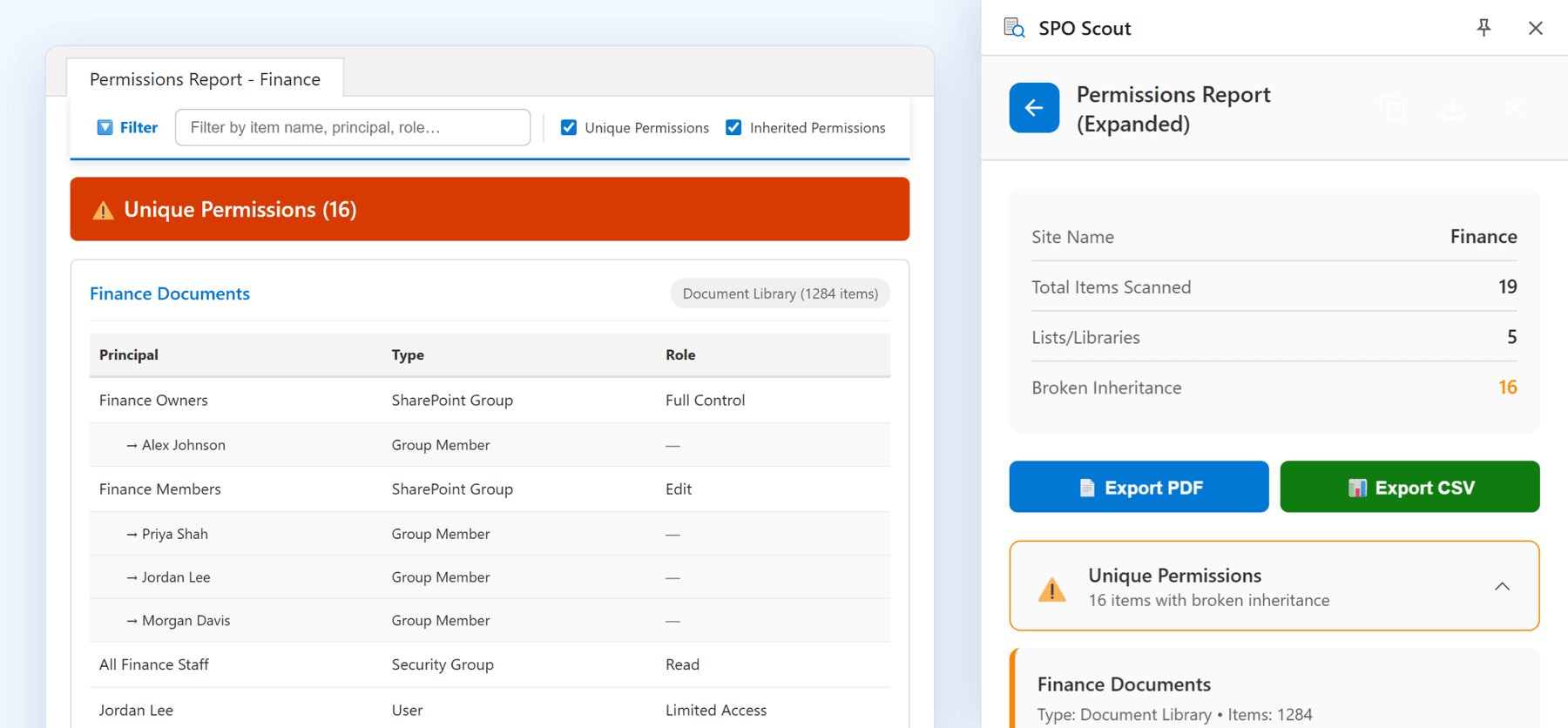
A permission table says Finance Members: Edit. The audit question is who that means today. SPO Scout's Permissions Report (Expanded) (Pro) answers it in one pass: every SharePoint group granted on the site's libraries, lists, folders and files with unique permissions is listed with the people inside it, next to its permission level, from the SharePoint page you already have open. Groups granted only on the site itself are on the site's permissions page.
Natively, each group's members sit on the group's own page, and Microsoft 365 and security groups are managed somewhere else again.
Why group names aren't enough
Every real audit question is about people, and every permission table answers with group names:
- Who can access this library? The table says three groups and two users. The answer is however many people are inside those groups.
- Are former contractors still members? You can't check that against a group name.
- Did removing someone actually remove their access? Not if they're in a second group with the same access.
A site with eight groups across four libraries can look tidy in a report and still hide a contractor who left in March.
Three kinds of group, managed in three places
- SharePoint groups (Site Members, Site Owners, Site Visitors and custom ones) live in one site collection and are managed on its permission pages.
- Microsoft 365 groups sit behind a Team or group-connected site. Joining the Team grants access to the site, and membership is managed in Teams, Outlook, the Microsoft 365 admin center or Entra ID.
- Security groups are directory objects managed in Entra ID, and can contain other security groups.
They nest: a SharePoint group can contain a Microsoft 365 or security group. On a Teams-connected site that's exactly how Members and Owners are built, so the SharePoint pages can look clean while ninety people get in through one Microsoft 365 group.
Expand groups with SPO Scout
- Open any page of the site in SharePoint and open the SPO Scout side panel.
- Run Permissions Report (Expanded).
- Open Unique Permissions: each assignment shows its permission level, with the people in each SharePoint group listed underneath.
With Pro, Export PDF opens the full report in its own tab, where the filter finds any person, whether they're named directly or inside an expanded SharePoint group, and the report exports to PDF or CSV. Group membership changes, so a report captured on a date is the easiest record of what was true then.
What it expands, precisely:
- SharePoint groups on lists, libraries, folders and files with unique permissions, one level deep. It doesn't read the site's own permission list, so a group granted only on the site, or a site where everything inherits, shows nothing to expand; check those on the site's permissions page.
- Not Microsoft 365 or security group membership. Those appear as a single entry; check their members in Teams, the admin center or Entra ID.
- The site you're on, not the whole tenant. It covers document libraries and custom lists; Site Pages and classic list types such as calendars and task lists aren't included.
- Groups whose members you can't see. If your account can't view a group's membership, the report shows the group without members and doesn't warn you.
It runs in your existing SharePoint session, with no app registration and no admin consent, so it sees only what your account can. Group expansion and export are Pro; the unexpanded report is free, up to 3 analyses a day.
Without SPO Scout: what it takes
- One group at a time. Open the site's permissions page, open each group, list its members, then do the same for every library and folder with its own permissions.
- Nested groups elsewhere. A Microsoft 365 or security group inside a SharePoint group is one line on that page; its members are in Teams, the admin center or Entra ID, sometimes several levels deep.
- No native report lists every group on a site with every member expanded. Tenant-level governance reports need SharePoint Advanced Management licensing.
For one library that's tedious. For a site with eight groups across a dozen libraries, it's where audits stop being done properly.
Why membership drifts
Groups look stable, so nobody reviews them. Meanwhile membership grows through ordinary decisions: new starters set up "the same as" a colleague, temporary cover that's never removed, team moves that add the new groups but not remove the old ones, people joining Teams, and leavers whose disabled accounts are still listed as members.
Group membership review checklist
- Open the site's permissions page for the groups granted on the site itself, usually Owners, Members and Visitors. The report doesn't read it.
- Run the expanded report for the groups on libraries, lists, folders and files with unique permissions, and note each group's permission level. Full Control deserves more scrutiny than Read.
- Read every group's members. No exceptions for groups whose names sound harmless.
- Follow Microsoft 365 and security groups into Teams, the admin center or Entra ID.
- Look for accounts that should be gone: leavers, finished contractors, people who changed role.
- Look for accounts you can't place, such as service accounts and shared mailboxes. They're usually legitimate and always worth confirming.
- Export the result before changing anything (Pro).
- Remove access at the route it came from. Leaving one of two groups isn't a removal.
Frequently asked questions
How do I list the members of every SharePoint group on a site? Run SPO Scout's Permissions Report (Expanded) (Pro): every SharePoint group granted on the site's libraries, lists, folders and files with unique permissions is listed with its members. Groups granted only on the site itself aren't in the report; open them from the site's permissions page. Natively, you open each group's page in turn.
Why does a permission report show a group instead of people? Because the permission was granted to the group. Resolving the group to its members is what group expansion does.
Can a SharePoint group contain a Microsoft 365 group? Yes, and on Teams-connected sites it's the norm. It shows as a single member; its own members are managed in Teams, the admin center or Entra ID.
How do I see who has access through a Team? Through the team's membership, or the Microsoft 365 group behind it. SharePoint shows the group holding access, not the people inside it.
Does removing a user from a group remove their access? It removes what that group granted. Anything they hold directly, through another group or through a sharing link stays.
Can I check group membership without being a site owner? You see what your own account can see, which for group membership is often less than an owner sees. A complete review needs enough access to the site.
Related guides
- How to Check What a User Can Access in SharePoint →
SPO Scout's free User Permissions Report shows, in one search, what a person is granted directly or through SharePoint groups on a site and its lists.
- SharePoint Permission Levels Explained →
SharePoint permission levels explained, from Full Control to Limited Access, and how SPO Scout shows the level on everything in a site with unique permissions.
- How to See Who Has Access to a SharePoint Folder →
See who can open a SharePoint folder, and every folder with its own permissions in a site, in one SPO Scout report. Group members and links on Pro.