How to Find Anyone Links in SharePoint Online
Find Anyone links in a SharePoint library in one scan: SPO Scout lists items with sharing links and each link's type, and can remove them all (Pro).
Quick answer
SPO Scout's sharing link scan (Pro) lists the items in a library that carry sharing links, with the type of each written out, so Anyone links stand out at a glance, and it can remove every link it finds in one step. Run it from the SharePoint library you're already in.
Natively, SharePoint shows links one item at a time, in each file's or folder's Manage access panel. Microsoft's tenant reports count Anyone links per site, subject to licensing, but don't list the links themselves.
What an Anyone link is
An Anyone link gives access to whoever holds the URL, with no sign-in: no account, no directory entry, nobody to review. That makes it different in kind from every other way to share.
- Settings decide whether they exist. Tenant and site sharing settings control them. Setting sharing to Only people in your organization stops existing Anyone links working, but doesn't delete them: they work again if the setting is ever relaxed, so find and delete them after tightening a policy.
- They can be view or edit, and may or may not expire. An expiring view link on a brochure is an ordinary business tool; a non-expiring edit link on a finance library is not.
- Not every link is an Anyone link. Organization links need a sign-in, and specific-people links work only for named recipients. Treating them all alike flags the wrong items.
- A link is a grant of its own. Removing someone's permissions doesn't invalidate a link they hold, and deleting a link doesn't touch anyone's permissions.
Why they need auditing
Anyone links accumulate silently, and nothing prompts a review:
- Finished work: a link for a two-week engagement is still live three years later.
- Forwarding: a link works for everyone it was forwarded to, and everyone they forwarded it to.
- Departed staff: links someone created on SharePoint sites keep working after they leave (links into their own OneDrive stop once that OneDrive is deleted, by default 30 days after the account is deleted).
- Audits: "show us what is externally accessible" deserves a better answer than "we don't have a list".
Find Anyone links with SPO Scout
- Open the library in SharePoint and open the SPO Scout side panel.
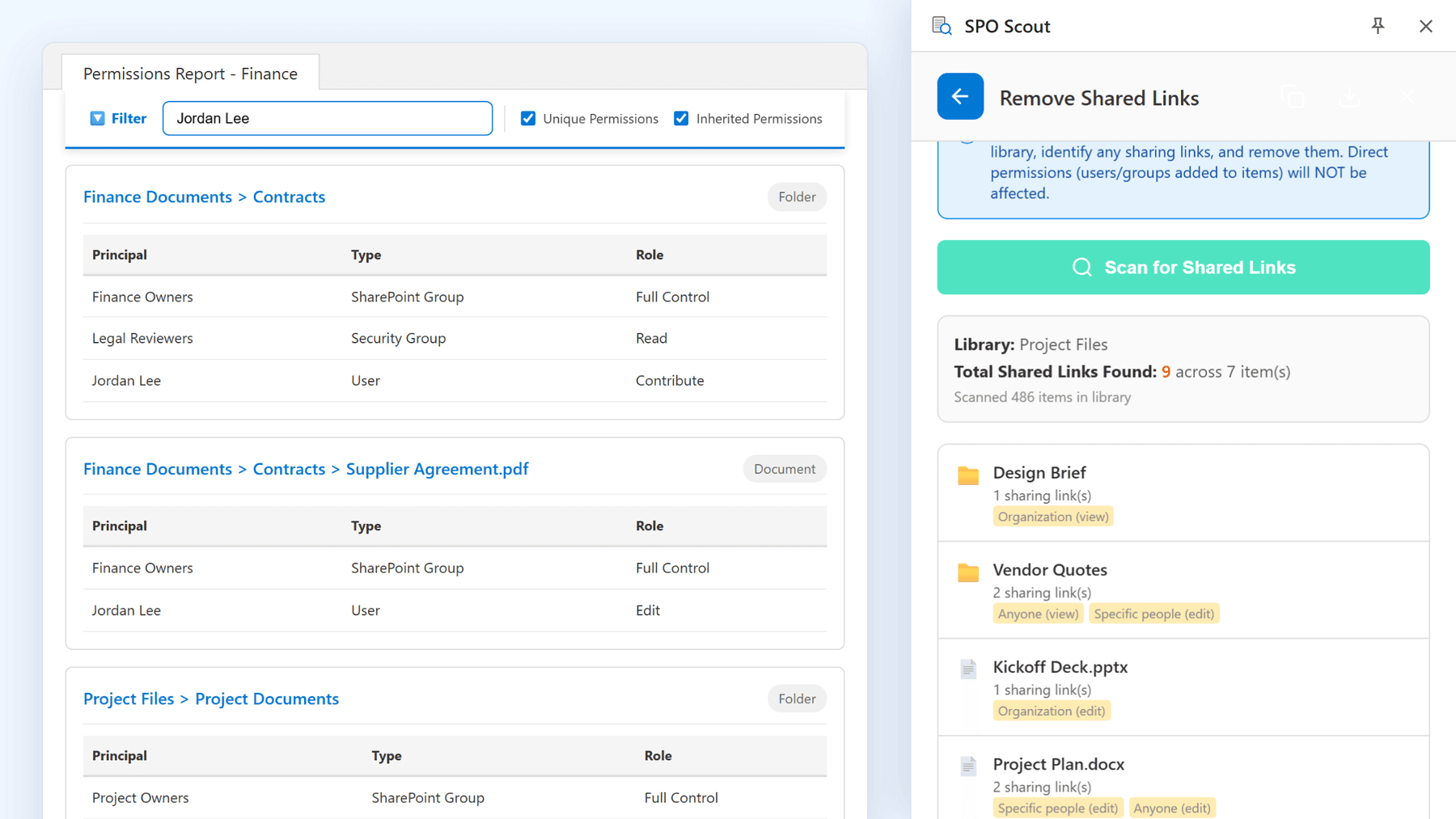
- On the Manage tab, choose Remove Shared Links, then Scan for Shared Links. Nothing changes until you choose to remove.
- Read the result: how many links were found across how many items, and for each item its name and the type of every link on it, such as Anyone (view), Organization (edit) or Specific people (edit).
What the scan covers. The scan only checks a library's first 2,000 items, and stops after 500 items with links; after removing links, scan again for the next ones. It shows each item's name and link types, not who created a link, when, who received it or when it expires; Manage access on the item shows those.
It runs in your existing SharePoint session, with no app registration and no admin consent, and it sees only what your account can see. The scan and bulk removal are Pro.
Before removing links
Bulk removal is fast, which is exactly the risk: a link that looks abandoned may be the one a customer uses every week.
- Separate Anyone links from the rest. Specific-people and organization links are usually ordinary collaboration.
- Find the content's owner, not just the link's creator, who may have left.
- Review edit links first, whatever their age.
- Check expiry in Manage access: a link expiring next week may resolve itself.
- Record the current state first. Removal can't be undone.
- Tell people where a link is in active use.
Remove them in bulk (Pro)
One action removes every link the scan found, whatever its type, including specific-people and organization links, after a confirmation that states how many links and items are affected. There's no per-link selection, so use it when every link in the scan should go, and remove individual links in Manage access otherwise.
Deleting a link revokes it for everyone who holds the URL, immediately and permanently; there's no recycle bin for sharing links. It doesn't remove anyone's direct permissions, group membership or inherited access.
Without SPO Scout: what it takes
- One item at a time. Each file's or folder's Manage access panel lists its links with a count. A library with four hundred folders is four hundred panels.
- Tenant reports without the links. The SharePoint admin center's data access governance reports show which sites hold Anyone links and how many. The full set needs SharePoint Advanced Management licensing, and the data is a day or two old; listing the links still means going item by item.
- PowerShell can list links across a site, with its own Entra ID app registration, an administrator's consent and a script to maintain.
Frequently asked questions
How do I find Anyone links in a SharePoint library? Run SPO Scout's sharing link scan (Pro): it lists the items among the library's first 2,000 that carry links, with the type of each, Anyone links included. Beyond that, or natively, you open Manage access on each item.
How do I find all Anyone links in my tenant? Microsoft's data access governance reports show which sites hold them and how many (with SharePoint Advanced Management). Then scan the libraries on those sites with SPO Scout.
Does deleting a sharing link remove the user's access? Only the access that came from that link. Direct permissions, group membership and inherited access are untouched.
Can I stop Anyone links being created? Yes, with the tenant and site sharing settings in the SharePoint admin center. That stops existing links working but doesn't delete them, so audit for existing links too.
Do Anyone links expire? Only if an expiry was set, by the tenant's required expiration or by the person who created the link. Otherwise a link lasts until someone deletes it.
Are Anyone links the same as guest access? No. A guest has an identity and can be revoked as a person. An Anyone link works for whoever holds the URL, and can only be deleted.
Related guides
- How to Audit External Sharing in SharePoint Online →
The six kinds of SharePoint sharing to audit, and how SPO Scout lists shared items on a site and Anyone links in a library (Pro).
- Everyone Except External Users in SharePoint: What It Means and What to Audit →
What Everyone except external users means, when it's fine and when it isn't, and how SPO Scout shows where it's granted on a site's libraries and files.
- Audit SharePoint Permissions Before Microsoft 365 Copilot Rollout →
Copilot respects permissions but makes forgotten access easy to find. How to find the permission debt first, site by site, with SPO Scout, before your rollout.