Everyone Except External Users in SharePoint: What It Means and What to Audit
What Everyone except external users means, when it's fine and when it isn't, and how SPO Scout shows where it's granted on a site's libraries and files.
Quick answer
Everyone except external users (EEEU) is a principal that stands for every internal account in your tenant, excluding guests. Nobody maintains its membership: hire fifty people and all fifty can open EEEU content on their first day. It's the right grant for the intranet and the handbook, and a problem on HR records or a confidential project.
Microsoft's tenant-wide report tells you which sites carry EEEU. SPO Scout shows what's going on inside each one: the libraries, lists, folders and files with unique permissions where EEEU is granted, at what level, and next to which other principals, from the SharePoint page you're working on.
Five things that sound similar and aren't
| Mechanism | Who it reaches | Sign-in required |
|---|---|---|
| Everyone except external users | All internal accounts; no guests | Yes |
| Everyone | Internal accounts and guests | Yes |
| Organization sharing link | Internal people holding the URL | Yes |
| Guest / external access | Named external accounts | Yes |
| Anyone link | Whoever holds the URL | No |
- EEEU versus Everyone. Everyone includes guests, so it's the wider, and usually less appropriate, of the two.
- EEEU versus an organization link. Both are internal-only. EEEU is a permission on the object, reaching every employee whether or not they know the content exists. An organization link is carried by its own SharingLinks group and works only for people who hold the URL; revoking it means deleting the link.
- EEEU versus an Anyone link. An Anyone link needs no sign-in at all, so it outranks EEEU when you prioritize. See how to find Anyone links in SharePoint.
When EEEU is fine, and when it isn't
Plenty of content is meant for everyone: the intranet, policies and handbooks, templates and brand assets, training, IT and service information. For those, EEEU is the correct grant; a group that's supposed to contain everyone only drifts.
It's worth investigating when breadth meets sensitivity:
- Sensitive content: HR, payroll, performance reviews, legal matters, personal data.
- Confidential projects: acquisitions, restructures, negotiations.
- Edit rather than Read: every internal account can change or delete the content.
- Grants carried forward from a migration, a restore or a provisioning template, rather than chosen.
- Sites whose purpose changed, or that have no owner.
- Copilot readiness: content everyone can technically reach becomes much easier to surface. See auditing permissions before a Copilot rollout.
How EEEU gets there
Little of it is a decision anyone remembers. When a group-connected team site is public, Microsoft adds EEEU to the site's membership (in practice its Members group, with Edit). Beyond that, someone types "everyone" in a sharing dialog to stop access requests, templates reproduce it on every new site, migrations bring the source's "everyone" along, and restored or copied sites carry their original breadth.
Find EEEU on a site with SPO Scout
- Open the site flagged by Microsoft's report (or any site you're reviewing) and open the SPO Scout side panel.
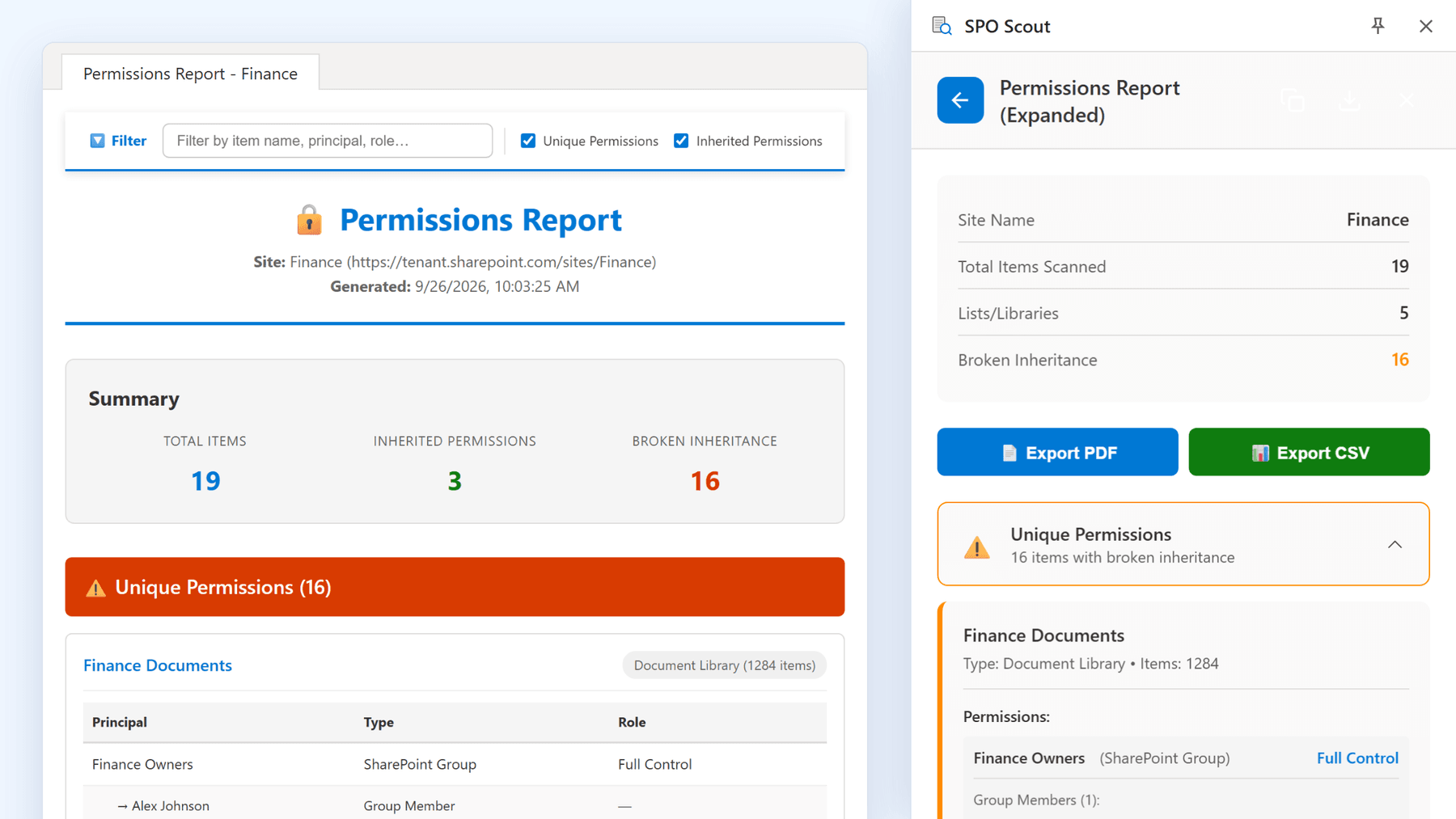
- Run the Permissions Report. Every library, list, folder and file with unique permissions is listed with its principals and their permission levels, and EEEU appears by its display name on those objects.
- With Pro, Export PDF opens the full report in its own tab, where typing Everyone into the filter lists every item whose entry mentions Everyone or Everyone except external users, and Permissions Report (Expanded) shows the people in each SharePoint group alongside.
- For each grant, note the level (Read or Edit). If the site itself doesn't grant EEEU, somebody added it here; if it does, it may have come across when inheritance was broken.
- Scan the same libraries for sharing links (Pro): organization links look similar in a summary but are removed differently, and any Anyone links are the bigger finding.
It runs in your existing SharePoint session, with no app registration and no admin consent. There's no dedicated EEEU filter, and the report doesn't read the site's own permission list, so check an EEEU grant on the site itself, including a public team site's Members group, on the site's permissions page. It covers document libraries and custom lists; Site Pages and classic list types such as calendars and task lists aren't included. Permission reporting is free; the full report with its filter, group expansion, export and the sharing link scan are Pro.
Without SPO Scout: what it takes
- Tenant-wide, Microsoft's reports. The data access governance Site permissions snapshot counts EEEU grants per site, a companion snapshot lists files and folders shared with EEEU or Everyone, and an activity report shows new EEEU sharing in the last 28 days (Everyone except external users report). The full set needs SharePoint Advanced Management (a tenant gets it once one user has a Microsoft Copilot license, otherwise the SAM Plan 1 add-on or Microsoft 365 E7; with E5 alone, the activity reports only). The data is a day or two old, and snapshots can be rerun only every 30 days.
- Inside a site, page by page. Each object's permissions page shows EEEU where it's granted, so a site means finding every object with its own permissions and opening each one.
Narrowing EEEU safely
When a grant should be narrower, the order matters more than the change:
- Agree the intended audience with the content owner (no owner? find one first).
- Create or pick the group for that audience. Individual grants would trade one problem for a worse one.
- Grant the group before removing EEEU, so nobody loses access in between.
- Check what depends on it: intranet links, documentation, automated processes.
- Remove EEEU, then test with someone inside the audience and someone outside it.
- Tell people before access disappears.
Step 3 is the one that gets skipped under time pressure, and it's the difference between a quiet change and a queue of access requests.
EEEU audit checklist
- Run Microsoft's tenant report if licensing allows, to find the sites.
- Run SPO Scout's permissions report on each flagged site to find the objects and levels.
- Separate EEEU from Everyone: Everyone includes guests.
- Review Edit grants before Read grants.
- Classify the content before judging the grant. Intranet and policy content is meant to be broad.
- Flag anything sensitive carrying EEEU.
- Check for Anyone and organization links on the same content (Pro).
- Confirm intent with the owner before narrowing anything.
- Export and record what you reviewed and what you deliberately left in place (Pro).
Frequently asked questions
What does "Everyone except external users" mean in SharePoint? A principal representing every authenticated internal account in the tenant, excluding guests. It has no membership list; it expands to whoever is internal when access is checked.
How do I find where EEEU is used? Across the tenant, Microsoft's data access governance reports (with SharePoint Advanced Management). Within a site, SPO Scout's permissions report lists the objects with unique permissions where it's granted directly, with its level; the expanded report (Pro) also shows it inside SharePoint groups. A grant on the site itself, such as a public site's Members group, is on the site's permissions page.
Is Everyone except external users a security risk? Not in itself. It's a problem on content with a narrower intended audience, or when it carries Edit rather than Read.
Does EEEU give external users access? No. Guests reach content through guest access, sharing links or a grant to Everyone.
Should I remove EEEU wherever I find it? No. Classify the content first: removing it from intranet or policy content creates problems and solves none.
Related guides
- Audit SharePoint Permissions Before Microsoft 365 Copilot Rollout →
Copilot respects permissions but makes forgotten access easy to find. How to find the permission debt first, site by site, with SPO Scout, before your rollout.
- How to Audit External Sharing in SharePoint Online →
The six kinds of SharePoint sharing to audit, and how SPO Scout lists shared items on a site and Anyone links in a library (Pro).
- SharePoint Permission Levels Explained →
SharePoint permission levels explained, from Full Control to Limited Access, and how SPO Scout shows the level on everything in a site with unique permissions.