How to Audit External Sharing in SharePoint Online
The six kinds of SharePoint sharing to audit, and how SPO Scout lists shared items on a site and Anyone links in a library (Pro).
Quick answer
External access to SharePoint content arrives through several independent routes: guest accounts, direct grants to external people, sharing links (including Anyone links that need no sign-in), and groups that contain guests. There's no single screen for all of them.
SPO Scout covers the part that's slowest by hand, the sites and libraries themselves: its permissions report lists every item on the site with its own permissions and who's on it (with Pro, the people inside each SharePoint group), and its sharing link scan (Pro) lists a library's links, Anyone links included, and can remove them all in one step. Tenant-wide sharing settings and your guest directory stay in the Microsoft 365 and SharePoint admin centers.
Six kinds of sharing to check
- Guest accounts: external people invited into your directory. They sign in, so their access can be reviewed and revoked.
- Direct access: an external account granted permission on a site, library, folder or file.
- Specific-people links: links for named recipients, who must verify who they are.
- Organization links: work for anyone inside your tenant who has the link. Not external, but a common cause of internal oversharing.
- Anyone links: access with no sign-in at all. Whoever holds the URL gets in, including people it was forwarded to.
- Group-based access: a group with site access that contains a guest, who then never appears by name in the site's permissions.
An audit that lists guest accounts has covered one of the six. A tenant can have no guests at all and still share a folder with the whole internet through an Anyone link.
Audit a site with SPO Scout
- Open any page of the site in SharePoint and open the SPO Scout side panel.
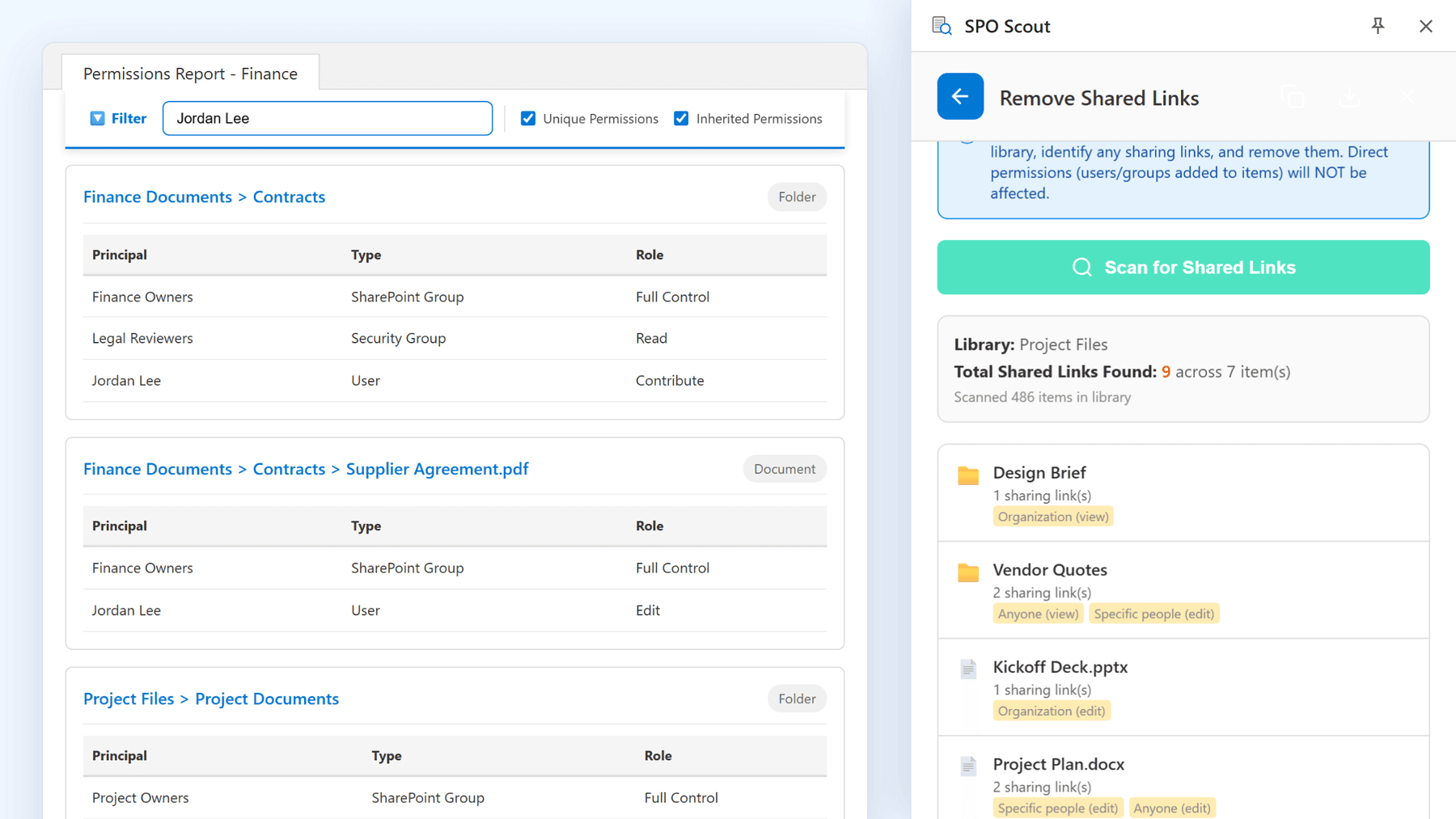
- Run Permissions Report, or Permissions Report (Expanded) to see who is inside each SharePoint group (Pro). Every object with unique permissions is listed with its principals and permission levels. Sharing breaks inheritance automatically, so a cluster of exceptions is often a map of where sharing happened.
- Run the sharing link scan (Pro) on the libraries that matter. It checks a library's first 2,000 items (stopping at 500 items with links) and lists the items that carry links, with each link's type, such as Anyone, Organization or Specific people, with view or edit.
- Remove a library's links in one step when every link the scan found should go (Pro): removal deletes all of them, of any type. SPO Scout confirms first, showing how many links and items are affected; remove single links in Manage access.
- Export the permissions report (Pro), so the review is evidenced. The link scan has no export, so note its counts.
It runs in your existing SharePoint session: no app registration, no admin consent, and it sees only what your account can see. Permission reporting is free; group expansion, export and the sharing link tools are Pro. It covers document libraries and custom lists; Site Pages and classic list types such as calendars and task lists aren't included.
Reading the result for guests. The report lists accounts by display name and doesn't label guests as guests, so check names you don't recognize against your guest list. Group expansion resolves SharePoint groups; a guest added through a Team is a member of the Microsoft 365 group behind it, which shows as one entry, so check the Team's membership too. And the report doesn't read the site's own permission list, so check guests granted access to the whole site on the site's permissions page.
What to look for
In rough order of concern:
- Anyone links, especially with edit rights. Unauthenticated access to your content, and the single worst finding.
- Anyone links that never expire. A link created for a two-week engagement three years ago is still live unless something expired it.
- Guests with Edit or Full Control, often the residue of an urgent fix.
- Guests who no longer need access: finished projects, ended contracts.
- Old project shares: the work ended, the grant didn't.
- Unexpected unique permissions on folders, where the library around them inherits cleanly: often the fingerprint of an ad-hoc share.
- Organization-wide links on sensitive content: not external, but worth recording in the same pass.
Without SPO Scout: what it takes
- Item by item in Manage access. Each file or folder's panel lists its people, groups and links, one item at a time, and doesn't show who is inside the groups.
- The site sharing report. A site admin can export one site's sharing as a CSV from Site usage. It labels guests, but lists SharePoint groups by name and leaves out Anyone links, which are the findings that matter most.
- Data access governance reports in the SharePoint admin center show which sites hold Anyone links and how many, but not the links themselves. The full set needs SharePoint Advanced Management licensing, and the data is a day or two old.
- PowerShell can list links across a site, with its own Entra ID app registration, an administrator's consent, and a script to write.
Where SPO Scout fits
These tools solve different problems, and a realistic audit uses them together:
- Microsoft's admin centers set the rules: the tenant sharing setting caps what's possible everywhere (with Only people in your organization, no Anyone link works, though existing links aren't deleted and work again if the setting is relaxed), sites can be tightened further, and governance reports point you at the sites that deserve attention.
- SPO Scout is the investigation on the site in front of you: which items are shared, with whom, through which links, and the clean-up, right now rather than after a script or a report refresh.
- PowerShell is for jobs that must run on a schedule without anyone present.
External-sharing audit checklist
- Read the tenant and site sharing settings in the SharePoint admin center, including Anyone-link expiry and permissions.
- List guest accounts in the Microsoft 365 admin center or Entra ID: your identity inventory, necessary but not sufficient.
- For each site in scope, run SPO Scout's permissions report and note every object with unique permissions.
- Expand the groups (Pro): a group name is not a person.
- Scan the libraries for sharing links (Pro) and flag every Anyone link.
- Check group membership for guests, including the groups behind connected Teams.
- Export the permissions report (Pro) and note the link scan's counts before changing anything.
- Remove access at the route it came from. Removing a guest from a site does nothing to an Anyone link they hold, and deleting a link does nothing to their group membership.
Frequently asked questions
How do I find external users in SharePoint? Guest accounts are listed in the Microsoft 365 admin center and Entra ID, which tells you who exists, not what they can reach. For that, run SPO Scout's permissions report on each site in scope and check the names you don't recognize, then the site's permissions page and any connected Team's members.
How do I find Anyone links? SPO Scout's sharing link scan (Pro) lists the items among a library's first 2,000 that carry links, with each link's type, Anyone links included. Its one-step removal deletes every link it found, of any type; remove single links in Manage access. At tenant scale, Microsoft's governance reports show which sites have Anyone links and how many, but not the links themselves.
Does removing a sharing link remove all permissions? No. Deleting a link revokes only that link; direct grants, group access and inherited permissions are untouched, and the reverse is equally true.
Is guest access the same as Anyone-link access? No. A guest has an identity, signs in and can be revoked per person. An Anyone link works for whoever holds the URL; it can only be deleted.
How often should external sharing be reviewed? Often enough that a link from a finished project doesn't outlive it by years. Quarterly is common; what matters more is that each review is recorded, which SPO Scout's permissions report export (Pro) helps with.
Related guides
- How to Find Anyone Links in SharePoint Online →
Find Anyone links in a SharePoint library in one scan: SPO Scout lists items with sharing links and each link's type, and can remove them all (Pro).
- Everyone Except External Users in SharePoint: What It Means and What to Audit →
What Everyone except external users means, when it's fine and when it isn't, and how SPO Scout shows where it's granted on a site's libraries and files.
- How to See Who Is Inside SharePoint Permission Groups →
See who is inside the SharePoint groups on a site's libraries, folders and files, not just group names: SPO Scout's expanded report lists members (Pro).