Audit SharePoint Permissions Before Microsoft 365 Copilot Rollout
Copilot respects permissions but makes forgotten access easy to find. How to find the permission debt first, site by site, with SPO Scout, before your rollout.
Quick answer
Microsoft 365 Copilot works within each user's existing permissions: it surfaces only content that person could already open. What changes is discoverability. A document granted to a broad group years ago, which nobody ever browsed to, becomes one question away. So Copilot readiness means finding the permission debt before Copilot finds it for your users.
Microsoft's tenant reports tell you which sites deserve attention. SPO Scout shows what's wrong inside each one:
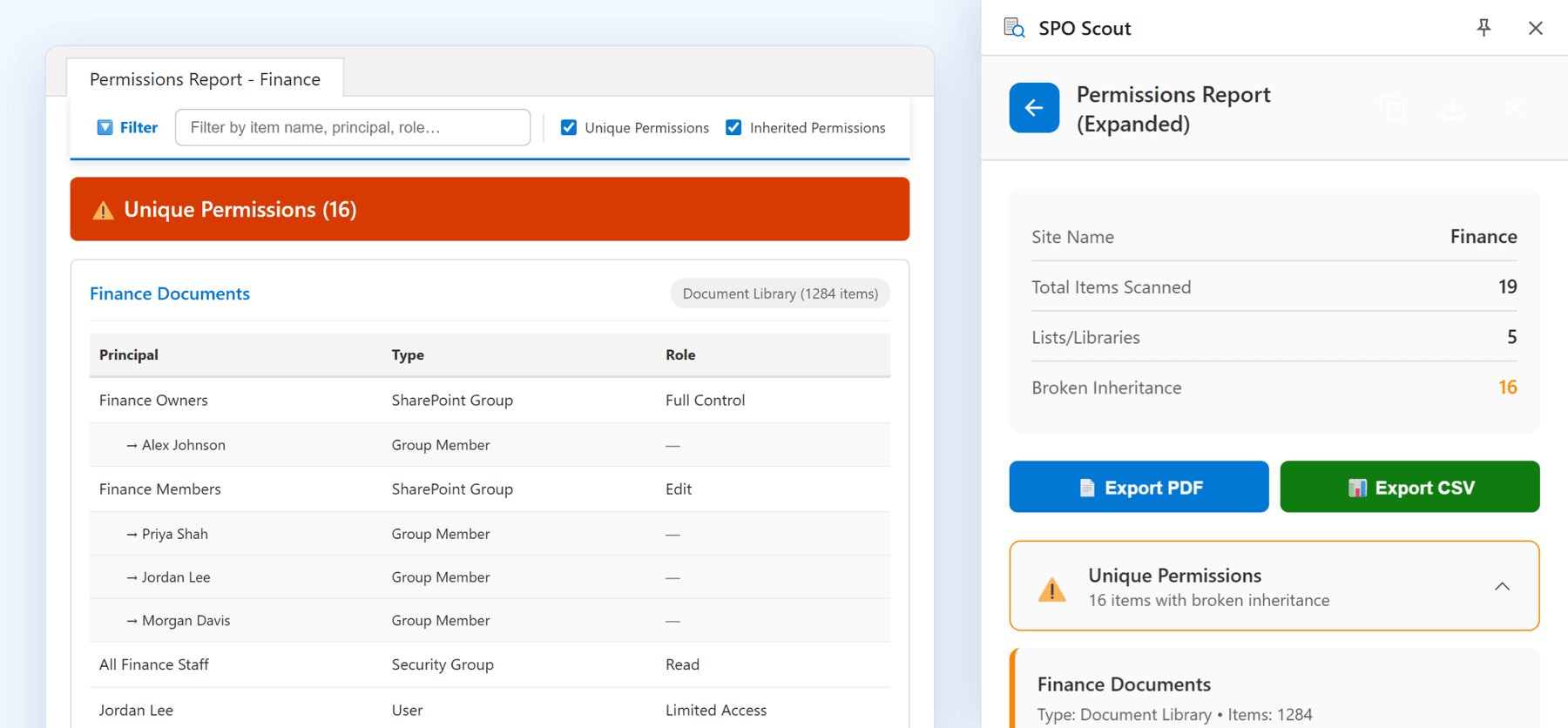
- every library, list, folder and file in the site with unique permissions, and who has access;
- the people inside each SharePoint group, one level deep (Pro);
- the sharing links in a library (Pro);
- a person's direct and SharePoint-group access to the site and its lists.
Two clean-ups are built in on Pro: returning a library's items to inheriting (every item with its own permissions at once, which widens access to anything narrower than the library) and removing a library's sharing links (every link found).
The permission debt Copilot exposes
None of this is new, and none of it is an exploit. It's accumulated debt that nothing forced anyone to look at:
- Broad site membership, granted to avoid access requests during a busy period.
- Everyone except external users, which reaches every employee, and therefore every employee's assistant.
- Forgotten unique permissions: a folder granted in 2021 to a project team that no longer exists.
- Old external access: guests from finished engagements.
- Anyone links: not a Copilot issue as such, but the same review finds them, and they matter more than most of this list.
- Stale project content and old drafts, carrying the same permissions as the final versions.
The permissions didn't change. The cost of them being wrong did.
Review a site with SPO Scout
- Open the site in SharePoint and open the SPO Scout side panel.
- Run Permissions Report (Expanded) (Pro). You get every object with unique permissions, the users and groups on each, and the members of each SharePoint group: Finance Members: Edit becomes the eighty-three people it contains today.
- Look for Everyone except external users in the result; it appears by its display name on the objects with unique permissions that grant it.
- Scan the libraries for sharing links (Pro), and flag every Anyone link.
- Check a specific person with the User Permissions Report: their direct and SharePoint-group access to the site and its lists.
- Export the before state (Pro), then decide on the clean-up. Removing a library's links deletes every link found, and resetting a library returns every item with its own permissions to inheriting, which can widen access, so both suit libraries where nothing should stay different.
It runs in your existing SharePoint session, with no app registration and no admin consent, so it sees one site at a time and only what your account can see. It doesn't read the site's own permission list, so check site-level grants, including Everyone except external users inside a public site's Members group, on the site's permissions page. It covers document libraries and custom lists; Site Pages and classic list types such as calendars and task lists aren't included. Microsoft 365 groups behind Teams show as a single entry, whose headcount is in Teams or the admin center. Permission reporting is free; group expansion, the sharing link tools, bulk fixes and export are Pro.
Where Microsoft's tools fit
Microsoft's tenant-scale tooling does things no browser tool can, and a readiness program uses both:
- Data access governance and oversharing reports find the broadly shared sites across the tenant. The full set needs SharePoint Advanced Management, which a tenant gets once one user has a Microsoft Copilot license (otherwise the SAM Plan 1 add-on or Microsoft 365 E7); with E5 alone you get the activity reports only.
- Controls that restrict discovery keep a site out of Copilot results without changing its permissions.
- Sensitivity labels and DLP protect the content itself; labels with encryption can limit who opens a file without changing SharePoint permissions.
This area changes quickly, so check Microsoft's SharePoint Advanced Management guidance for Copilot readiness for specifics.
Pre-Copilot permission checklist
Widest blast radius first:
- Everyone and Everyone except external users grants.
- Sites with unusually large membership, measured in people, not group names (Microsoft's data access governance site permissions report counts the users who can reach each site).
- Sites with no active owner. Nobody is reviewing access there.
- Anyone links (SPO Scout's sharing link scan, Pro).
- Guests, especially from finished engagements.
- Unique permissions on your most sensitive sites: HR, finance, legal, payroll.
- Stale project sites still carrying their original access.
- Migrated or restored sites, which often arrive with the source's permissions.
- Site-level changes that didn't reach their content: a change to the site's permission list doesn't reach objects with unique permissions (group membership changes do).
- A record of what you reviewed and decided, so the next pass starts from this one.
Which sites first
Rank by consequence, not by how untidy a site looks: sensitive content first, then the broadest grants, then external exposure, sites without an owner, and old sites nobody touches. The best first pass is the overlap of the first two, sensitive content with a broad grant. That set is usually small, and it's where the clearest wins are.
What not to do
- Don't remove access blindly. A company handbook granted to everyone is correctly granted to everyone.
- Don't call it a security bypass. Copilot applies the permissions that exist.
- Don't do it once. Permission debt keeps accumulating, so repeat the review.
- Don't wait for perfection. Fix the widest and most sensitive issues, document the rest, and roll out.
Frequently asked questions
Does Microsoft 365 Copilot bypass SharePoint permissions? No. It surfaces only content the user can already access. The readiness concern is that content they could always reach becomes easy to find.
How do I see who can reach a library before Copilot rollout? For a library with its own permissions, SPO Scout's Permissions Report (Expanded) (Pro) lists its users and the people in each SharePoint group. A library that inherits takes its access from the site, so check the site's permissions page.
Do I need SharePoint Advanced Management? For Microsoft's full tenant-wide readiness reports, yes, and a tenant gets it once one user has a Copilot license. The per-site review in SPO Scout doesn't need it.
What is Everyone except external users, and why does it come up? A claim that includes every internal account in the tenant: the widest internal grant there is, and a common early finding in an oversharing review. Our guide to Everyone except external users goes further.
Should we delay Copilot until permissions are perfect? No. Resolve the widest and most sensitive issues, document the rest, and keep reviewing.
Related guides
- Everyone Except External Users in SharePoint: What It Means and What to Audit →
What Everyone except external users means, when it's fine and when it isn't, and how SPO Scout shows where it's granted on a site's libraries and files.
- How to Find Anyone Links in SharePoint Online →
Find Anyone links in a SharePoint library in one scan: SPO Scout lists items with sharing links and each link's type, and can remove them all (Pro).
- How to Find Unique Permissions in SharePoint Online →
Find the libraries, lists, folders and files with unique permissions in a SharePoint site, and who has access to each, in one SPO Scout report.