SharePoint Permission Levels Explained
SharePoint permission levels explained, from Full Control to Limited Access, and how SPO Scout shows the level on everything in a site with unique permissions.
Quick answer
A permission level is a named bundle of rights (Full Control, Edit, Contribute, Read or a custom one) that SharePoint grants to a principal (a user or group) on a particular site, library, folder or file. That combination is a role assignment: Finance Members, Edit, on this library.
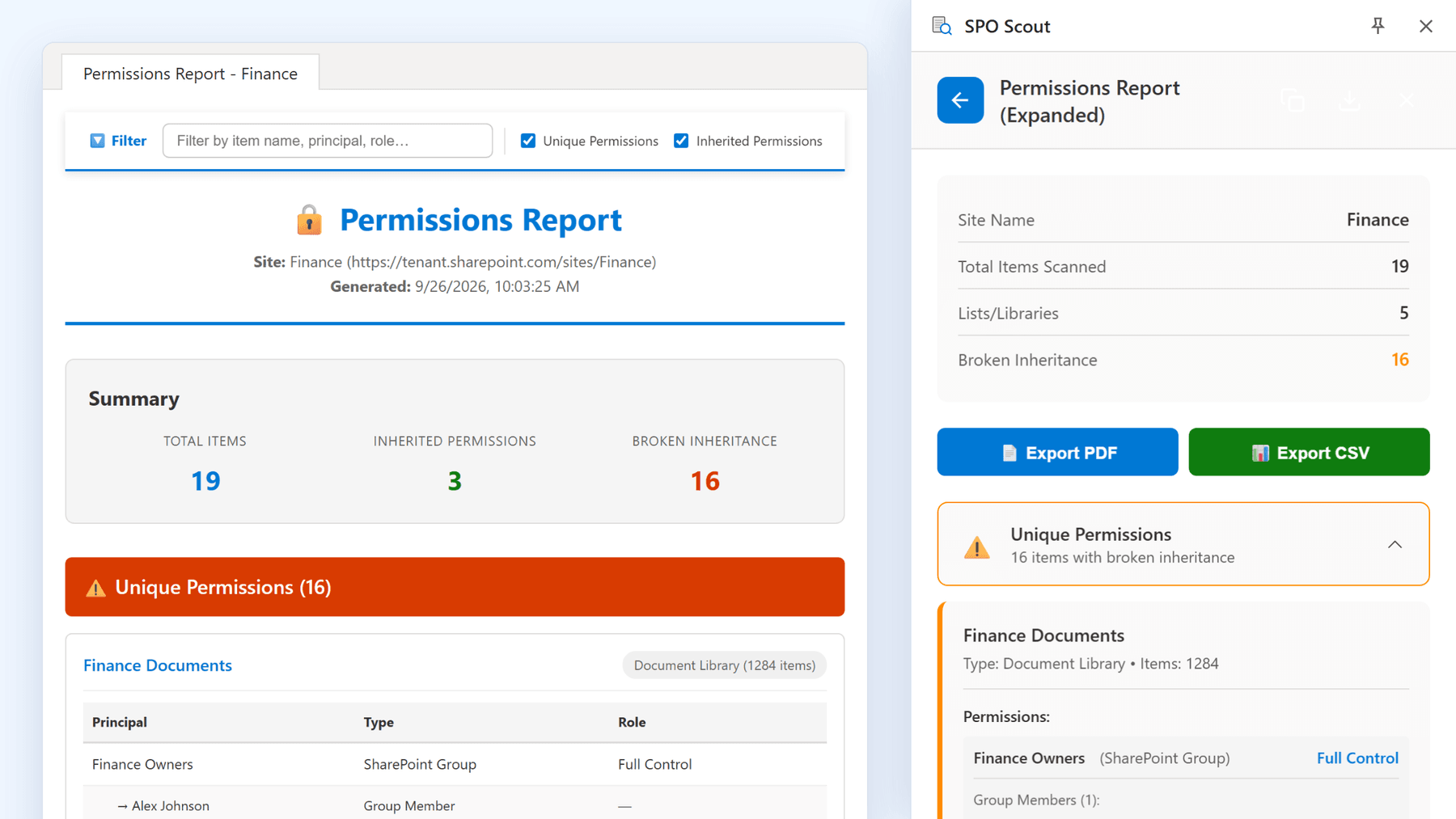
SPO Scout's permissions report shows the level behind every assignment on a site's libraries, lists, folders and files with unique permissions, custom levels included, in one report. It's a quick way to spot Full Control granted below the site, where Edit was granted when Contribute would do, and where Limited Access shows that something below was shared directly.
The same level means different things at different scopes: Full Control on a library is control of that library; Full Control on a site is control of the site and everything that inherits from it.
The default permission levels
Every site collection starts with a standard set (Microsoft's reference); levels can be modified, so check your own tenant.
- Full Control: everything, including managing permissions. The level that deserves the most scrutiny, because mistakes with it cost the most.
- Design: view, add, update, delete, approve and customize, including the site's appearance and structure.
- Edit: add, edit and delete items and documents, and create, change and delete lists and libraries. The default for the Members group.
- Contribute: add, edit and delete items and documents, but not the lists and libraries themselves.
- Read: view pages, items and documents, and download documents.
- View Only: view pages, items and documents. Office documents and other files that open in the browser can't be downloaded, but files without a browser viewer, such as videos and images, still can.
- Limited Access: assigned automatically, not by an administrator. When someone gets access to one item deep in a site, SharePoint gives them just enough at the levels above to reach it. Seeing it means something below was shared directly, which is usually the more interesting fact.
By default Owners hold Full Control, Members hold Edit and Visitors hold Read, but those are conventions, not guarantees. Read the assignment, not the group name.
Edit versus Contribute
This is a common confusion, and the difference matters:
| Action | Contribute | Edit |
|---|---|---|
| Add and edit documents | Yes | Yes |
| Delete documents | Yes | Yes |
| Create a new document library | No | Yes |
| Delete an entire library | No | Yes |
| Add or change columns on a list | No | Yes |
Because Edit is the default for Members, and many organizations put most people in Members, an ordinary contributor can often delete a whole document library, not just its contents. Where a team only works with documents, Contribute removes that category of accident without taking away anything they need. Check first, though: dropping a group from Edit to Contribute breaks anything that relies on creating lists, including some apps and workflows.
Custom levels: read the definition, not the name
Site collections can define their own levels. A level called Standard Access tells you nothing, and a level still called Read that someone gave Edit Items three years ago looks entirely normal in every report. Levels are also per site collection: Project Contributor on two sites can be two unrelated definitions.
Review permission levels with SPO Scout
- Open any page of the site in SharePoint and open the SPO Scout side panel.
- Run Permissions Report, or Permissions Report (Expanded) to see the people inside each SharePoint group (Pro).
- Read the permission level on each assignment, for every library, list, folder and file with unique permissions. Lists and libraries that inherit are marked as inherited.
What to look for:
- Full Control outside the Owners group. Usually the shortest list and the most valuable check.
- Edit where Contribute would do, especially on libraries nobody needs to create or delete.
- Custom level names you don't recognize, and familiar names on sites you haven't checked.
- Limited Access entries, each a pointer to something shared directly below.
- The size of each group (Pro): Full Control held by two people is a different fact from the same level held by ninety.
With Pro, the full report's text filter lists every item whose entry mentions what you type, such as Full Control, and the report exports to PDF or CSV for your records.
It runs in your existing SharePoint session, with no app registration and no admin consent. Permission reporting is free, up to 3 analyses a day; group expansion and export are Pro. It covers document libraries and custom lists; Site Pages and classic list types such as calendars and task lists aren't included. The report shows level names; what a level actually contains is on the site's Permission Levels page. It also doesn't read the site's own permission list, so check who holds Full Control on the site itself on the site's permissions page.
Without SPO Scout: what it takes
- One permissions page per object. Each site, library, folder or file with its own permissions shows its assignments on its own page, so reviewing levels across a site means finding every exception first and visiting each.
- Group sizes elsewhere. A level held by a group tells you nothing about how many people that is until you open the group, and any Microsoft 365 or security group inside it.
- Links on top. A sharing link is carried by a hidden SharingLinks group with its own permission level, and the classic page lists link users separately.
Permission level review checklist
- Every principal with Full Control, on the site and on every object with unique permissions.
- The built-in groups: do Owners, Members and Visitors hold the levels you expect?
- Custom levels in use, and what each one contains.
- Modified defaults: a changed Read is the hardest thing on this list to spot.
- Edit where Contribute would do.
- Every Limited Access entry: find what was shared below it.
- Group sizes before judging a level (Pro).
- A record of what you found and what you decided to leave alone (Pro export).
Frequently asked questions
What is the difference between Edit and Contribute in SharePoint? Contribute allows working with content: adding, editing and deleting documents and items. Edit also lets people create, change and delete the lists and libraries themselves. Edit is the default for Members.
What does Limited Access mean? It's assigned automatically so someone can reach an item they were given access to deeper in the site. It means something below has been shared directly.
How do I see which permission level everyone has across a site? Run SPO Scout's permissions report: it shows the level on every assignment across the site's libraries, lists, folders and files with unique permissions, and with Pro, who is inside each SharePoint group. Levels granted on the site itself are on the site's permissions page.
Does Full Control on a library mean Full Control on the site? No. Levels apply at the scope where they're assigned.
Why does someone have access when they hold no permission level? Most likely a sharing link, carried by a SharingLinks group rather than listed under their name. Site collection administrators also have access that doesn't appear as an ordinary assignment.
Can permission levels change after they're assigned? Yes: both the assignment and the level's definition. Changing a definition affects every assignment using it across the site collection, which is why modified defaults are worth checking.
Related guides
- How to See Who Is Inside SharePoint Permission Groups →
See who is inside the SharePoint groups on a site's libraries, folders and files, not just group names: SPO Scout's expanded report lists members (Pro).
- SharePoint Permission Inheritance: How Broken Inheritance Works →
How SharePoint permission inheritance works, why broken inheritance piles up, and how SPO Scout shows the exceptions in a site with who has access to each.
- Everyone Except External Users in SharePoint: What It Means and What to Audit →
What Everyone except external users means, when it's fine and when it isn't, and how SPO Scout shows where it's granted on a site's libraries and files.