How to Check What a User Can Access in SharePoint
SPO Scout's free User Permissions Report shows, in one search, what a person is granted directly or through SharePoint groups on a site and its lists.
Quick answer
Open the site, open SPO Scout, and run the User Permissions Report. Search for the person, pick them, and you get one result: their permissions on the site and on each list and library that has its own permissions, each with its permission level and whether it's direct or through a named SharePoint group, plus how many SharePoint groups they're in. It's free.
SharePoint's own tool, Check Permissions, answers the same question one object at a time: one site, one library or one file per run.
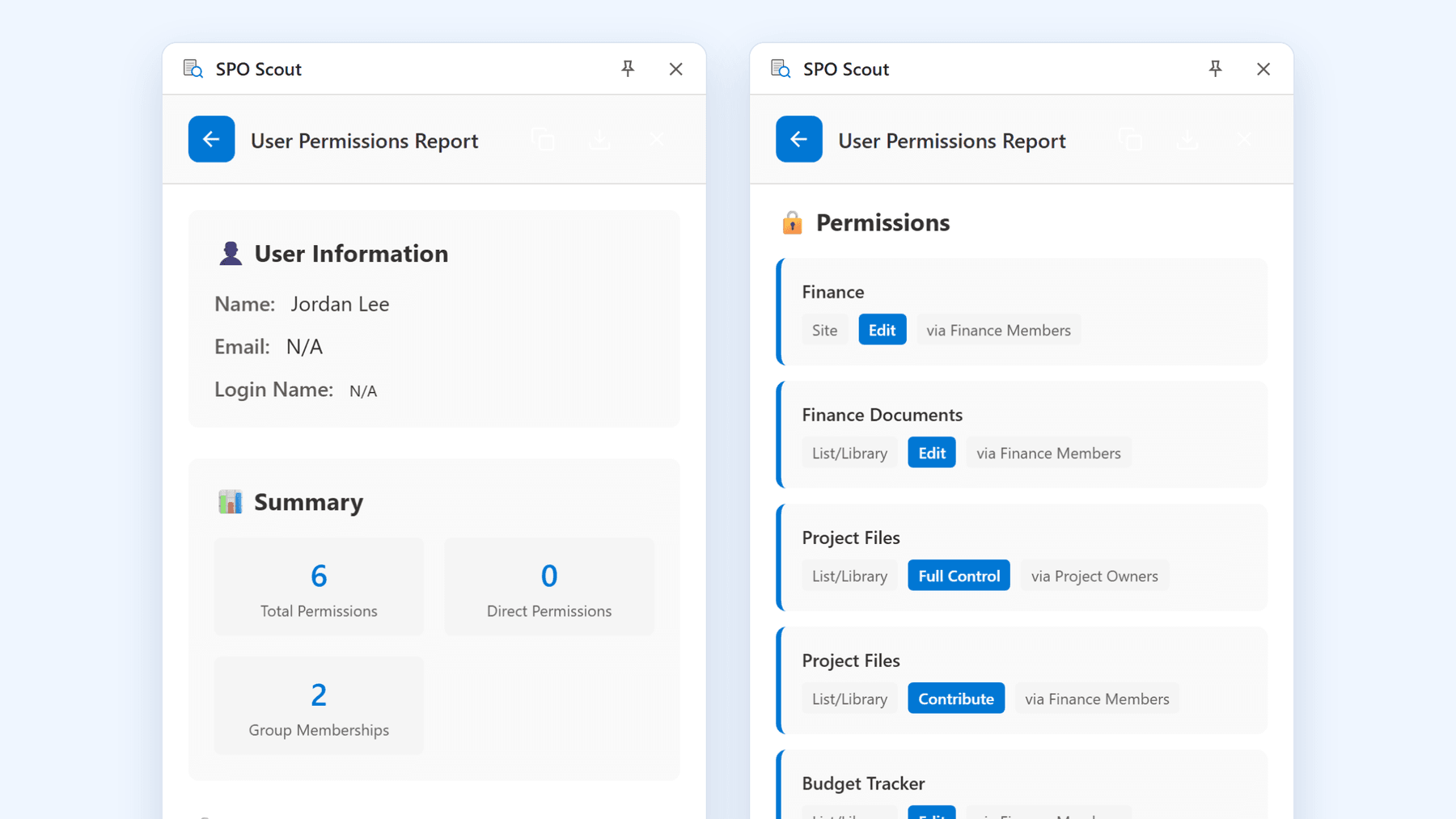
Check a user's permissions with SPO Scout
- Open the SharePoint site and open the SPO Scout side panel.
- On the Analyze tab, choose User Permissions Report.
- Type part of the person's name or email and choose Search User. If several people match, pick the right one (up to 10 matches are listed; search by email for an exact match).
The report shows:
- A summary: how many permissions the person has on the site, how many are granted to them directly, and how many SharePoint groups they're in.
- Their direct permissions, including the ones that are easy to miss because nobody reviews them: accounts added straight onto a site or library to fix something urgent.
- The group behind each permission. When access comes through a SharePoint group, the group is named next to the permission it grants.
- The lists and libraries with their own permissions where the person has access, with the permission level and the route: Edit, via Finance Members or Full Control, via Project Owners.
That last column is the one that saves time. When someone can open something they shouldn't, it names the group or the grant to change, rather than leaving you to work it out.
It runs in your existing SharePoint session: no app registration, no admin consent, and it sees only what your own account can see.
Why one person's access is hard to see
Access to any object reaches a person by one or more of five routes, and each is independent of the others:
- A direct grant on the object itself.
- Inherited permissions from the parent site, library or folder.
- A SharePoint group they belong to.
- A Microsoft 365 or security group, managed outside SharePoint entirely.
- A sharing link they hold.
Nothing in SharePoint stores "everything this person can reach": it's worked out per object when they open it. And once a library or folder stops inheriting, the site's groups no longer describe who can open it. That is why "I removed their access and they can still open it" is such a common report, and why checking site group membership alone isn't enough.
Without SPO Scout: what it takes
- Check Permissions, object by object. SharePoint's built-in check is accurate, and it names the route. But it answers for the one object you run it on. It doesn't look inside libraries or folders, so a full answer means finding every object with its own permissions and repeating the check on each.
- Group membership, twice. SharePoint groups live on each site's People and Groups pages, and Microsoft 365 and security groups in the Microsoft 365 admin center or Entra ID.
- Tenant-wide reports need SharePoint Advanced Management licensing, a governance platform, or a PowerShell script with its own app registration and an administrator's consent.
For one person on one site, SPO Scout turns that into a single search.
What the report covers, and what it doesn't
Knowing the boundary makes the result trustworthy:
- One site at a time, with its lists and libraries. It doesn't search across sites or answer "everywhere in the tenant".
- Direct grants and SharePoint groups. Access through a Microsoft 365 or security group, which is how Team members usually get in, isn't attributed to the person, so check those groups in the admin center.
- Lists and libraries, not individual folders and files. For those, run SPO Scout's permissions report and look for the person; with Pro, the full report's filter finds them at once. People who get access through a SharePoint group appear there with Permissions Report (Expanded), which is Pro.
- Sharing links don't appear as links in permission reports; at most a shared item shows a SharingLinks group. SPO Scout's sharing link scan (Pro) lists the links in a library.
- The first 1,000 users. On a very large site, the search covers the first 1,000 users the site lists.
- No export. Note or screenshot the result before you change anything. Export to PDF or CSV is part of the permissions report, on Pro.
When you'll need it
- Someone changes teams: new access gets granted quickly, old access only if someone checks.
- A contractor's project ends, but the account stays active for other work.
- "I can't open this" is faster to fix when you can see what they have and why.
- Something reached the wrong person: what else can they see?
- An auditor asks what a named person can access. Capture the result, since the report has no export.
- Offboarding, the biggest version of the question, covered in our offboarding guide.
Frequently asked questions
How do I check what a specific user can access in SharePoint? For a site, run SPO Scout's free User Permissions Report: it shows the person's permissions on the site and on each list and library with its own permissions, with the route for each (direct, or the SharePoint group it comes through). SharePoint's own Check Permissions answers for one object per run.
Can I see everything a user can access across the whole tenant? Not from one screen. SPO Scout works one site at a time; tenant-wide reports need SharePoint Advanced Management licensing, a governance platform or a PowerShell script.
Why can a user open a file when they're not in any site group? Usually the file or its folder broke inheritance and they were added directly, they're in a Microsoft 365 group behind the site, or they hold a sharing link. How to find unique permissions in SharePoint shows where those exceptions are.
Does removing a user from a site remove all their access? Removing them from the site's groups removes what those groups granted, everywhere the groups are used. Direct grants, other group memberships and sharing links all survive it.
Is the User Permissions Report free? Yes, on SPO Scout's free plan. Pro adds exports, group member expansion in the permissions report, and the sharing link tools.
Related guides
- How to Review SharePoint Access During Employee Offboarding →
When someone leaves, disabling the account isn't enough. SPO Scout shows their direct and group access on each site, and each library's sharing links (Pro).
- How to See Who Is Inside SharePoint Permission Groups →
See who is inside the SharePoint groups on a site's libraries, folders and files, not just group names: SPO Scout's expanded report lists members (Pro).
- How to See Who Has Access to a SharePoint File →
See who can open a SharePoint file, and every file with its own permissions in a site, in one SPO Scout report. Group members and sharing links on Pro.