How to Review SharePoint Access During Employee Offboarding
When someone leaves, disabling the account isn't enough. SPO Scout shows their direct and group access on each site, and each library's sharing links (Pro).
Quick answer
When someone leaves, cut the account off first in the Microsoft 365 admin center: reset the password, sign them out of all sessions, and block sign-in (blocking alone can take up to 24 hours to take effect). Then find what they were granted and what outlives the account.
On each site that matters, SPO Scout does that part in a few searches:
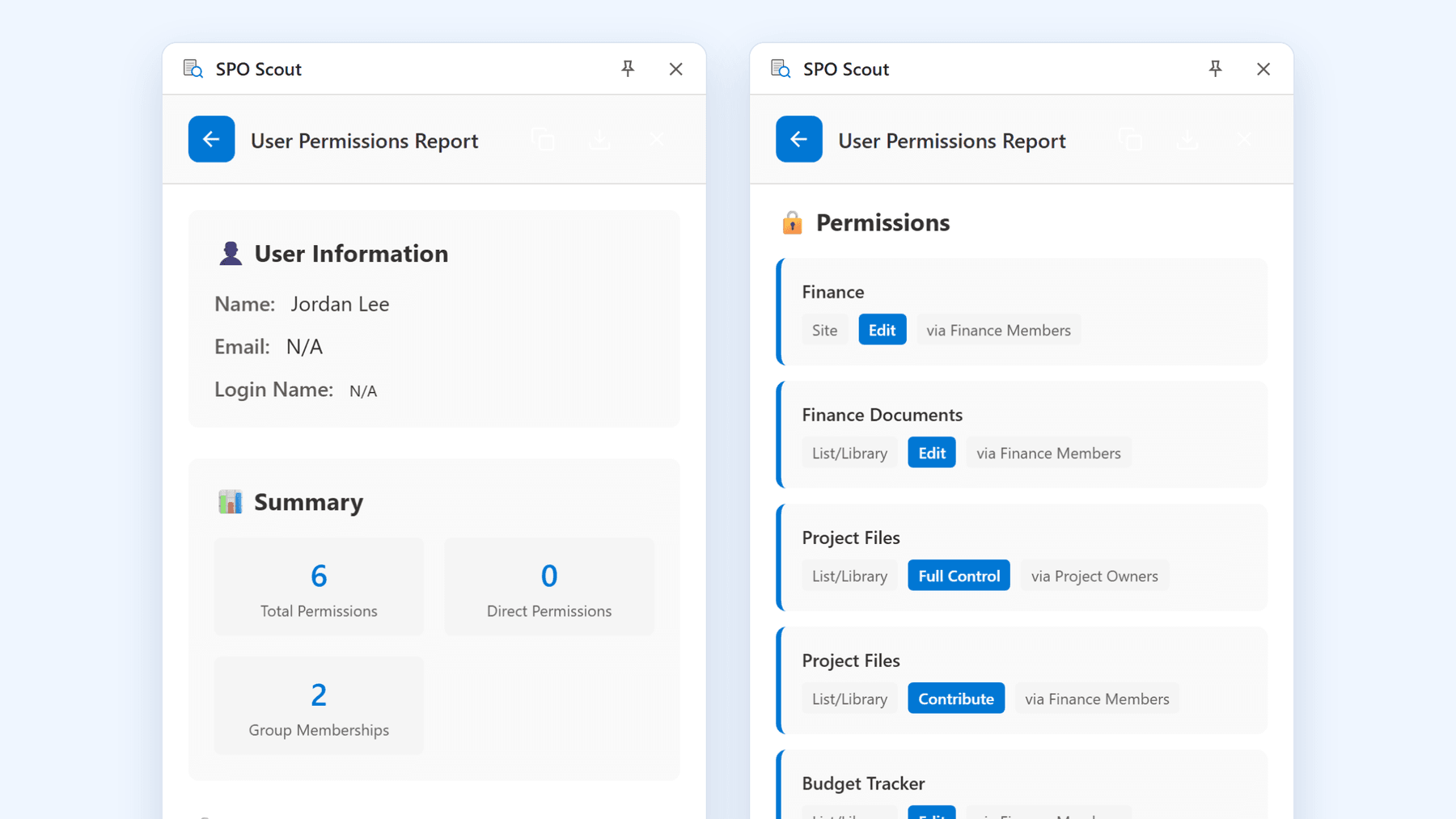
- the free User Permissions Report shows the leaver's direct and SharePoint-group access to the site and to each list and library with its own permissions;
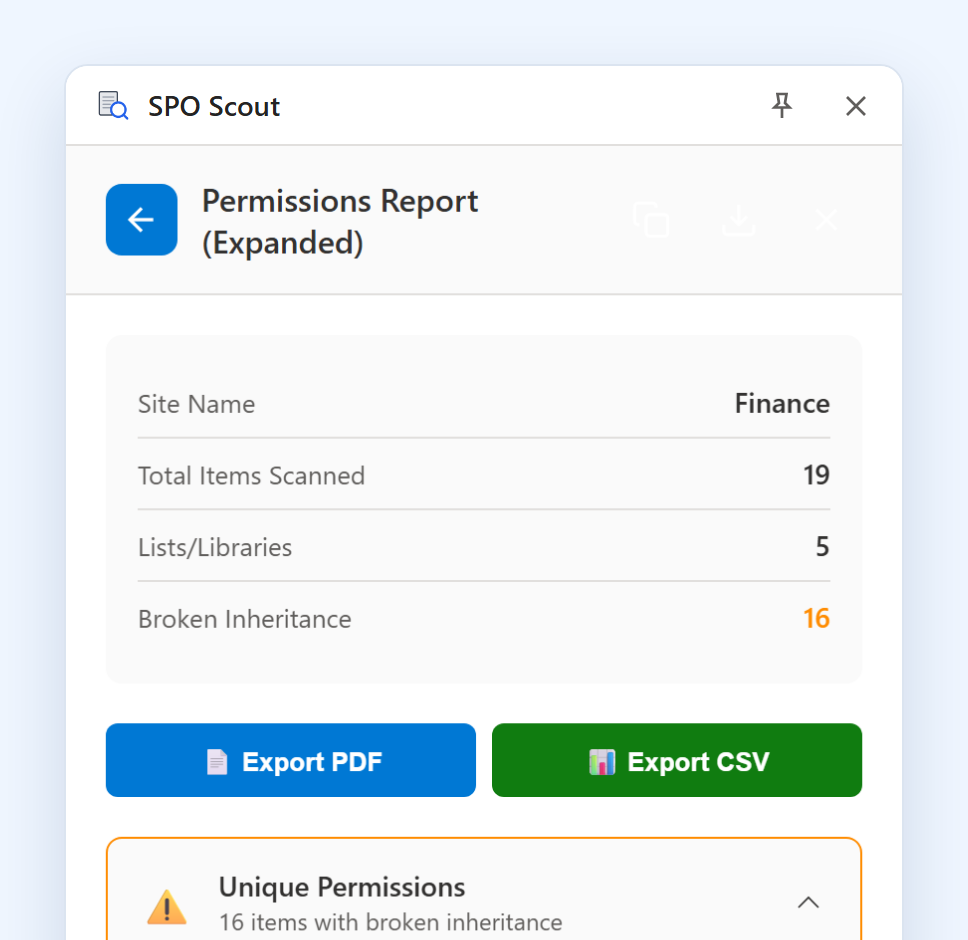
- the permissions report finds grants on individual folders and files;
- the sharing link scan (Pro) lists each library's links by type. Links keep working after the account is disabled, though the scan doesn't show who created them.
Disabling an account isn't the whole job
Disabling stops authentication. It doesn't list what the account was granted, tell you what breaks when the grants go, or touch access that was never tied to the account. A leaver's access comes through six routes:
- SharePoint group membership on individual sites
- Microsoft 365 or security group membership, managed outside SharePoint
- Direct grants on sites, libraries, folders and files
- Unique permissions on objects that stopped inheriting, often years ago
- Sharing links they created, which don't depend on their account
- Site ownership, which can leave a site with no active owner
Many reviews stop at directory groups, because those are what the account record shows.
Offboarding review with SPO Scout
- Scope it. In the Microsoft 365 admin center or Entra ID, list the Microsoft 365 and security groups the person was in. The sites those groups reach (for security groups, the Site permissions for users report or a script, since Entra ID doesn't show where a group is granted), plus anything their team owns, is your list.
- On each site, run the User Permissions Report and search for the person. You get their direct permissions, how many SharePoint groups they're in (groups the directory doesn't show) with the group each grant comes through, and every list and library with its own permissions where they have access.
- Run the permissions report for grants on individual folders and files: look for the person under Unique Permissions. With Pro, the full report's filter finds them at once, including inside expanded SharePoint groups.
- Scan the libraries they worked in for sharing links (Pro). Links keep working after the account is disabled. The scan shows each link's type, not who created it, and its one-step removal deletes every link in the library, not just theirs, so remove specific links in Manage access.
- Export the before state (Pro), so the review is evidenced.
It runs in your existing SharePoint session: no app registration, no admin consent, only what your account can see.
Know the boundary. It works on the site you're viewing, not across the tenant. The user search covers the site's first 1,000 users, and access through a Team's Microsoft 365 group or a security group isn't attributed to the person, which is why step 1 comes first. The User Permissions Report is free and has no export; group expansion, export and the sharing link tools are Pro.
Access paths admins miss
- Sharing links they created. Disabling the account does nothing to them.
- A Team's Microsoft 365 group. Removing someone from the site's SharePoint groups doesn't touch it.
- Direct grants on single files, invisible to any group review.
- Nested security groups, where removing the obvious membership leaves the indirect one.
- Sole site ownership: no problem for the leaver, a real one for everyone else. Reassign it.
- Guests they invited, who don't leave when they do.
- Their OneDrive. Once the account is deleted, it's kept for a retention period (30 days by default) and then deleted. If colleagues depend on it, that's a deadline.
Without SPO Scout: what it takes
- Each site's groups, one page at a time, looking for the person in every group.
- Every object with its own permissions, visited in turn, because that's the only place a direct grant can hide.
- Links item by item in each file's Manage access panel.
- Tenant-wide, the "Site permissions for users" report in data access governance lists every site a person can access, but it needs SharePoint Advanced Management licensing, shows sites rather than individual grants, and can be rerun only every 30 days. PowerShell can do the rest, with its own app registration and an administrator's consent.
Contractors
Contractors are harder: the account often stays active for the next engagement, so the access review is the offboarding. Their access is usually granted in a hurry, as direct grants on specific folders, which is exactly what group reviews miss, and they're often guests. Granting each engagement's access through its own group turns the next offboarding into emptying one group. See also how to audit external sharing.
What to document
Record the account and its state, the date, the sites reviewed (and which weren't), what was found per route, what was removed, what was deliberately kept and who decided, and anything reassigned. The "kept, and why" line saves the most time later. SPO Scout's export (Pro) captures the permission state on the day; a screenshot works if you only need to show what was checked.
Frequently asked questions
Does disabling an account remove SharePoint access? It prevents sign-in (blocking can take up to 24 hours to take effect; a password reset and signing them out of all sessions act sooner) and leaves the permission entries in place. It does nothing about sharing links the person created.
Do sharing links stop working when someone leaves? Not for content on SharePoint sites: a link is a grant on the content, so it works until it's deleted or expires. Links into the leaver's own OneDrive stop when that OneDrive is deleted.
Can I see everything a former employee could access across the tenant? At site level, with the "Site permissions for users" report in data access governance (SharePoint Advanced Management). For the grants inside each site, run SPO Scout's User Permissions Report and permissions report there.
What happens to their OneDrive? It's deleted after a retention period that starts when the account is deleted (30 days by default); disabling the account doesn't start it, and an unlicensed OneDrive is archived after 93 days.
Should offboarding remove access or just disable the account? Both, in that order: cutting off the account stops access, and removing the grants stops them lingering in every future report.
Related guides
- How to Check What a User Can Access in SharePoint →
SPO Scout's free User Permissions Report shows, in one search, what a person is granted directly or through SharePoint groups on a site and its lists.
- How to Audit External Sharing in SharePoint Online →
The six kinds of SharePoint sharing to audit, and how SPO Scout lists shared items on a site and Anyone links in a library (Pro).
- How to Find Anyone Links in SharePoint Online →
Find Anyone links in a SharePoint library in one scan: SPO Scout lists items with sharing links and each link's type, and can remove them all (Pro).