How to Document a SharePoint Library's Columns, Content Types and Views
Use SPO Scout Free to document a SharePoint library's columns, content types and views. Copy results as JSON or download JSON with Pro.
Quick answer
To document a SharePoint library's columns, content types and views, open the library and run three tools on SPO Scout's Analyze tab: Get Columns, Content Types and Get Views. Each one reads the library open in your browser tab and shows the library name, a total and the details as JSON, which you can copy to the clipboard for free. With SPO Scout Pro you can also download each result as a JSON file.
On the Free plan, each tool uses one of your 3 daily analyses. The 3 analyses are one shared allowance across SPO Scout's tools that count toward the daily limit, not 3 runs of each tool, so documenting one library uses the whole day's allowance if you haven't used any yet. You can install SPO Scout free from the Chrome Web Store; it works in Chrome and Edge.
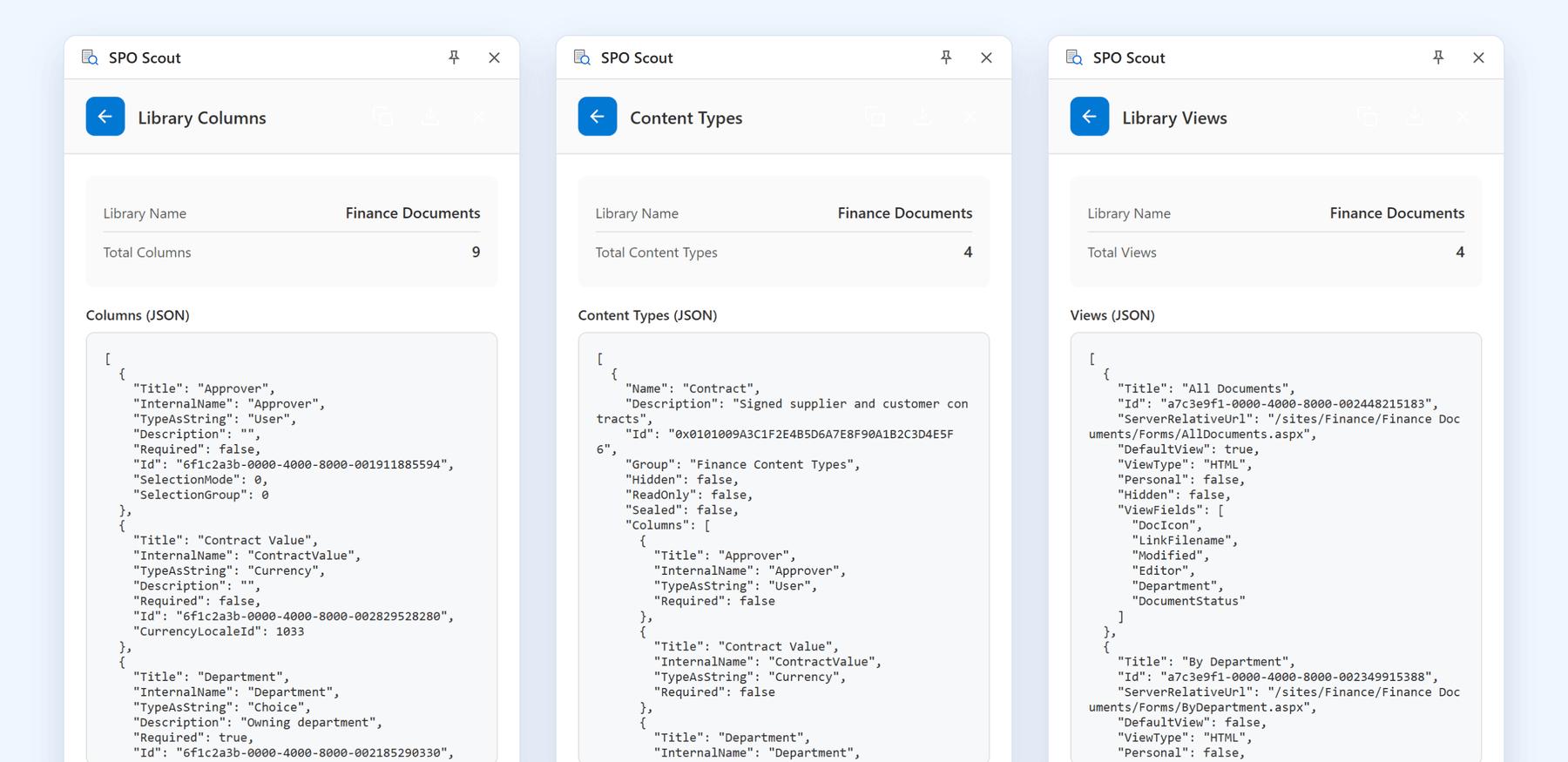
SPO Scout's Library Columns, Content Types and Library Views results, shown with illustrative Finance Documents data.
What to document in a SharePoint library
Three important parts of a SharePoint library's configuration are:
- Columns: the metadata each file carries, such as a department, a status or a review date, with each column's type and whether it is required.
- Content types: reusable definitions for different kinds of content, such as invoices or contracts, including which columns each one uses.
- Views: the ways the library is shown to people, and which columns each view displays.
A written record of these is useful before you change a library, when you hand a site over to another admin, when you prepare a migration, or when you need a column's internal name for a formula or a flow.
Document library columns with SPO Scout
- Open the document library in SharePoint.
- Open the SPO Scout side panel and go to the Analyze tab.
- Choose Get Columns ("All library columns").
The result lists every column that is not hidden and not read-only. For each one it shows the display name, the internal name, the type, the description and whether the column is required, plus settings for that type, such as a Choice column's choices or a Number column's minimum and maximum.
Document library content types
On the same tab, choose Content Types ("Types & their columns"). The result lists every visible content type in the library with its name, description, ID and group, and the columns in each one, with their display name, internal name, type and whether they are required.
This lets you see which columns belong to each content type without opening its settings page separately, for example which columns are required on an invoice.
Document library views
Choose Get Views ("Views & their columns"). The result lists every visible view with its title, whether it is the library's default view, whether it is a personal view, and the columns it shows.
Save your library documentation
Each result has the details as JSON. On the Free plan, copy the JSON to the clipboard and paste it into your documentation, a ticket or a file. With Pro, you can also download each result as a JSON file.
What the documentation does not include
Be clear about what these three results leave out before you rely on them:
- Hidden and read-only columns are not listed by Get Columns.
- Hidden content types and hidden views are not listed.
- View settings such as filters, sorting, grouping and item limits are not included. Get Views shows the view's title, default and personal status, and displayed columns, rather than its full configuration.
- Other library settings, such as versioning, are not part of these three results. For those, see how to check a SharePoint library's versioning and other settings.
The three results describe one library at a time, the one open in your tab. They are a record of its columns, content types and views, not a backup that can rebuild the library.
Free vs Pro for library documentation
- Free: Get Columns, Content Types and Get Views, with each result copied as JSON to the clipboard. Up to 3 analyses a day, shared across the applicable analysis tools.
- Pro: the same three tools with no daily limit, plus downloading each result as a JSON file. Licensed per tenant for one year; see current pricing.
One Pro licence covers all the admins in your tenant. It is a one-time payment valid for one year, and nothing renews automatically. There is no free trial; the Free plan is the way to try SPO Scout. See what Pro includes.
SPO Scout runs inside your existing SharePoint session, with no app registration and no admin consent, and it sees only what your account can see. These three tools only read the library; they change nothing.
Without SPO Scout: what it takes
- Columns are listed in the library's settings, but reviewing detailed column configuration generally means opening each column separately.
- Content types, where content type management is enabled, have individual settings pages showing their associated columns.
- Views have individual settings that you need to review to document which columns each view displays.
- Collecting these configuration details as structured data across several libraries can be automated using SharePoint APIs or PnP PowerShell, but requires appropriate authentication, permissions and scripting.
If you need to recreate columns in another library rather than document them, see how to copy columns from one SharePoint library to another.
Frequently asked questions
How do I list all the columns in a SharePoint library?
Open the library and run Get Columns in SPO Scout. It lists every column that is not hidden and not read-only, with its display name, internal name, type, description, whether it is required and its type settings.
How do I find a column's internal name in SharePoint?
Get Columns shows the internal name of every column it lists next to the display name, so you don't have to open each column's settings page.
Can I export a SharePoint library's columns, content types and views?
Yes, as JSON. On the Free plan, you can copy each result to the clipboard and save it yourself. With Pro, you can also download each result directly as a JSON file.
Does SPO Scout change the library when it documents it?
No. Get Columns, Content Types and Get Views only read the library.
Can I document several libraries at once?
No. Each tool reads the library open in your tab, so you run all three tools separately for each library you want to document. On the Free plan each run uses one of your 3 daily analyses; Pro has no daily limit.
Is this a backup of the library?
No. It is a record of the library's columns, content types and views. It leaves out hidden items and view filters, sorting and grouping, and it cannot rebuild a library.
Related guides
- How to Copy Columns From One SharePoint Library to Another →
Copy columns from one SharePoint library to another, even across sites, with SPO Scout's Copy Columns (Pro). Learn the steps, limits and safe use.
- How to Check a SharePoint Library's Versioning and Other Settings →
Check SharePoint library versioning settings, checkout and approval in one place with SPO Scout's Library Properties (Free) in the side panel.
- How to Hide a SharePoint Library or View, and Show It Again →
Hide a document library in SharePoint with SPO Scout's Pro hide tools and bring it back later; hiding changes navigation, not permissions.