How to Copy Columns From One SharePoint Library to Another
Copy columns from one SharePoint library to another, even across sites, with SPO Scout's Copy Columns (Pro). Learn the steps, limits and safe use.
Quick answer
To copy columns from one SharePoint library to another, even on a different site, use SPO Scout's Copy Columns (Pro) tool. Open the source library, run Load Columns from Current Page, then in the same browser tab open the target library and run Create Columns in Target Library to recreate every column that is not hidden or read only and whose display name is not already in the target. Lookup columns are skipped and managed metadata becomes single line of text. SharePoint lets you reuse column definitions with native tools described in Microsoft's Create a column in a list or library guidance, but that takes more setup.
Why consistent columns matter in SharePoint libraries
SharePoint columns in a list or library define the metadata you use to group, categorize and track information about items and documents. Microsoft describes these column types, such as single line of text, choice, number and person columns, in its guidance on creating a column in a list or library.
In modern SharePoint, you add columns directly from the list or library using the Add column command at the end of the heading row. The column type controls what information can be stored, and additional settings such as validation can refine how users enter data.
When copying columns between libraries is useful
When you build similar document libraries in different sites, manually recreating each column and its settings takes time and introduces mistakes. Microsoft shows that each column has multiple configuration fields, such as description and validation, in the same column creation guidance, Create a column in a list or library.
Typical cases include setting up a new project site that should match an existing library, rebuilding a library after a migration, or creating an archive library with the same metadata as an active one. In each case, you want the column schema to match so that views, filters and user expectations stay consistent.
Copy columns from one SharePoint library to another with SPO Scout
SPO Scout is a browser extension that adds an admin side panel to SharePoint Online. It runs inside your existing SharePoint session and uses your signed in permissions, so there is no app registration or admin consent needed. It is installed from the Chrome Web Store and works in Google Chrome and Microsoft Edge. For an overview of what SPO Scout is and how to install it, see the SharePoint admin extension page.
The Copy Columns tool is part of SPO Scout Pro. On the Free plan, choosing it opens the upgrade dialog instead. Pro is licensed per tenant for one year, with a single licence covering all admins and no automatic renewal.
In SharePoint, columns are configured per list or library. You start from the library whose columns you want to reuse. Microsoft describes how to create and manage columns at the list or library level in Create a column in a list or library.
- Open the source document library or list in SharePoint Online whose columns you want to copy.
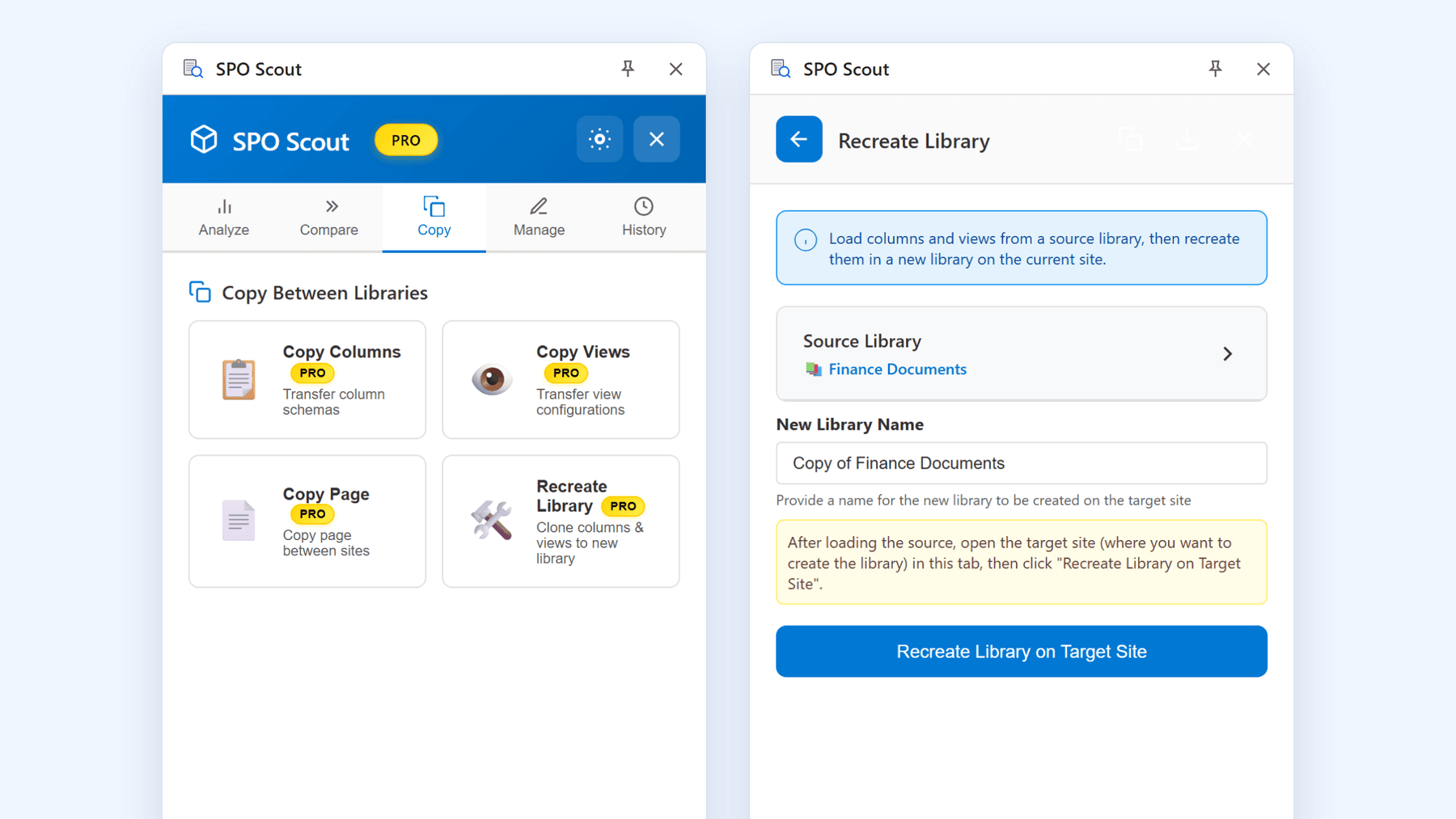
- Open SPO Scout's side panel in your browser and go to the Copy tab.
- Under Copy Between Libraries, choose Copy Columns.
- Select Load Columns from Current Page. SPO Scout reads every column in the source that is not hidden and not read only.
- Without closing the browser tab, navigate to the target library or list. It can be on a different SharePoint site.
- With the target open, choose Create Columns in Target Library and confirm.
After SPO Scout runs, the result lists Successfully Created and Failed to Create. Columns whose display name already exists in the target are skipped.
For supported types, Copy Columns recreates the schema. Choice columns keep their choices and the fill in option. Multiple lines of text keep rich text, number of lines and append only. Number columns keep their minimum and maximum, currency columns keep their locale, and date and time columns keep their display format. Single line of text, yes or no and hyperlink columns are created with their type.
Copy Columns creates list columns on the target library or list. It does not copy items, default values or column formatting, and it does not add columns to content types.
The action appears in the History tab as Copy Columns, with the source, target and number of columns copied. Selecting that entry later reopens the result.
If you need to confirm that two libraries now have matching columns, SPO Scout's free comparison tools on the Compare tab can help. You can also read more about comparing libraries after a migration in Validate a SharePoint migration by comparing libraries.
Scope and limits of Copy Columns
Copy Columns works between the library or list that is open in the browser and another library or list that you open in the same tab. The target can be on a different SharePoint site, as long as you can navigate to it in that tab.
The tool only copies columns that are not hidden and not read only. Columns that are hidden or set as read only in the source are left out, and columns whose display name already exists in the target are skipped.
Lookup columns are not copied. Managed metadata columns are created as single line of text in the target.
Copy Columns creates list columns only. It does not add columns to content types, and it does not copy items, default values or any column formatting.
If you decide a copied column is not needed, delete it from the library's settings using SharePoint's delete column options, which Microsoft documents in Create a column in a list or library.
SPO Scout reads SharePoint content in your browser and does not send that content to SPO Scout's servers. The only SPO Scout service the extension calls is the licence check, which sends the licence key and the tenant domain.
Doing column copying safely
Copying columns changes how people enter metadata in the target library, so treat it as a schema change rather than a cosmetic update.
Before you run Create Columns in Target Library, review the source library's columns and confirm which ones are still relevant. Removing unused or obsolete columns from the source before copying keeps the target cleaner.
If you are uncertain about the impact, start with a smaller test library and only then repeat the Copy Columns run on your main production library. Use the History tab entry for Copy Columns to remind yourself which source and target you changed.
Without SPO Scout: what it takes
- Navigate to the list or library you want to create a column in. To the right of the last column name at the top of the list or library, select + Add column or +. In the dropdown, select the type of column you want. In the Create a column panel, in the Name field, enter a title or column heading. Enter any other required information. The number of fields will vary with column type you choose. Select Save. More details are in Create a column in a list or library.
- Define reusable site columns at the site level, then add those existing site columns to each list or library where you want the same metadata. Microsoft documents how to create site columns and add them to lists or libraries in the same guidance, Create a column in a list or library.
- Create site content types, then add those content types to each list or library. For steps, see Create or customize a site content type and Add a content type to a list or library.
Frequently asked questions
Does SPO Scout Copy Columns work across different SharePoint sites? Yes. SPO Scout's Copy Columns tool creates the columns of one library or list in another, and the target can be on a different SharePoint site as long as both are opened in the same browser tab.
Does Copy Columns move items or data between SharePoint libraries? No. Copy Columns creates list columns in the target library or list but does not copy any items, default values or column formatting from the source.
Can Copy Columns copy lookup or managed metadata columns in SharePoint? Lookup columns are not copied by Copy Columns. Managed metadata columns are created as single line of text in the target.
Can I undo a Copy Columns operation if I create the wrong columns? Copy Columns cannot be undone from SPO Scout. To remove unwanted columns, use SharePoint's delete column options in the library settings, which Microsoft documents in Create a column in a list or library.
Does Copy Columns respect my SharePoint permissions and data security? Yes. SPO Scout runs inside your existing SharePoint session and can only see or change what your signed in account is allowed to access. It reads content in the browser and does not send SharePoint content to SPO Scout's servers, aside from a licence check that sends the licence key and tenant domain.
How many libraries or lists can I update with Copy Columns in one action? Each Copy Columns run uses one source and one target library or list, both opened in the same browser tab.
Related guides
- Validate a SharePoint Migration by Comparing Libraries →
How to check what actually landed after a migration — columns, content types, views and folder structure.
- Bulk Recreate SharePoint Library Structure Across Sites →
Standardising library structure across hundreds of sites without rebuilding each one by hand.