How to Check a SharePoint Library's Versioning and Other Settings
Check SharePoint library versioning settings, checkout and approval in one place with SPO Scout's Library Properties (Free) in the side panel.
Quick answer
SPO Scout's Library Properties (Free) lets you check SharePoint library versioning settings, checkout and approval in one table in the side panel, including Enable Versioning, Major Version Limit, Enable Minor Versions, Enable Moderation, Force Checkout, Hidden and No Crawl. It reads the library that is open in your browser tab, changes nothing, and uses one of the three daily analyses on the Free plan. You can read more about SPO Scout on the features page.
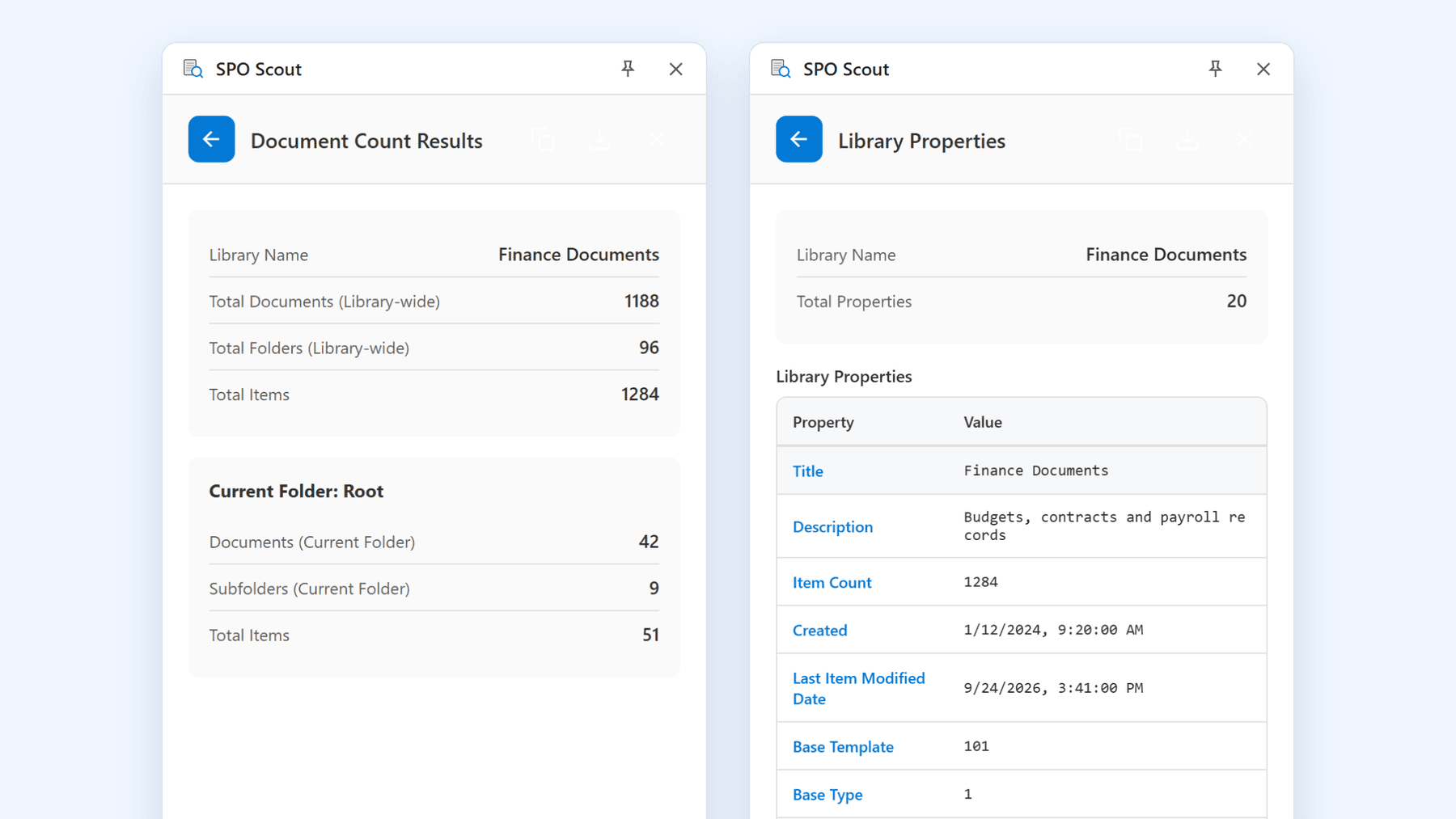
What Library Properties shows for a SharePoint library
Library Properties is on the Analyze tab in SPO Scout, under Site & Library Settings, card Library Properties. It reads the SharePoint library that is open in your browser tab and shows its settings in one Property and Value table, starting with Library Name and Total Properties.
The table includes many values, such as Title, Description, Item Count, Created, Last Item Modified Date, Base Template and Content Types Enabled. For versioning and related behaviour, it shows Enable Versioning, Enable Minor Versions, Major Version Limit, Major With Minor Versions Limit, Enable Moderation, Force Checkout, Hidden and No Crawl. Yes or no settings appear as Yes or No, and a version limit of zero or empty appears as No Limit.
Because Library Properties presents these values together, you can see how versioning, approval and checkout are configured for a library without opening multiple SharePoint pages.
Check SharePoint library versioning settings with SPO Scout
-
Open the SharePoint document library whose settings you want to review in your browser.
-
Open the SPO Scout side panel and go to the Analyze tab.
-
Select the Library Properties card in the Site & Library Settings section.
-
Wait a moment while SPO Scout reads the current library. It uses one of the three daily analyses on the Free plan and is unlimited on Pro.
-
Review the Library Name and Total Properties, then scroll the Property and Value table to find Enable Versioning, Enable Minor Versions, Major Version Limit and Major With Minor Versions Limit.
-
Note the Hidden and No Crawl values if they are present.
-
The result can be copied to the clipboard (free) or downloaded as JSON (Pro).
The action is recorded on the History tab as Library Properties, so you can reopen the result later within your last actions.
Scope and limits of Library Properties
Library Properties works on the SharePoint library that is open in the current browser tab when you run it. It does not scan a whole tenant and does not run on a schedule.
SPO Scout runs inside your existing SharePoint session and sees only what your signed in account is allowed to see. Library Properties reads configuration from SharePoint and does not change any settings or content in the library. SharePoint content is read in your browser and is not sent to SPO Scout's servers; the only SPO Scout service it contacts is the licence check.
On the Free plan, Library Properties uses one of your three daily analyses. The Free plan counts these tools as analyses: Count Items, Folder Structure, Site Properties, Library Properties, Get Columns, Content Types, Get Views, Permissions Report and User Permissions Report. The Pro plan removes this daily limit.
If you need to set version limits across a whole site instead of checking one library at a time, use the Version Limits card on the Manage tab. Version Limits (Pro) sets the maximum number of major versions for every visible document library and list in the current site in one action and can also turn on minor versions with a specific limit. For a full walkthrough of that tool, see /blog/set-version-limits-all-sharepoint-libraries/.
Change versioning and approval settings safely
Running Library Properties is safe because it is read only, but you will often use its output to decide what to change in SharePoint.
Before changing versioning in a library, remember that versioning lets you view and recover previous versions from an item's history and that you can choose whether versions are created and how many are kept (how versioning works and is configured).
If you enable or disable content approval, understand that items submitted to a list or library that requires approvals are in Pending status until someone with Manage Lists permissions approves them, and that pending items are usually visible only to the originator and those who manage lists (approval status in lists and libraries).
When Require documents to be checked out is enabled in the library's Version Settings, users must check out a file before editing it, and as long as a document is checked out nobody else can edit it (check out or check in files). Review whether your users expect this behaviour before you change the setting.
If you are using Version Limits (Pro) to apply version settings across all libraries and lists in a site, review the confirmation message carefully, because that tool updates version settings for all visible libraries and lists in the site in one operation. To understand how version history and limits affect storage before you change them, see /blog/reduce-sharepoint-storage-version-history/ and /blog/sharepoint-library-storage-breakdown-feature/.
What SharePoint library versioning, approval and checkout do
With versioning in SharePoint lists and libraries, you can track information over time and recover previous versions from an item's history (versioning in SharePoint lists and libraries). In a document library, the Version Settings page lets you create a version each time a file is edited, choose major versions only or major and minor versions, limit how many versions and drafts are kept, and set who can see drafts.
SharePoint lists and libraries can require content approval for submitted items, so that items or files are in Pending status until someone with permissions approves them (require approval of items in a list or library). While an item is pending, it is usually visible only to the originator and people who manage lists and libraries, and after approval it becomes visible to anyone who has permission to view the list or library.
A document library can also require files to be checked out before they are edited. When someone checks out a file, only that person can edit it, they can save changes as often as they like, and as long as the document is checked out nobody else can edit it (check out or check in files in a document library).
Without SPO Scout: what it takes
-
Use the SharePoint user interface to open each library and its Versioning settings page to see versioning, content approval and checkout options (enable and configure versioning in a library and require approval of items in a library).
-
Repeat this for every library you need to audit, noting the settings manually in your own documentation or spreadsheet if you need a record.
-
If you want to compare or report on configuration across multiple libraries, create and maintain your own process using SharePoint pages and, if needed, custom scripts or administrative tools.
Frequently asked questions
How does SPO Scout show SharePoint library versioning settings?
SPO Scout's Library Properties tool reads the library that is open in your browser tab and displays a Property and Value table that includes Enable Versioning, Enable Minor Versions, Major Version Limit and Major With Minor Versions Limit.
Does running Library Properties in SPO Scout change any SharePoint settings?
No. Library Properties is a read only analysis that reads configuration from the current library and does not change any settings or content. SPO Scout runs inside your existing SharePoint session and only shows what your signed in account can already access.
Which approval and checkout settings does SPO Scout surface for a library?
Library Properties shows Enable Moderation and Force Checkout for the current library, in the same result as the versioning values.
Is Library Properties available on the SPO Scout Free plan?
Yes. Library Properties is a Free tool and each run uses one of the three daily analyses included in the Free plan. The Pro plan removes this daily limit and adds additional tools.
Can SPO Scout change version limits for all libraries in a site?
Yes. SPO Scout's Version Limits tool is a Pro feature that sets the maximum number of major versions for every visible document library and list in the current site in one action and can also enable minor versions with a specific limit. Library Properties remains the tool to read settings for a single library without changing anything.
How is using SPO Scout different from opening the Version Settings page in SharePoint?
Library Properties shows the key versioning, approval and related flags for the current library in one table in the side panel and lets you copy the result for documentation.
Related guides
- How to Set Version Limits for Every Library in a SharePoint Site →
Set version limits across SharePoint libraries and lists with SPO Scout's Version Limits (Pro), and understand SharePoint trimming before changing limits.
- How to Reduce SharePoint Storage by Controlling Version History →
Version history quietly consumes a large share of SharePoint storage. Learn how to measure it, set sensible version limits, and reclaim space safely.
- SharePoint Library Storage Breakdown: See What Is Actually Using Space →
Find out which file types, folders and version histories consume a library, without exporting everything to a spreadsheet first.