How to Hide a SharePoint Library or View, and Show It Again
Hide a document library in SharePoint with SPO Scout's Pro hide tools and bring it back later; hiding changes navigation, not permissions.
Quick answer
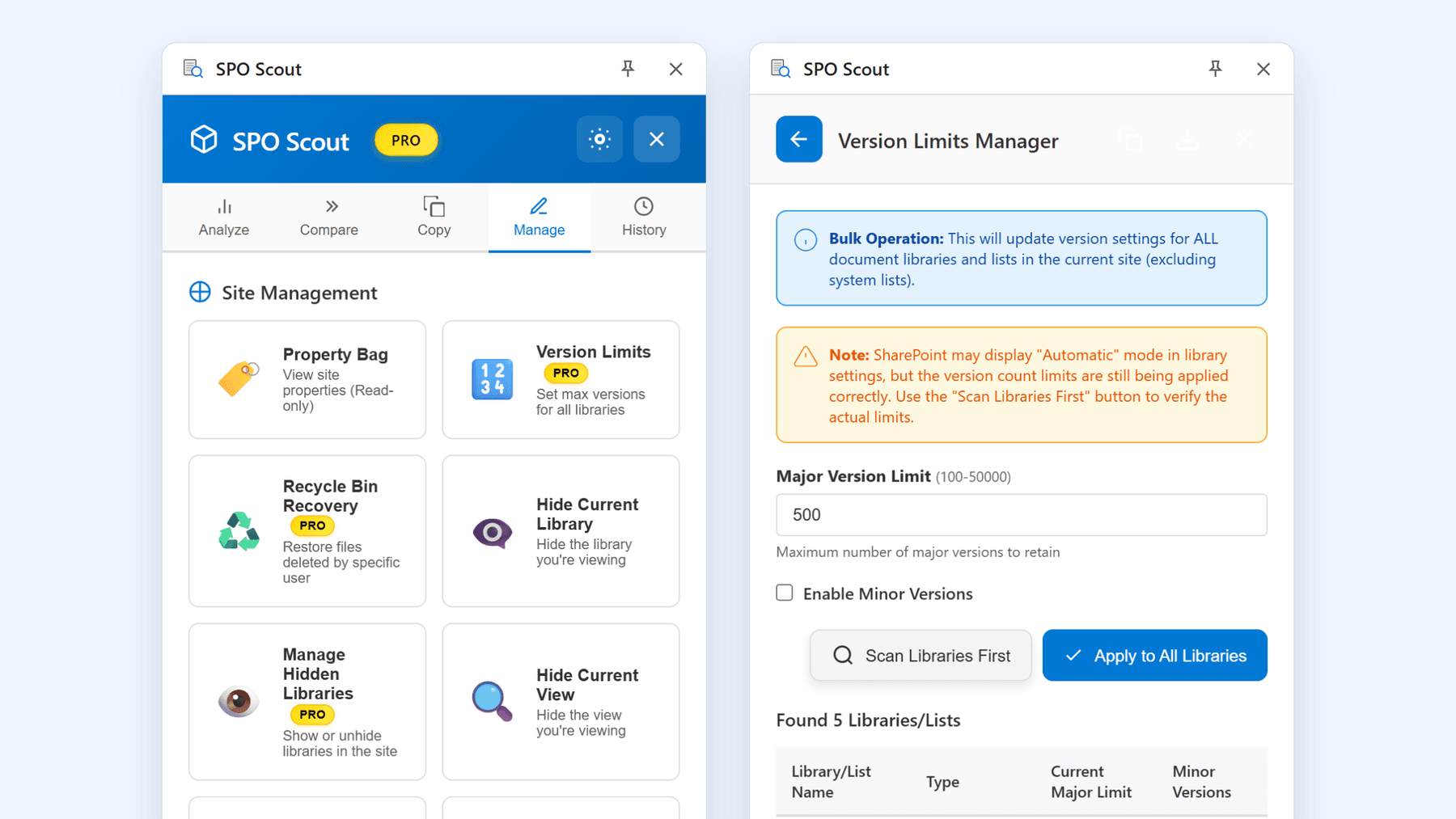
With SPO Scout, Hide Current Library (Pro) hides the library open in the tab from the site's navigation and site contents, immediately, with no confirmation step. Use Hide Current Library (Pro) on the library you are viewing, and Hide Current View (Pro) when the address bar shows the specific view, then Manage Hidden Libraries (Pro) and Manage Hidden Views (Pro) to list hidden items and show them again. Hiding is not security, permissions and direct URLs still work, so if you need to restrict access you must change SharePoint permissions instead, for example by customizing permissions for a SharePoint list or library.
What hiding a library or view means in SharePoint
On a SharePoint site the Site contents page lets site owners view a list of all pages, libraries, lists and other apps on the site. The site contents page is for site owners to quickly find content they need.
SharePoint list and library views let you create custom ways to organize items, hide or show columns, and add sorting or filtering so you can focus on what matters in a list or library, as described in Microsoft's article on creating, changing or deleting a view. Additional views appear on the View options menu, alongside default views such as List, Compact list and Tiles, and you can switch between them from the command bar.
Over time, sites often accumulate old or specialised views that confuse users. Hiding background libraries and retiring views can keep navigation simple while leaving the underlying content and structure in place.
Hiding versus permissions
Permissions in SharePoint are inherited by default. Sites, lists and libraries inherit permissions from the site directly above them, and folders, lists and documents inherit permissions from the site that contains them, as described in Microsoft's guidance on customizing permissions for a SharePoint list or library. As an administrator or owner of a library or list you can break inheritance and assign unique permissions, change permission levels or remove user permissions so that the right people can access the data while restricting others.
Hiding a library or view with SPO Scout is different. It does not change permissions, and anyone with access can still open the library or view by its address. Hiding is not security.
Hide a document library or view in SharePoint with SPO Scout
SPO Scout is a browser extension that adds an admin side panel to SharePoint Online in Google Chrome and Microsoft Edge, with a Manage tab that includes the hide tools for libraries and views.
-
Open the SharePoint site and the document library whose library or view you want to hide in your browser.
-
Open SPO Scout's side panel and go to the Manage tab.
-
To hide the library, choose Hide Current Library (Pro). The library that is open in the tab is immediately hidden from the site's navigation and Site contents, with no confirmation step, so check that you are on the correct library before you click.
-
To hide a view, first open the view in SharePoint so the browser's address bar shows that specific view, for example by selecting it from the View options menu in the command bar as described in Microsoft's article on changing a view. Then, in SPO Scout on the Manage tab, choose Hide Current View (Pro). The address bar must show a specific view, otherwise SPO Scout says it could not identify the current view.
-
To see which libraries you have hidden and to unhide one, open any page on the site, go to the Manage tab and choose Manage Hidden Libraries (Pro). Select Load Hidden Libraries to list the hidden document libraries in the current site, then choose Show Library on the one you want to make visible again.
-
To see and unhide hidden views in a library, open that library, select Manage Hidden Views (Pro), choose Load Hidden Views to list the current library's hidden views, then use Show View to show the one you want.
When you load hidden libraries or views, SPO Scout lists the hidden document libraries in the current site and the hidden views in the current library so you can verify what is hidden at any point. Each hide or show action is recorded in the History tab as Hide Library, Show Library, Hide View or Show View.
Scope and limits of SPO Scout's hide tools
Hide Current Library, Hide Current View, Manage Hidden Libraries and Manage Hidden Views are Pro-only tools. On the Free plan, choosing any of them opens the upgrade dialog instead of running, so you need SPO Scout Pro to use them.
SPO Scout works on the SharePoint site, library or page that is open in the browser tab when you run a tool. It does not scan a whole tenant and does not run on a schedule, and it sees and changes only what the signed-in account is allowed to see and change.
Hide Current Library hides the library you are viewing from the site's navigation and Site contents immediately and there is no confirmation step. Hide Current View hides the view open in the tab, but only when the address bar shows a specific view, otherwise SPO Scout says it could not identify the current view.
Manage Hidden Libraries lists the hidden document libraries in the current site, and Manage Hidden Views lists the current library's hidden views. Show Library makes a hidden library visible again, and Show View makes a hidden view visible again.
Hiding is not security. A hidden library or view keeps its permissions, and anyone with access can still open it by its address. If you need to restrict access, use SharePoint permissions by breaking inheritance or changing permissions as described in Microsoft's article on customizing permissions for a SharePoint list or library.
Each hide or show action is tracked locally in the History tab, which keeps the last 20 actions in the browser on Pro.
Do it safely
Because Hide Current Library applies immediately with no confirmation, always confirm you are on the correct site and library before you click. The same applies to Hide Current View, which acts on the view shown in the address bar.
Consider telling stakeholders when you hide a library that supports a business process so they know how to reach its contents. Keeping a simple list of which libraries and views you have hidden, alongside SPO Scout's History entries, can help you avoid surprises later.
If you plan a permissions review before hiding sensitive libraries, our guide on running a SharePoint permissions report at SharePoint permissions report covers how to audit who has access separately. For an overview of installing and using the extension itself, see SharePoint admin extension.
Remember that hiding does not protect sensitive information. If a library holds confidential content, review its permissions first and adjust them by breaking inheritance or changing user permissions, following Microsoft's guidance on customizing permissions for a SharePoint list or library. Our guide at SharePoint permissions report shows how to report on those permissions before you make changes.
SPO Scout runs inside your existing SharePoint Online session in Chrome or Edge, needs no app registration or admin consent, and reads SharePoint content in the browser without sending it to SPO Scout's servers. For more detail on licensing and data handling, see the security page and the FAQ.
If you want to review a library's versioning and other settings before or after hiding it, see How to Check a SharePoint Library's Versioning and Other Settings. To understand how version history contributes to storage in libraries that support processes, see How to Reduce SharePoint Storage by Controlling Version History.
Without SPO Scout: what it takes
-
Use the Site contents page on each site to review all pages, libraries, lists and other apps before deciding which ones should be visible to regular users, as described in Microsoft's article on the SharePoint site contents page.
-
For views, use SharePoint's View options menu and Edit View page to change default views or delete obsolete ones in each list or library, as described in Microsoft's article on creating, changing or deleting a view.
-
If you want to limit who can access a supporting library, go to its Permissions page and break permission inheritance, then assign unique permissions, change permission levels or remove user permissions for the library, following Microsoft's guidance on customizing permissions for a SharePoint list or library.
-
Repeat these view and permissions adjustments site by site and library by library whenever you need to hide or retire content, and repeat the work again if you later need to expose a library or view.
Frequently asked questions
Does hiding a SharePoint library with SPO Scout change permissions or security? No. SPO Scout's Hide Current Library (Pro) hides the library you are viewing from the site's navigation and Site contents, but a hidden library keeps its permissions and anyone with access can still open it by its address, so security is unchanged.
How do I unhide a library or view that I hid with SPO Scout? Open the site or library in SharePoint, go to SPO Scout's Manage tab and choose Manage Hidden Libraries (Pro) or Manage Hidden Views (Pro). Use Load Hidden Libraries or Load Hidden Views to list what is hidden, then choose Show Library or Show View to make it visible again.
What plan do I need to hide libraries or views with SPO Scout? Hide Current Library, Hide Current View, Manage Hidden Libraries and Manage Hidden Views are Pro-only tools. On the Free plan, selecting any of them opens the upgrade dialog instead of running, so you need SPO Scout Pro to use them.
Can SPO Scout hide or show libraries across my whole SharePoint tenant automatically? No. SPO Scout works only on the SharePoint site, library or page that is open in the browser tab when you run a tool, and it does not scan a whole tenant or run on a schedule.
Do I need admin consent or an app registration to use SPO Scout's hide tools? No. SPO Scout runs inside your existing SharePoint Online session, needs no app registration or admin consent, and sees and changes only what your signed-in account is allowed to see and change.
How should I restrict access if hiding a library is not enough? To control who can open a library, use SharePoint permissions rather than hiding. You can break inheritance on the library and assign unique permissions, change permission levels or remove user permissions as described in Microsoft's guidance on customizing permissions for a SharePoint list or library, and our guide at SharePoint permissions report shows how to report on those permissions.
Related guides
- How to Check a SharePoint Library's Versioning and Other Settings →
Check SharePoint library versioning settings, checkout and approval in one place with SPO Scout's Library Properties (Free) in the side panel.
- How to Reduce SharePoint Storage by Controlling Version History →
Version history quietly consumes a large share of SharePoint storage. Learn how to measure it, set sensible version limits, and reclaim space safely.