How to See What's Using Storage in a SharePoint Library
See what uses storage in a SharePoint library: file types, file ages and, with Pro, how much space version history takes. SPO Scout Library Analytics.
Quick answer
To see what is using storage in a SharePoint library, open the library and run Library Analytics in SPO Scout. It shows how many files and folders the library holds, the size of the current files, which file types take the most space and how old the files are. With SPO Scout Pro it also reads each file's version history, so you can see how much space previous versions take compared with the current files. The Free plan runs Library Analytics once a day on the first 200 files, without version data.
Why a library uses more storage than its files suggest
A library's storage is not just the files you can see. When versioning is on, SharePoint keeps previous versions of each file, and those versions count against your storage. A file edited many times can take far more space in version history than its current size suggests, so a library can look small in the file list and still use a large share of the site's storage.
Microsoft explains how versioning works and how many versions a library keeps in enable and configure versioning for a list or library, and how version history limits are set in document library version history limits.
What Library Analytics shows
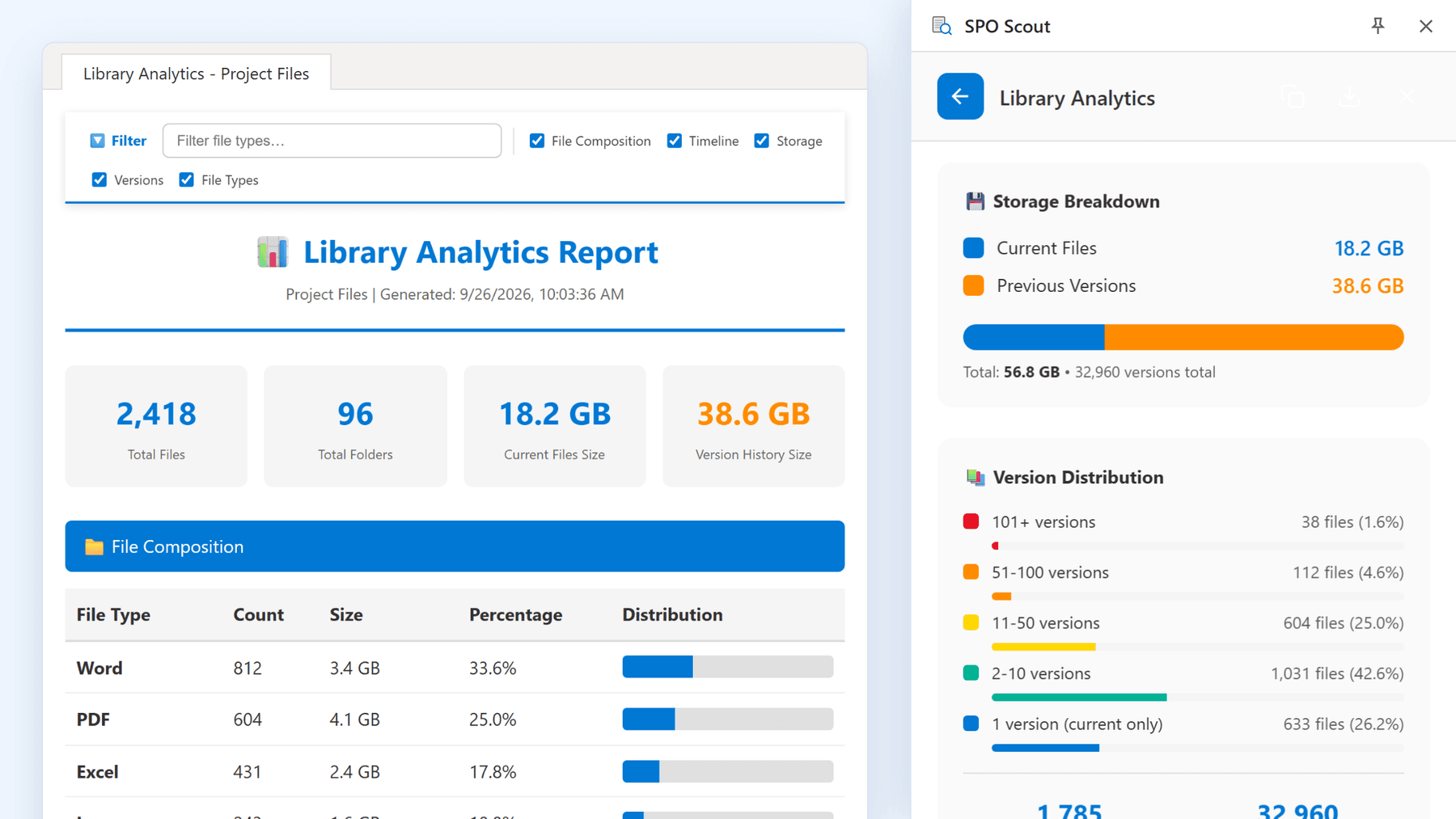
Library Analytics is on the Analyze tab in SPO Scout, section Storage & Files, card Library Analytics ("File types, age, and storage analysis"). It analyses the library that is open in your browser tab and shows:
- The number of files and folders, and the size of the current files.
- File Composition: the file types in the library by count and share.
- Last Modified: how many files were last changed in the last 30 days, 1-3 months, 3-6 months, 6-12 months, 1-2 years or over 2 years.
- File Type Details: each file type with its count, size and share.
With Pro, it also reads each file's version history and adds:
- Storage Breakdown: current files against previous versions.
- Version Distribution: how many files have 101+ versions, 51-100, 11-50, 2-10, or 1 version (current only).
- The number of files with versions, the total number of versions and the average number of versions per file.
How to see what is using storage in a library
- Open the SharePoint document library you want to check.
- Open the SPO Scout side panel and go to the Analyze tab.
- In Storage & Files, choose Library Analytics.
- On Pro, watch the progress: the panel shows the files read out of the total, the version history found so far, the time left and a running clock.
- Review the file types, the age of the files and, on Pro, the storage breakdown and version distribution.
- On Pro, export the report with Export PDF or Export CSV if you need to keep it.
On a large library a Pro scan can take a while. Stop and show results ends the scan and shows what was read so far. A scan that stopped, or was interrupted by a page reload, an expired sign-in or a long block from SharePoint, can usually be continued with Resume scan for up to 7 days. Resume is not available when the library had to be scanned folder by folder. Start over begins a new scan.
Scope and limits
- Library Analytics works on the library open in the tab. It does not scan a whole site or tenant, and it does not run on a schedule.
- The Free plan runs it once a day on the first 200 files, without version data, and the report says it is incomplete.
- When SharePoint asks it to wait, the scan counts down and continues. The report names the folders and files it could not read, counts the files that were not scanned, and warns if the library changed during a pause, because the totals may then be inaccurate.
- SPO Scout runs in your existing SharePoint session and sees only what your account can see. SharePoint content is read in the browser and is not sent to SPO Scout's servers.
- Export PDF and Export CSV are Pro.
Review version limits before changing storage settings
If previous versions account for much of a library's storage, review your organization's version-retention and recovery requirements before changing limits. Lowering a version-count limit may reduce storage over time, but it does not immediately remove every older version. SharePoint gradually trims excess versions when files are updated. Versions removed because they exceed configured limits can be permanently deleted without passing through the recycle bin.
SPO Scout's Version Limits (Pro), on the Manage tab, sets the maximum number of major versions for every visible document library and list in the current site in one action. Choose Scan Libraries First to review current limits, enter a Major Version Limit between 100 and 50,000, then choose Apply to All Libraries.
The action affects all visible libraries and lists in the site; you cannot select individual libraries. It also enables versioning where it was off. SPO Scout does not itself delete existing versions or offer time-based or automatic limits, but SharePoint can subsequently trim versions under the new limits. For more detail, see how to set version limits for every library in a SharePoint site and how to reduce SharePoint storage by controlling version history.
Without SPO Scout: what it takes
- A site collection administrator can open Site settings and then Storage Metrics to see how much space the site's libraries, folders and files take (manage site collection storage limits).
- For one file, SharePoint's Version history shows previous versions and their sizes. For a site or library inventory, Microsoft provides a version storage usage report, generated asynchronously through SharePoint Online Management Shell as a CSV containing version-level information.
- Comparing file types, file ages and version counts across a library means combining those views yourself, usually in a spreadsheet.
Frequently asked questions
How do I see how much storage a SharePoint library uses?
Run Library Analytics in SPO Scout on the library. It shows the size of the current files and, with Pro, the space previous versions take, alongside file types and file ages.
How do I see how much space version history uses in a SharePoint library?
With SPO Scout Pro, Library Analytics reads each file's version history and shows a storage breakdown of current files against previous versions, plus how many files have 101+, 51-100, 11-50, 2-10 or 1 version.
Does Library Analytics delete versions or change the library?
No. Library Analytics only reads the library. To lower version limits across a site, use Version Limits (Pro), which does not delete existing versions itself.
Is Library Analytics free?
Yes, with limits: the Free plan runs it once a day on the first 200 files, without version data. Pro attempts to analyse the full library, reads version history and adds PDF and CSV export.
Related guides
- How to Reduce SharePoint Storage by Controlling Version History →
Version history quietly consumes a large share of SharePoint storage. Learn how to measure it, set sensible version limits, and reclaim space safely.
- How to Set Version Limits for Every Library in a SharePoint Site →
Set version limits across SharePoint libraries and lists with SPO Scout's Version Limits (Pro), and understand SharePoint trimming before changing limits.
- How to Check a SharePoint Library's Versioning and Other Settings →
Check SharePoint library versioning settings, checkout and approval in one place with SPO Scout's Library Properties (Free) in the side panel.