How to Set Version Limits for Every Library in a SharePoint Site
Set version limits across SharePoint libraries and lists with SPO Scout's Version Limits (Pro), and understand SharePoint trimming before changing limits.
Quick answer
To set version limits on document libraries and lists in a SharePoint Online site, use SPO Scout's Version Limits (Pro) on the Manage tab. Scan Libraries First shows each visible document library and list with its current major and minor version settings, then Apply to All Libraries updates the max versions across the site in one action. SharePoint can also manage version history limits at organization, site and library level, but bulk updates and trimming jobs are handled through its version history limits tools for admins (version history limits overview).
Version history limits in SharePoint
Version history limits control how versions are stored in a SharePoint document library or OneDrive account (version history limits overview). Global and SharePoint admins set default organization limits, and site owners can overwrite those at site or library level when needed. When versioning is enabled on a list or library, SharePoint tracks changes and lets you view or recover previous versions from an item's history; the number of versions stored and the visibility of draft or minor versions can be configured for each list and library (enable and configure versioning).
SharePoint offers three version storage modes: Automatic, Manual with Major Version Limit and Expiration Period set, and Manual with Major Version Limits and No Time set (plan version storage for document libraries). Automatic optimizes storage by storing versions based on their creation date so users have access to more versions in the recent past and fewer farther back in time. Manual options let you store versions only within configured count and expiration limits, or always keep the configured count of versions regardless of age.
When versions exceed the limits applied on a document library, versions that match the criteria are marked for permanent deletion, bypass the normal recycle bin and cannot be recovered from the recycle bin. For items that are subject to a retention policy or an eDiscovery hold, document library versioning limits are ignored until the retention period of the document is reached or the hold is released (learn about retention for SharePoint and OneDrive).
Site-level and library-level version limits
When you configure version history limits at site level, SharePoint applies those settings to all new document libraries created on that site, and you can break inheritance for individual libraries when requirements differ (version history limits overview).
Microsoft recommends keeping organization defaults for most sites and limiting exceptions, then deciding whether new organization limits should apply only to new libraries or also update existing libraries and optionally trim existing versions so current content aligns with the defaults (plan version storage for document libraries).
Microsoft also lets you run version storage usage reports, update version history limits on all libraries of a site and queue jobs that permanently delete existing versions so storage and version behavior match your configuration (version history limits overview).
For more detail on version storage and choosing limits, see How to Reduce SharePoint Storage by Controlling Version History.
Set version limits for every library in a SharePoint site with SPO Scout
SPO Scout is a browser extension that adds an admin side panel to SharePoint Online. It is installed from the Chrome Web Store and works in Google Chrome and Microsoft Edge. It runs inside your existing SharePoint session and sees or changes only what your signed-in account is allowed to see and change. If you do not yet use SPO Scout, start from the SharePoint admin extension page.
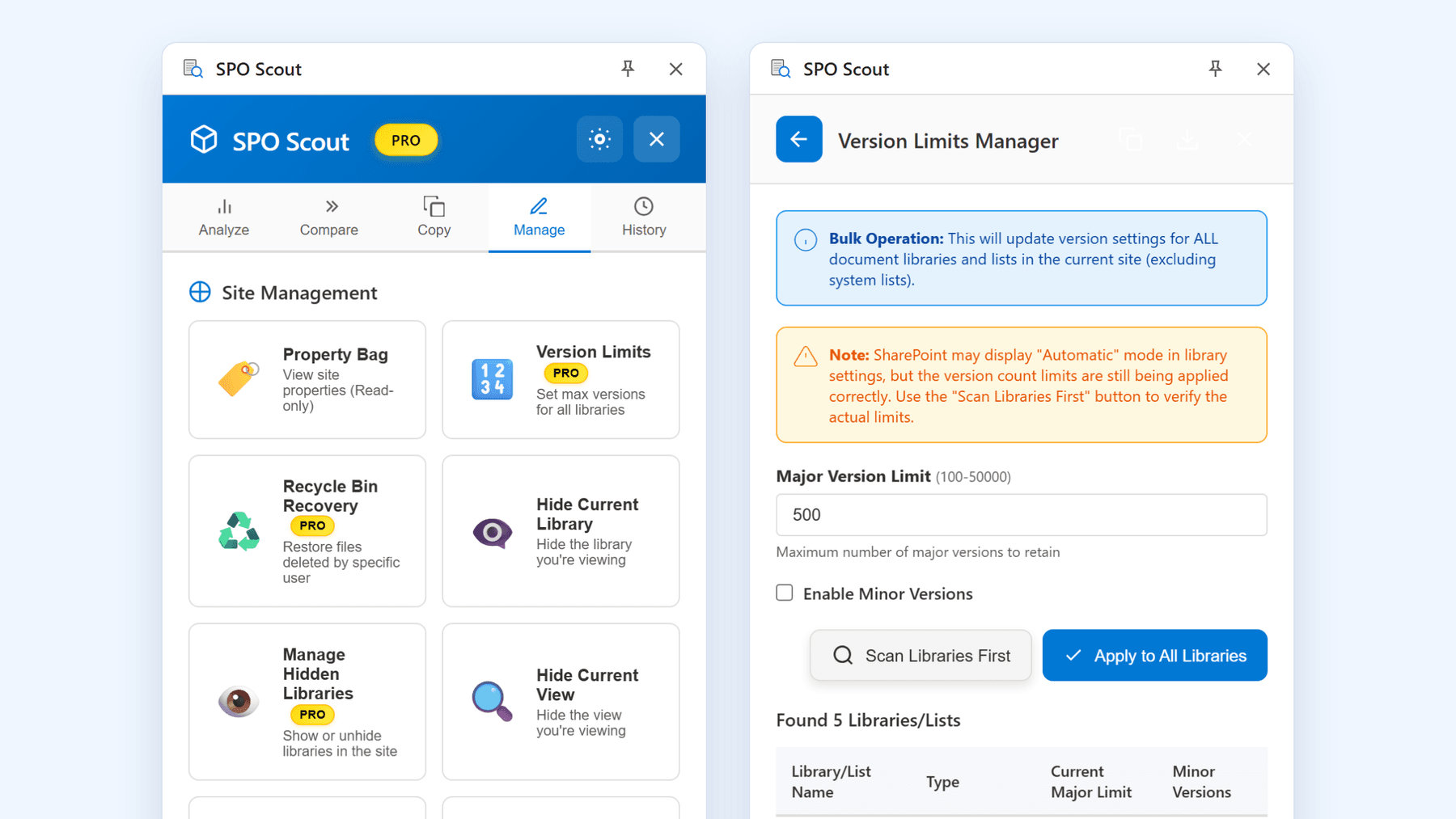
Version Limits is a Pro-only tool on the Manage tab that sets the maximum number of major versions for every visible document library and list in the current site in one action. The Version Limits Manager panel lets you scan current settings, choose a major version limit, optionally enable minor versions and apply the configuration across the site.
- Open any page on the SharePoint site where you want consistent version limits, then open the SPO Scout side panel and go to the Manage tab.
- Choose the Version Limits card labelled Set max versions for all libraries to open the Version Limits Manager.
- Select Scan Libraries First to list each visible document library and list with its type and current major and minor version settings, then review the results.
- In Major Version Limit, enter the number of major versions you want to keep, between 100 and 50,000; 500 is prefilled. If you also want minor versions, tick Enable Minor Versions and set a Minor Version Limit.
- Confirm that the values are what you want across the whole site, then choose Apply to All Libraries. Read the confirmation message that this will update version settings for all libraries and lists in the site, then confirm.
- Wait for the operation to complete. The History tab records a Set Version Limits entry with the number of libraries updated.
After the operation completes, every visible document library and list in the site shares the same major version limit and optional minor version limit you set. This applies even where versioning was previously turned off, because Version Limits turns it on before applying the limits.
Scope and limits of Version Limits (Pro)
Version Limits is a Pro-only feature; on the Free plan, selecting it opens the upgrade dialog instead of running the tool.
These points define what Version Limits does and does not do on a site.
- It applies to all visible document libraries and lists in the current site, excluding system lists; you cannot choose individual libraries to include or exclude.
- It turns versioning on in any library or list where it was previously off, then applies the chosen major and minor version limits.
- It does not delete existing versions itself; SharePoint later enforces the limits and deletes versions that exceed them according to its version trimming behavior (version storage behavior).
- It does not offer any way to configure time-based expiration or Automatic mode; Version Limits is entirely count based.
- The Version Limits Manager notes that SharePoint may display Automatic mode in library settings while the version count limits still apply, and Scan Libraries First shows the actual numeric limits in use.
- To change or undo a previous configuration, run Version Limits again with different values. The History tab keeps the last 20 actions in the browser (5 on the Free plan) and records each run as Set Version Limits with the number of libraries updated.
Do it safely: checks before changing version limits
Version history limits influence both restore options and storage consumption, and trimming jobs permanently delete versions that meet the criteria (plan version storage for document libraries). Before you change settings with Version Limits, review these checks.
- Use Scan Libraries First to get a list of each library and list with its current major and minor version settings, and copy the result to the clipboard if you need a record.
- Avoid extreme limits. The SharePoint user interface does not allow fewer than 100 major versions or less than 30 days expiration, and values below those are not recommended because they can result in user activity causing inadvertent data loss (version history limits). Version Limits accepts major version limits from 100 upwards, which fits that guidance.
- Remember that when versions exceed the limits applied on a document library, SharePoint permanently deletes the matching versions, bypasses the recycle bin and those versions cannot be recovered.
- Check for retention policies or eDiscovery holds, because for items under retention or on hold, document library versioning limits are ignored until the retention period is reached or the hold is released (learn about retention for SharePoint and OneDrive).
- If you enable minor versions, SharePoint creates a version each time you edit a file using major and minor versions in those libraries (enable and configure versioning).
- To see version storage details for a specific library, run Library Analytics in SPO Scout on that library. With Pro it shows the size of current files, the size of previous versions and how versions are distributed across files; for a walkthrough of that report, see the SharePoint library storage breakdown guide.
Without SPO Scout: what it takes
You can set version limits across a site using Microsoft's own tools, but it involves more configuration and separate jobs.
- Review version storage on each site by queuing a version storage usage report to analyse current versions, understand how limits work and estimate the impact of trimming existing versions (version history limits overview).
- Use Microsoft 365 global or SharePoint admin privileges to configure default organization version history limits that apply to new libraries on sites where site-level limits are not set.
- For a specific site, configure site-level version history limits and queue a job to update limits on all libraries so existing libraries adopt the new settings.
- To reclaim storage, queue timer jobs on each site or library to trim existing versions, knowing that bulk deletion of version history permanently deletes versions and bypasses the recycle bin.
- Handle exceptions by adjusting individual library version settings and accounting for retention policies or eDiscovery holds that prevent trimming from deleting older versions for some content (learn about retention for SharePoint and OneDrive).
Frequently asked questions
Does SPO Scout Version Limits work on one library, or the whole site?
SPO Scout's Version Limits (Pro) updates version settings for every visible document library and list in the current site in one action; libraries cannot be chosen individually.
Does SPO Scout delete old versions when I lower the limit?
No. Version Limits (Pro) only changes version settings. After you lower limits, SharePoint may permanently delete older versions that exceed the new count, bypassing the recycle bin so they cannot be recovered (version storage behavior).
Can SPO Scout set time-based or Automatic version limits?
No. Version Limits (Pro) sets only count-based major and optional minor version limits and does not configure time-based expiration or Automatic mode. SharePoint offers Automatic and Manual settings for version history limits, and the Manual setting lets admins set count limits on major versions with or without an expiration period.
What happens if a library had versioning turned off before I run Version Limits?
When you apply Version Limits (Pro), SPO Scout turns versioning on in any library or list where it was off and applies the chosen limits. Once versioning is enabled, SharePoint creates a new version each time you edit an item or file in that list or library and lets you view and restore earlier versions (enable and configure versioning).
How can I see current version limits without changing anything?
In SPO Scout, choose Version Limits (Pro) and select Scan Libraries First to list each library and list with its type and current major and minor version settings. In SharePoint, you can open a list or library's Versioning settings page to see options such as enabling versioning, using major and minor versions and limiting the number of versions and drafts to retain.
How does retention affect the version limits I set?
For items that are subject to a retention policy or an eDiscovery hold, SharePoint ignores document library versioning limits until the retention period is reached or the hold is released, so older versions are not trimmed by those limits during that time (learn about retention for SharePoint and OneDrive).
Related guides
- How to Reduce SharePoint Storage by Controlling Version History →
Version history quietly consumes a large share of SharePoint storage. Learn how to measure it, set sensible version limits, and reclaim space safely.
- SharePoint Library Storage Breakdown: See What Is Actually Using Space →
Find out which file types, folders and version histories consume a library, without exporting everything to a spreadsheet first.