How to Find Duplicate Files in a SharePoint Library
Find duplicate files in a SharePoint library with SPO Scout's Find Duplicate Files (Pro). Scan the whole library, group likely copies, and clean up safely.
Quick answer
With SPO Scout you can find duplicate files in a SharePoint library by running the Find Duplicate Files (Pro) tool in the side panel. It scans the entire library you have open, reports files with the same name, and groups files that share the same file type and exact size so you can decide which copies to keep. It matches by filename case insensitively, plus type and size, and does not delete anything; you remove duplicates directly in SharePoint. Without SPO Scout you are left manually reviewing names and sizes in the library to spot possible copies.
How SharePoint libraries handle files and storage
To create and upload files and folders in a SharePoint document library you must have contributor permissions to that library, and you can drag files and folders from your computer into the library in the modern experience Upload files and folders to a library. SharePoint in Microsoft 365 supports long path and file names, up to 400 characters for the total file and path length.
You can delete files, folders or links in a SharePoint document library that you do not need anymore, and when you delete a folder SharePoint deletes the folder and any files or subfolders it contains; you or your administrator might be able to recover a folder and its contents from the recycle bin Delete a file, folder, or link from a SharePoint document library. This makes it possible to clean up obsolete content while still having a safety net if you remove the wrong folder.
The amount of SharePoint space your organization has is based on the number of licenses you have, and by default that storage is available in a central pool from which all sites can draw Manage site storage limits in SharePoint in Microsoft 365. When a site runs out of storage, site admins can request more using the Storage Metrics page, which sends a storage request email to the organization's Global Administrators.
Find duplicate files in a SharePoint library with SPO Scout
SPO Scout is a browser extension that adds an admin side panel to SharePoint Online and works in Google Chrome and Microsoft Edge. It runs inside your existing SharePoint session and sees only what your signed in account can see or change. If you have not installed it yet, you can read what it does and how to add it to your browser on the SharePoint admin extension page.
- Open the SharePoint document library you want to check for duplicates in Google Chrome or Microsoft Edge.
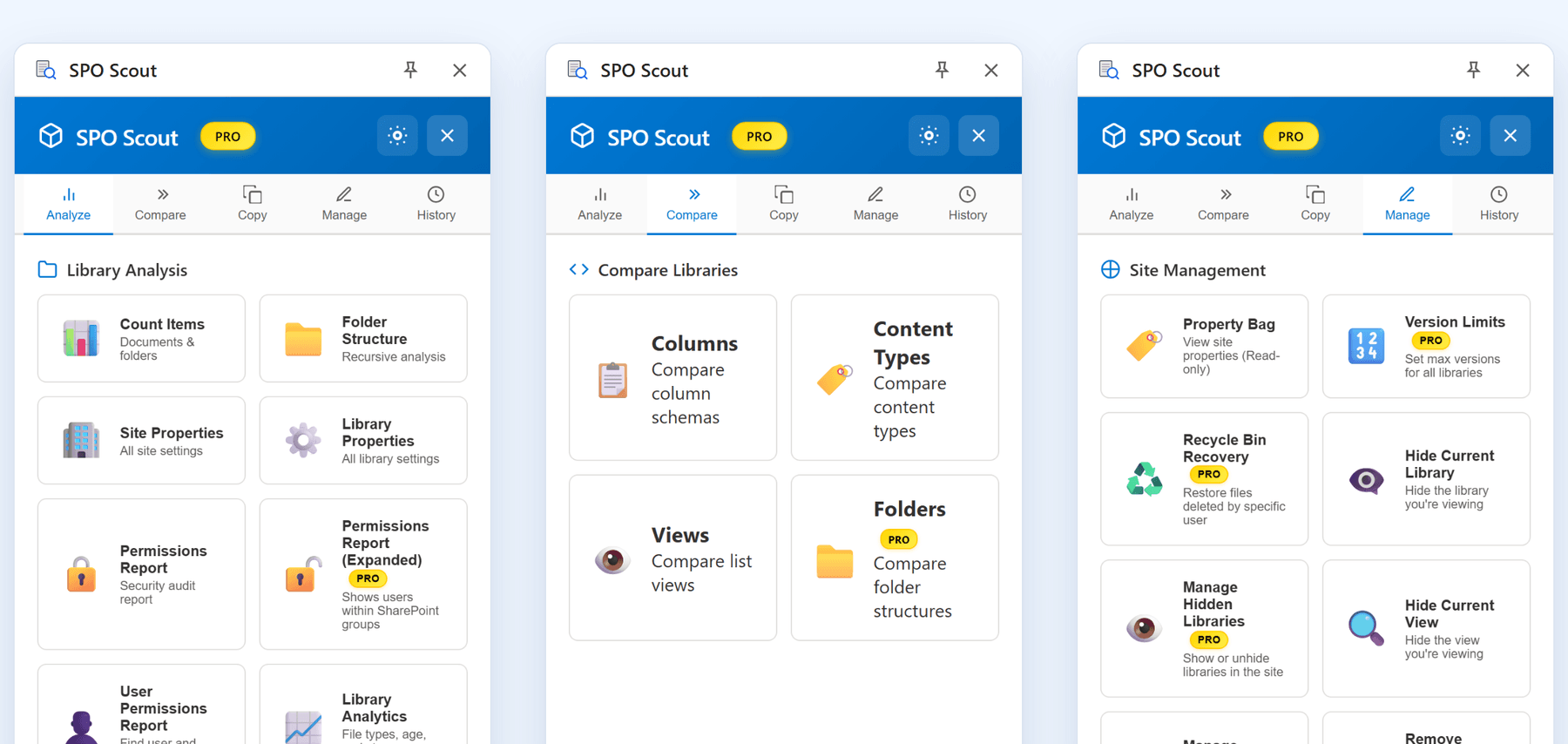
- Open the SPO Scout side panel on that page and go to the Analyze tab.
- Choose the Find Duplicate Files card, labelled "Same names & same type/size"; on the Free plan this opens the upgrade dialog because Find Duplicate Files is a Pro only tool.
- Wait while SPO Scout scans the whole library that is open in the tab; it counts Files Scanned, Duplicate Names and Same Type & Size Groups.
- Review the Duplicate Filenames section and its chart of the top 20 filenames to see which names occur most often across the library.
- Scroll to the Same File Type & Size section to see groups of files that have the same file type and exactly the same size, with empty files skipped.
- Use the Filter by filename... box and the sort options to focus on particular filenames or the largest groups that you want to review first.
- If you need a record for documentation or audits, choose Export PDF to save the duplicate report.
- For each group, open the corresponding folders in SharePoint and decide which files to keep and which to delete, based on how the files are used.
Use the totals at the top to understand how much of the library SPO Scout scanned, and how many duplicate names and same type and size groups it found. The filename chart helps you target heavily duplicated names, while the type and size groups highlight files that are more likely to be identical copies than unrelated documents.
Scope and limits of Find Duplicate Files (Pro)
Find Duplicate Files (Pro) works on the SharePoint document library that is open in the browser tab when you run it; SPO Scout works on the site, library or page you have open and does not scan a whole tenant or run on a schedule.
It finds files with the same name anywhere in the library, ignoring upper and lower case, and it finds files that share the same file type and exactly the same size, skipping empty files. This gives you two perspectives on possible duplicates: shared names, and groups that look like identical files by type and size.
Find Duplicate Files does not compare file contents. Files with the same name are not necessarily copies, and a shared name is not proof of a copy. Matching file type and exact size together are a strong hint that files may be duplicates, but they are not conclusive evidence, so you should still review each group before removing anything.
Find Duplicate Files deletes nothing. SPO Scout reports the groups it finds, and you review them and remove any unwanted files directly in SharePoint.
Because SPO Scout runs inside your existing SharePoint session, it sees and changes only what your signed in account is allowed to see and change. SharePoint content is read in the browser and is not sent to SPO Scout servers; only the licence check service receives your licence key and tenant domain.
Find Duplicate Files is part of the Pro plan. The Free plan includes 3 analyses a day for tools such as Library Properties, while Pro has no daily limit and unlocks Pro only tools such as Find Duplicate Files. For broader storage analysis, there is a separate guide, SharePoint Library Storage Breakdown: See What Is Actually Using Space.
SPO Scout Pro costs 299 US dollars per tenant as a one time payment that is valid for one year, with no automatic renewal, and one licence covers all admins in the tenant.
Deleting duplicate files safely in SharePoint
SPO Scout helps you find likely duplicate files, but it does not delete anything, so you decide what to remove in the SharePoint library.
In SharePoint you can delete files, folders or links in a document library that you do not need anymore, and when you delete a folder it deletes the folder and any files or subfolders it contains; you or your administrator might be able to recover a folder and its contents from the recycle bin Delete a file, folder, or link from a SharePoint document library. Consider moving or archiving the contents of a folder before deleting it, especially if you are using SPO Scout to clean up whole branches of a library.
For individual files that look like duplicates, confirm which copy people are using before you delete anything, for example by checking recent activity or asking the team that owns the library.
If a library is approaching its storage limit, site admins can request more storage through the Storage Metrics page, which sends a storage request email to the organization's Global Administrators Manage site storage limits in SharePoint in Microsoft 365. Global Administrators can add storage space to the subscription if the organization runs out.
Without SPO Scout: what it takes
- Review file names and sizes manually in each folder of the document library to spot repeated names that might indicate duplicate files.
- Keep your own notes or spreadsheets of suspected duplicates, including where each copy lives, and update them as users add or remove files.
- Download or sync the library to your device and use other tools to compare file names, types and sizes across folders.
- Build and maintain your own automation, such as scripts or custom tools, to enumerate files in the library and compare names, types and sizes to detect duplicates.
- Repeat these checks regularly as the library grows, because new uploads and changes can introduce fresh duplicates that manual reviews have not caught yet.
Frequently asked questions
Can SPO Scout automatically delete duplicate files it finds? No. SPO Scout's Find Duplicate Files (Pro) compares filenames, file types and sizes and reports likely duplicate groups, but it never deletes anything. You remove unwanted files in the SharePoint library, using the report as your guide.
How does SPO Scout decide which files are duplicates in a SharePoint library? Find Duplicate Files looks for two kinds of match in the library open in the tab: files with the same name, ignoring upper and lower case, and files with the same file type and exactly the same size. It compares these attributes, not file contents, so matching type and size are a strong hint of a copy rather than proof.
Does Find Duplicate Files work across multiple SharePoint libraries or sites? No. SPO Scout runs inside your current SharePoint session and Find Duplicate Files works only on the document library that is open in the browser tab when you run it. It does not scan a whole tenant and does not run on a schedule.
Can I use Find Duplicate Files on the Free plan of SPO Scout? No. Find Duplicate Files is a Pro only tool, so choosing it on the Free plan opens the upgrade dialog instead of running the scan. The Free plan includes 3 analyses a day for tools such as Library Properties, while Pro has no daily limit.
What data does SPO Scout send to its servers when scanning for duplicates? When you run Find Duplicate Files, SPO Scout reads SharePoint content in your browser and does not send that content to SPO Scout servers. The only service call is for the licence check, which sends your licence key and tenant domain.
How much does SPO Scout Pro cost for a SharePoint Online tenant? SPO Scout Pro costs 299 US dollars per tenant as a one time payment that is valid for one year. Nothing renews automatically, and one licence covers all admins in the tenant.
Related guides
- SharePoint Library Storage Breakdown: See What Is Actually Using Space →
Find out which file types, folders and version histories consume a library, without exporting everything to a spreadsheet first.
- How to Reduce SharePoint Storage by Controlling Version History →
Version history quietly consumes a large share of SharePoint storage. Learn how to measure it, set sensible version limits, and reclaim space safely.
- How to Set Version Limits for Every Library in a SharePoint Site →
Set version limits across SharePoint libraries and lists with SPO Scout's Version Limits (Pro), and understand SharePoint trimming before changing limits.