How to Update SharePoint Metadata Without Changing Modified By or Adding a Version
SharePoint's edit forms stamp you as Modified By and add a version. SPO Scout's Edit Metadata sets column values and keeps Modified, Modified By and the version.
Quick answer
SharePoint's own screens can't do it. Editing an item's properties, whether in the edit form, the details pane or grid view, sets Modified to now and Modified By to you, and adds a new version when versioning is on.
SPO Scout's Edit Metadata (Pro) changes column values and leaves all three as they were: the Modified date, the Modified By name and the version number. It works on one item or a whole folder, from the SharePoint tab you already have open.
We tested it in a SharePoint Online library. After the update, the edited items still showed the same Modified date, Modified By and version number as before.
Why an ordinary edit gets in the way
SharePoint treats a change to an item's properties like any other change. Microsoft's guide to how versioning works in a list or library lists it among the events that create a new version. That is right for editorial changes, and wrong for administrative ones:
Back-filling a new column. You add a Fiscal Year column to a library of three thousand files and set it on all of them. Every file now names you as its last editor, and the people who actually wrote the documents disappear from the library view.
Correcting metadata after a migration. The migration stamped the wrong value, or none at all. Fixing it should not make years of documents look as if they were edited this morning.
Anything that reads the Modified date. Views sorted by Modified, "recently changed" reports, retention and clean-up rules, and people's own sense of which document is current.
Version limits. A bulk edit adds a version to every file. In a library with a low version limit, that can push the oldest version out. How version history works, and how to keep it under control covers the limits.
How it works in SPO Scout
- Open the list or library in SharePoint, open the SPO Scout side panel, and choose Manage → Edit Metadata. Load the list or library.
- Choose the items: one item by its ID, every item in the list or library, a folder and its subfolders, or a list of item IDs.
- Choose one or more columns and their new values.
- For several items, check the preview: the items to update, the first 50 of them listed with their current values. Above 50 items, type the number of items to confirm.
- Run it, then download the results as CSV.
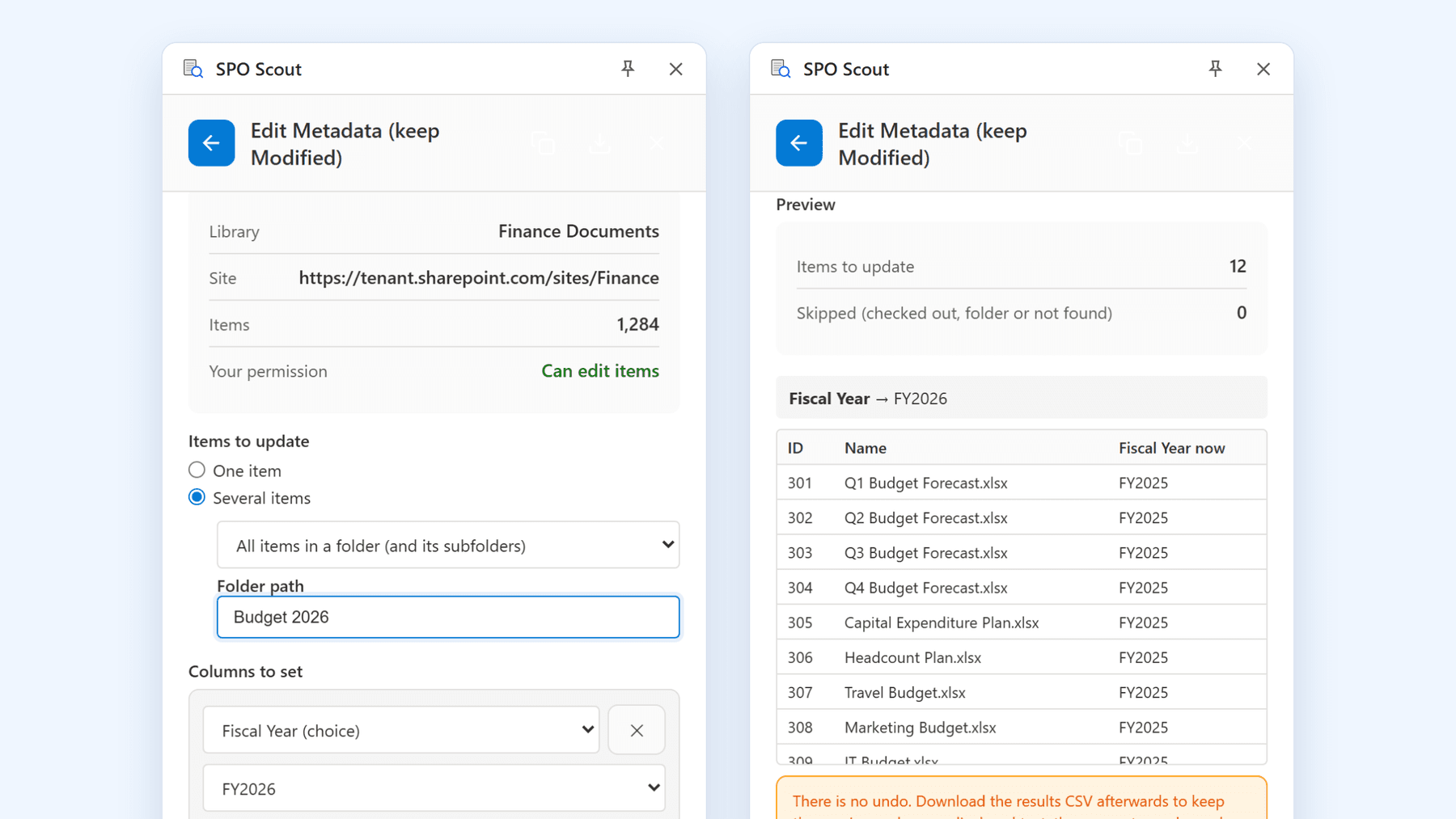
It checks its own work. It updates one item first and checks it, then reads every item back after writing it. If SharePoint changed an item's Modified, Modified By or version, it stops.
A record you keep. Download the results CSV after each run: it lists each item's previous value, as it was displayed, next to its new value. There is no undo, and the old values aren't saved anywhere else, so keep that file.
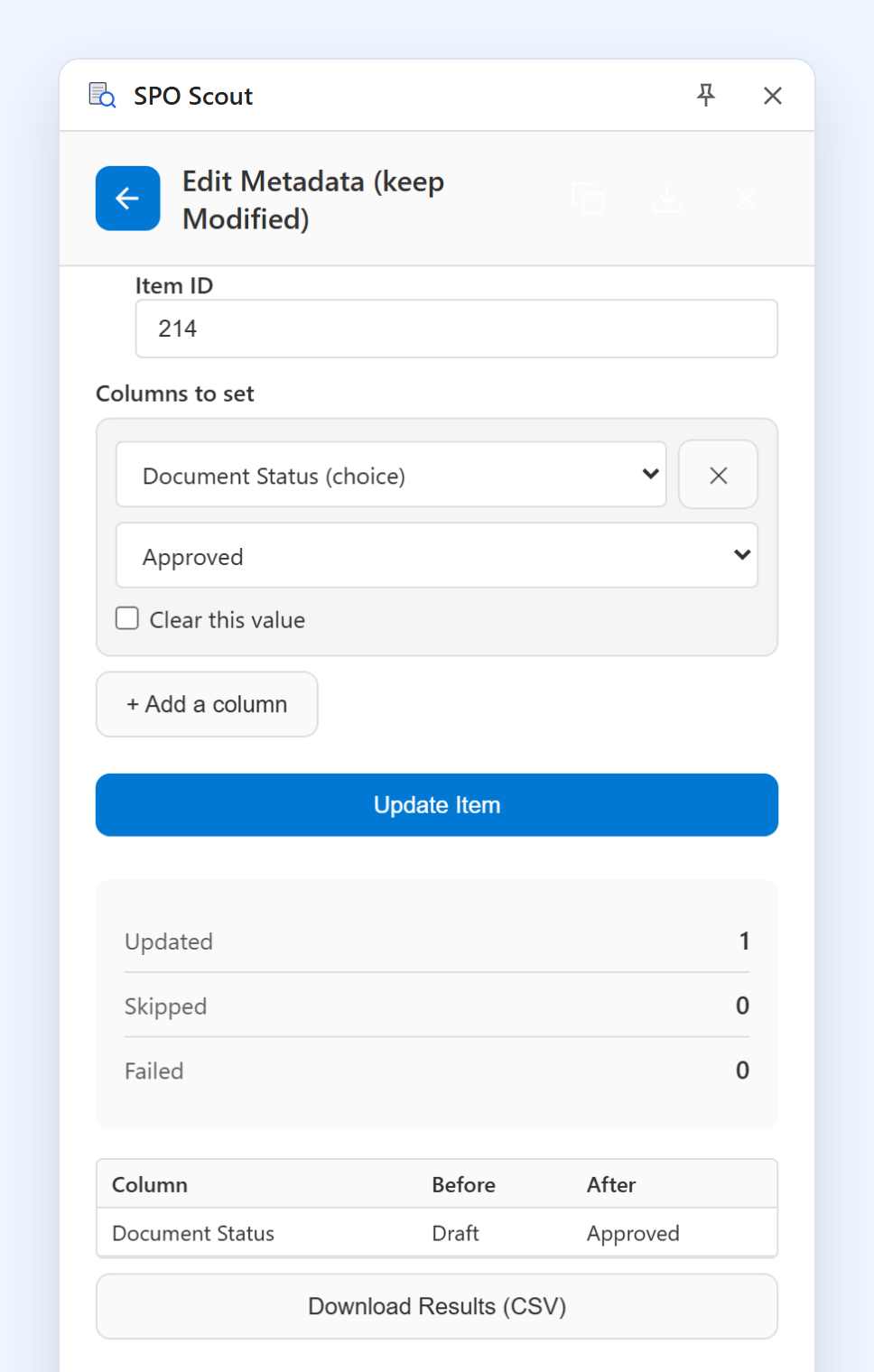
Your permissions, nothing more. It runs as you, in your existing SharePoint session, so it can change only items you can already edit (for example with Contribute or Edit on the list). There is no app registration and no admin consent, and the panel tells you before you start whether you have the permission. The security page sets out how it handles your data.
What it keeps and what it avoids
| On the item | An ordinary edit | SPO Scout Edit Metadata |
|---|---|---|
| Modified | Set to now | Kept |
| Modified By | Set to you | Kept |
| Version | A new one, when versioning is on | No new version |
| Flows that start when an item changes | Start | Usually don't start |
| Approval status | Depends on the library | Left as it is |
Two of those need thought before a large run. If an approval, a notification or a sync relies on a flow starting after each change, it won't run, so do that step yourself. And a new value on an approved item is visible to readers at once, without a new approval.
It isn't hidden. Version history shows the new value under the latest version's original date and author, and SharePoint records the change in its change log. Edit Metadata is for administrative corrections, where the original author and date are the information worth keeping, not for changing content without accountability.
Without SPO Scout: what it takes
| Route | Keeps Modified and Modified By | What it takes |
|---|---|---|
| Editing in SharePoint | No | Nothing extra, but every edit records you and adds a version |
| Power Automate: Update file properties | No | A flow, and the flow's account becomes Modified By |
| A PowerShell script | Yes | PowerShell and its SharePoint modules, your own Entra ID app registration with admin consent, and a script you write and test |
| Custom code or REST calls | Yes, if the code is written for it | Developer time |
| SPO Scout Edit Metadata | Yes | The browser extension, and edit permission on the items |
Scripting it is possible, but it's a project: installing modules, registering an app in Entra ID and getting an administrator to consent to it, writing the loop, handling folders and throttling, and keeping your own record of the old values. None of it previews the change or checks afterwards that Modified, Modified By and the version stayed put, unless you write that too. That is the work Edit Metadata does for you, in a few clicks.
What Edit Metadata doesn't do
- Columns: it sets single line of text, plain multiple lines of text, number (including percentage), currency, choice, yes/no, date, person, lookup and hyperlink columns. Managed metadata, rich or append-only text, and the folders themselves are not supported yet.
- One value per column per run. For different values on each item, from a spreadsheet for example, a script is the better tool.
- One list or library at a time, run by you. It doesn't schedule jobs or work across several sites at once. SharePoint admin extension vs PowerShell goes through where each fits.
Before a large run
- Try one item first, then check it in the library view and in version history.
- Keep the results CSV. It holds the values you replaced.
- Check what reacts to changes in the library: flows, approvals and syncs usually won't be triggered.
- Checked-out files can't be updated until they're checked in, and with minor versions on, the change lands on the current version, which may be a draft.
- Required and unique columns: a required column can't be cleared, and a column that requires unique values can't take the same value on many items.
Edit Metadata was added in SPO Scout 1.6.0 because a customer asked us for exactly this. It is part of SPO Scout Pro: see Pro pricing for what the plan includes.
Frequently asked questions
Can I change SharePoint metadata without my name showing in Modified By? Not from SharePoint's own screens: every edit there records you. SPO Scout's Edit Metadata (Pro) changes column values and keeps the existing Modified By, on one item or a whole folder.
Does it add a version? No. The latest version shows the new value, under that version's original date and author.
Is the change recorded anywhere? Yes. SharePoint's change log records it, and version history shows the new value. Microsoft doesn't document how such updates appear in the Microsoft Purview audit log, so if your compliance process relies on the audit log, make a test update and search for it first.
Will it start my flows? Usually not. If a process relies on a flow running after each change, run that step yourself.
Can I set Modified By to someone else, or change the Created date? No. Edit Metadata keeps the existing Modified, Modified By and version; it doesn't set them to other values.
What permission do I need? Permission to edit the items, for example Contribute or Edit on the list. No app registration and no admin consent.
Can I undo it? No. The results CSV lists the values you replaced. To restore them, run Edit Metadata again for each previous value on the items that held it, or use a script when they all differ.
Related guides
- SharePoint Admin Extension vs PowerShell: Which to Use When →
PowerShell is not going away. This is an honest comparison of where a browser extension is faster and where scripting still wins.
- How to Reduce SharePoint Storage by Controlling Version History →
Version history quietly consumes a large share of SharePoint storage. Learn how to measure it, set sensible version limits, and reclaim space safely.
- Validate a SharePoint Migration by Comparing Libraries →
How to check what actually landed after a migration — columns, content types, views and folder structure.