Introducing Storage Breakdown for SharePoint Libraries — See What's Taking Up Space Instantly
A new SharePoint storage analysis tool that gives administrators instant visibility into document library storage — without PowerShell or exports.
TL;DR
With the new Storage Breakdown feature in SPO Scout, you can instantly see what's consuming space in your SharePoint libraries — down to the largest folders, file types, and version history — without PowerShell or exports. Just open the extension, scan your library, and get a clear visual report you can export as PDF or CSV.
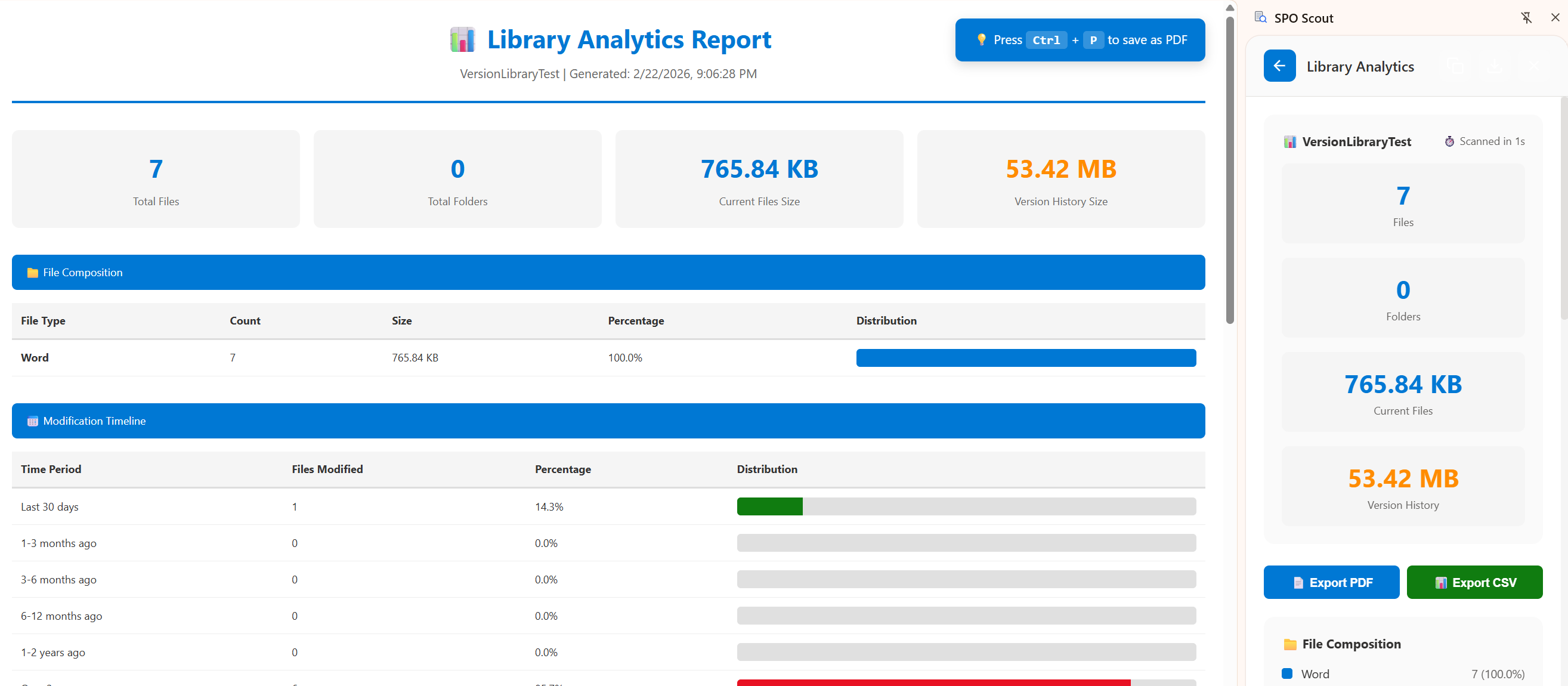
The new Storage Breakdown view in SPO Scout — file composition, version history, and storage distribution at a glance.
Storage issues in SharePoint rarely happen suddenly.
They build up quietly — oversized files, old versions, forgotten folders, duplicate content — until one day your library hits a limit or performance starts slowing down.
That's why we've just released a new SharePoint storage analysis tool in SPO Scout: Storage Breakdown for document libraries.
Now you can instantly see what's consuming storage inside a document library — without exporting data or running PowerShell scripts.
Why Storage Visibility Matters
Most SharePoint administrators only see total storage usage at a high level. But that doesn't answer critical questions like:
- Which folders are consuming the most space?
- Are version histories inflating file sizes?
- Are large media files stored in the wrong location?
- Is archived content still sitting in active libraries?
- Are duplicates wasting storage?
Without detailed visibility into your SharePoint document library storage, cleanup becomes guesswork. And guesswork leads to wasted admin hours — or worse, ignored problems that snowball.
For more on how poor visibility creates governance risks, see our guide on auditing SharePoint permissions without PowerShell.
What the New Storage Breakdown Feature Does
The new document library storage visualization allows you to:
- ✔ View total storage usage of a document library
- ✔ Identify top storage-consuming folders
- ✔ Detect large files instantly
- ✔ See storage distribution across the entire library
- ✔ View file composition breakdown by type (Word, Excel, PDF, etc.)
- ✔ Separate current file sizes from version history storage
- ✔ Export reports as PDF or CSV
- ✔ Make smarter cleanup decisions backed by data
Instead of manually calculating file sizes or exporting SharePoint lists to spreadsheets, you get a clear visual overview inside your browser — in seconds.
Typical SharePoint Library Storage Distribution
Example distribution — version history often accounts for 25-40% of total library storage.
How It Helps SharePoint Administrators
This SharePoint library storage reporting feature is especially useful when:
- Preparing for migrations — know exactly what you're moving
- Performing governance reviews — identify compliance risks
- Cleaning up legacy content — find forgotten folders
- Managing storage quotas — prevent overages before they happen
- Troubleshooting performance issues — spot oversized libraries
- Optimizing SharePoint structure — make data-backed decisions
For example:
If a single folder is consuming 40% of the library's storage, you can investigate versioning settings or archive unused files — something our migration cleanup guide covers in detail.
If media files are bloating a team library, you can move them to a better storage location — similar to the approach in our library restructuring case study.
Storage Breakdown vs Traditional Methods
Traditionally, analyzing SharePoint storage without PowerShell isn't really possible. The typical approach requires:
- PowerShell scripts (often custom-built)
- Manual exports to Excel
- Checking file sizes one by one
- Reviewing version history settings manually across libraries
| Task | Traditional | SPO Scout |
|---|---|---|
| View total library size | 15–30 min | Instant |
| Identify large files | 30+ min | < 1 min |
| See version history impact | 1–2 hours | < 1 min |
| Folder-level breakdown | Manual work | Automatic |
| Export results | Build your own | PDF / CSV |
| Technical skill needed | PowerShell | None |
Now you can analyze storage distribution directly within the library — instantly. No scripts. No spreadsheets. No guessing.
For a deeper comparison of browser-based tools vs scripting, see our article on SharePoint Admin Extension vs PowerShell.
When Should You Use Storage Breakdown?
You should run a SharePoint library size report:
- Before migrating a library — understand what you're moving and what to clean up first
- When storage quotas are near limits — pinpoint the biggest consumers quickly
- During governance audits — document storage usage for compliance
- After major project completions — clean up temporary files and drafts
- Quarterly as part of maintenance — catch growth trends early
- When performance slows down — large libraries often mean slow load times
Proactive monitoring prevents reactive emergencies. As we've seen in real admin case studies, fixing problems early saves thousands of dollars.
Built for Practical SharePoint Management
SPO Scout was built to simplify real-world SharePoint administration. With the new Storage Breakdown feature, administrators gain deeper visibility into content growth patterns and can make informed decisions about:
- Archiving strategies
- Retention policies
- Version control optimization
- Library structure improvements
SharePoint storage management is not just about space — it's about efficiency and governance. Combined with permission reporting and shared link management, you get a complete toolkit for keeping your SharePoint environment clean and secure.
Frequently Asked Questions
What is storage breakdown in SharePoint?
Storage breakdown is a feature in SPO Scout that analyzes the contents of a SharePoint document library and shows you exactly what's consuming space — including file types, version history size, folder-level usage, and large files — all without running PowerShell scripts or exporting data.
Does this show version history size?
Yes. The storage breakdown separates current file sizes from version history storage, so you can see how much space old versions are consuming and make informed decisions about retention and versioning policies.
Can I export the storage report?
Yes. SPO Scout supports exporting storage breakdown reports as both PDF and CSV, making it easy to share findings with your team, attach to governance documentation, or include in audit reports.
Do I need PowerShell to analyze SharePoint storage?
No. SPO Scout runs directly in your browser as a Chrome extension. You can analyze SharePoint library storage instantly without writing any scripts, running PowerShell commands, or exporting data manually.
Does storage breakdown work with large libraries?
Yes. The feature includes pagination support and retry logic for SharePoint API throttling, so it works reliably even with libraries containing 5,000+ items.
Try It Today
If you're already using SPO Scout, check the changelog and explore the new Storage Breakdown feature inside your libraries.
If you're new to SPO Scout, this is another reason to simplify SharePoint administration and reduce manual work. Learn more about what SPO Scout offers in our product introduction.
👉 View the full changelog here
Let us know how you're using the new feature in your environment.
See What's Taking Up Space in Your Libraries
Analyze SharePoint storage instantly — no PowerShell, no exports, no guesswork.
Free tier includes 3 analyses per day • No credit card required